Shopping Annotations & Badges in Google Feed Optimization

Ishant
Published : January 26, 2026 at 11:12 am
Ishant
Shopping annotations and badges sit at the core of how products stand out inside Google Shopping, not as surface add-ons. They shape click-through and conversion rates, and even whether certain impressions appear at all, when two very similar offers compete side by side. When a feed looks technically correct, but the supporting annotations are missing or poorly configured, brands lose out on traffic and sales they could have captured with the same spend.
This guide walks through each key Shopping annotation and badge, how they function, what Google expects from merchants, and how the system decides which callouts to show when more than one option fits a product.
Why Shopping Annotations Matter in Google Shopping?
Google Shopping works like a live comparison shelf where people quickly skim through pricing, delivery promises, social proof, and savings signals before committing attention to any one product. Annotations work as quick visual cues that help shoppers narrow choices faster and feel confident about clicking.
What annotations do:
- Lift CTR without demanding higher bids by making your listing more eye-catching in the grid.
- Raise perceived value and confidence so buyers feel safer choosing you over a similar option.
- Help Google favor your offers over others when relevance and ad rank are close.
- Sharpen Performance Max and Shopping signals so the system spends more on products that convert.
Annotations depend on structured data and history; they show up from how your feed, prices, shipping setup, and account signals line up over time, not from any manual switch.
Common Shopping Annotations & Badges in Google Feed Optimization
Sale Price Annotations
Sale Price annotations highlight a marked-down offer by visually contrasting the standard price with the reduced amount.
How It Appears
- Regular price displayed with a line through it to show what buyers used to pay.
- Reduced price shown more prominently to draw the eye.
- Often supported with a small “Sale” style label beside the price block.

Requirements
- The sale_price value must be lower than the regular_price attribute in your product data.
- The discount period needs defined start and end dates.
- The lower price has to appear consistently on the product page.
- You must avoid fake, always-on markdowns that mislead shoppers.
Important Rules
- The markdown usually needs to reach a minimum percentage off the original price for Google to consider it meaningful.
- The higher price should have been active long enough to count as a genuine reference, not a brief placeholder.
- Your landing page needs to clearly display both the old and new prices side by side.
Example
Price: $120
Sale price: $89
Sale effective date: Oct 1 – Oct 10
Side‑by‑side pricing taps into buyers’ tendency to compare against an anchor figure, making the lower amount feel like a stronger deal, even in crowded price ranges.
- Price Drop Badges (Automatic)
Price Drop badges call out when a product has recently dropped in price compared with its usual pattern, signalling a fresh deal.
How It Appears
- A small “Price drop” tag beside the product price section.
- Sometimes shown with a green downward arrow to underline the reduction.
Key Difference from Sale Price
- Merchants cannot flip a setting to show this; Google’s own detection determines it.
- The system looks at prior pricing and decides when the change is notable enough to highlight.
Requirements
- A reasonably stable price history so drops look genuine, not noise.
- A real decrease, rather than a quick cycle between high and low.
- No pattern of gaming prices with constant spikes and dips.
What Google Looks At
- How the product’s price has behaved over recent weeks or months.
- How often do you adjust that price in your feed?
- How the new price is positioned relative to comparable offers in the same category.
Common Mistake
Aggressively hiking and cutting prices over and over can stop the system from trusting the change enough to show the badge.
- Merchant Promotions Program
Merchant Promotions add extra hooks, such as promo codes and add‑ons, that sit directly under Shopping listings as clickable offers.
Types of Promotions
- Percentage discount (10% off).
- Flat money savings ($20 off).
- Buy one, get another item.
- Bonus item included at no extra cost.
- Free delivery triggered by a promo code.
Where It Appears
- A “Special offer” style link under the product tile in the Shopping interface.
- A small, expandable panel that reveals the full promo terms when someone clicks.
Requirements
- A correctly set up and approved Promotions feed in Merchant Center.
- Promotion dates that line up with what shoppers see on site.
- Simple, clearly described redemption conditions.
Example
“10% off orders over $100 – Use code SAVE10”
Promotions add urgency and extra value while letting you keep list prices stable for margin and price comparison tools.
- Free & Fast Shipping Badges
Both shipping cost and delivery timing influence visibility and conversion inside Shopping more than many merchants realize.
Free Shipping Badge
Appears when:
- The shipping charge submitted for that offer is $0.
- A minimum order level for free delivery is clearly set.
- The same promise appears on the product and checkout pages.
Fast Shipping Badge
Appears when:
- Delivery windows fall within a tight range such as a few days.
- Carrier data and service levels align with the promised speeds.
- Your estimated dates reflect reality for most orders.
What Google Checks
- Shipping settings are configured in the Merchant Center for that country and service.
- Reliability of your fulfillment partners.
- Actual delivery performance compared with submitted timelines.
Use shipping labels to group SKUs that can ship quickly so Performance Max can push those harder when fast delivery matters.
- Top Quality Store Badge
This badge reflects overall store health and trustworthiness rather than details about any single product.
What It Represents
- Strong and consistent shipping times across orders.
- Straightforward, shopper-friendly return options.
- Positive satisfaction signals from buyers.
Requirements
Google evaluates:
- How consistently you hit promised delivery windows.
- How clearly you explain returns and refunds.
- How effectively you resolve customer issues.
- How reliably you send tracking data for orders.
You Cannot Apply Manually
The badge appears only when Google’s systems decide your store‑level data qualifies; there is no form to request it directly.
It raises confidence across your whole catalog, so users feel safer clicking and buying, even on products without many reviews yet.
- Product Ratings Display
Product ratings place star ratings and review counts directly under Shopping ads, serving as visible social proof in the results grid.
Requirements
- Enough valid reviews tied to the product.
- An approved product review feed or connected source.
- Correct mapping between reviews and GTIN or SKU identifiers.
Sources Google Accepts
- Google’s own customer review programs.
- Approved external review platforms that share structured data with Merchant Center.
Common Issues
- Missing GTINs make it hard to attach reviews to the right products.
- Wrong or inconsistent product identifiers block matching.
- Poorly formatted feeds stop review data from importing.
Impact
Visible star ratings tend to boost CTR, especially when many sellers offer similar prices and shipping.
- Return Policy Annotations
Return policy annotations show short return callouts such as:
- “Free returns”
- “30-day returns”
Where It Appears
- Near price and shipping details on the product card.
- Inside the product detail view on Google surfaces.
Requirements
- A clear return policy set up in Merchant Center’s settings.
- The same policy outlined on your product pages.
- Consistency in return rules across listed items in that feed.
Best Practices
- Aim for at least a 30‑day window where possible.
- Clearly promote “free returns” when you can offer them.
- Avoid wording that hides key conditions or confuses shoppers.
Clear returns reduce hesitation, particularly for clothing, footwear, and higher-value products where fit or use is uncertain.
- Estimated Delivery Date Annotations
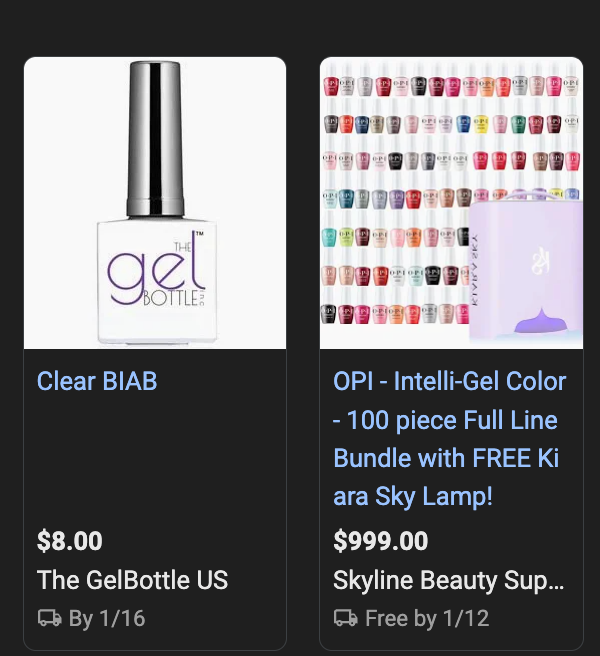
Estimated delivery annotations display a specific arrival date, so buyers know when to expect the order rather than just a speed range.
Example
“Delivers by 1/12”
Requirements
- Accurate transit times in your shipping settings.
- Handling time defined so total delivery duration is correct.
- Carrier-supported timing that matches real‑world performance.
Why Google Prefers This
Concrete dates tend to be easier for shoppers to understand than generic labels like “fast shipping,” and they support clearer expectations.
Warning
When estimated dates repeatedly miss the mark, the system can stop showing these annotations until performance improves.
How Google Chooses Which Badge to Show?
Google limits how many callouts appear at once and picks combinations it expects will drive the best outcome for that search moment. The choice responds to query type, audience behavior, competition, and device, and can shift many times per day.
- User Intent Comes First
Google looks at what seems most important for the searcher in that moment. For cost‑focused searches, savings callouts like sale price or price drop get more weight, while urgent queries lean toward delivery promises or date estimates. The visible badge lines up with the factor most likely to push that user to click then and there.
- Historical Performance Signals
When certain badge types repeatedly lift CTR or conversions for your items, the system learns to favor those patterns more often. Past data at both product and account level influences which annotation gets surfaced on future impressions.
- Visual Simplicity Rule
Google keeps the product card clean, because stacking too many icons and labels makes results harder to scan. Even when multiple annotations qualify, you usually see just one main badge or a tight pairing rather than a cluttered block of messages.
- Trust and Reliability Filters
Badges tied closely to trust—such as store quality marks, reviews, or returns—show up only when Google has strong confidence in the underlying data. If your pricing or shipping details swing too much, the system may hold back on promotional callouts altogether to protect user experience.
- Competitive Context
Badge choice also depends on how other sellers present similar products in the same auction. If many rivals already highlight free delivery, Google may lean harder on price drop or savings annotations; if prices match closely, it might push delivery speed or rating signals to differentiate you.
- Device and Placement Logic
On smaller mobile layouts, Google tends to showcase one or two obvious badges, such as price drop or delivery date. On desktop, there is a bit more room, yet the logic still focuses on a small set of high-impact cues rather than every possible annotation.
- Eligibility Is Continuous, Not Fixed
Eligibility is checked on an ongoing basis rather than approved once and left alone. A badge can appear for a while and then vanish if:
- Your historical price pattern shifts
- Shipping performance drops.
- Product pages no longer match submitted feed data.
- Promotions end or fail policy checks.
Google keeps adjusting which badges show, so merchants need steady feed and operational discipline, not one‑time fixes.
Google shows the badge it believes will create the strongest chance of a click and purchase for each individual impression. The more dependable, consistent, and shopper‑focused your feed inputs are, the more you influence which annotations end up front and center.
Example
If a product has:
- Sale price
- Free shipping
- Fast delivery
Google may show:
- Sale price + delivery date
Not all three.
How Annotations Impact Shopping Feed?
Shopping leans heavily on product data and associated signals to decide which offers deserve budget and where to show them. Annotations:
- Help the system pick stronger items from your feed to increase the number of auctions.
- Increase engagement with individual assets to help the algorithm learn faster.
- Cut down on impressions that never had a real chance to convert.
- Feed better data into conversion modeling and bidding.
Badges effectively act as quality hints that Performance Max can use to favor certain combinations of product, audience, and creative.
Common Annotation Mistakes That Kill Eligibility
- Differences between feed prices and what’s shown on the product page.
- Artificial or repeatedly recycled discounts.
- Wrong or incomplete shipping rules in Merchant Center.
- Missing or incorrect GTINs and identifiers.
- Return rules that clash across products or pages.
- Promotions that do not line up with final checkout totals.
Google usually reacts by quietly removing eligibility rather than sending a loud alert, so problems can linger if you do not monitor closely.
Best Practices for Annotation Optimization
- Keep prices reasonably steady and avoid manipulative swings.
- Align your product pages with feed values at all times.
- Populate GTINs wherever they exist.
- Check Merchant Center diagnostics on a regular schedule.
- Group fast-shipping SKUs for easier bidding and promotion.
- Use promotions for real events and pushes, not as a constant default.
How Annotations Fit Into Full Feed Optimization
Annotations sit on top of overall feed quality; they do not replace core optimization work. They do not replace:
- Careful title structuring.
- Correct product categorization.
- Strong, clear images.
- Complete and accurate attributes.
They work as multipliers that amplify a well-built feed, not as a shortcut around basic setup.
Conclusion
It is not the budget that causes most Shopping ads to underperform. As a result, they underperform because the feed isn’t designed for visibility.
At Hustle Marketers, our goal is to simplify what really matters. An excellent pricing history. Accurate shipping. Correct promotions. Strong product trust signals. Ensure that Google displays the right badges at the right time.
No hacks. No noise. From the same budget, we deliver more clicks, better conversion rates, and sustainable growth.
If your Shopping listings look plain, but others stand out, it isn’t your ads. That’s the feed behind them.
Find out how to fix that at www.hustlemarketers.com.