How to Set Up Bing Merchant Center?

Ishant
Published : February 15, 2026 at 6:28 pm
Updated : February 11, 2026 at 8:11 am
Ishant
Here’s something most ecommerce brands still ignore.
Bing, owned by Microsoft, now controls close to 38% of desktop search traffic in the US. It reaches more than 1.4 billion users every month and attracts shoppers who spend more per order. Yet most ecommerce brands still treat Bing Merchant Center as an optional channel instead of a serious revenue source.
That oversight has created a clear opening. Brands that move early are capturing traffic at a fraction of the cost of Google Shopping, often paying cents per click rather than dollars.
This shift did not happen overnight. It accelerated because of:
- AI-powered search through Copilot and Bing Search
- Microsoft Shopping Ads
- The Microsoft Audience Network
- Native Shopping placements across Outlook, MSN, Edge, and Windows devices
Together, these changes have turned Bing Merchant Center into one of the most overlooked revenue systems in 2026.
If your store is not present, you are losing sales. This is especially true in categories like home improvement, automotive, luxury goods, jewelry, beauty, tools, electronics, and B2B equipment, where Bing users show strong buying intent.
This guide explains exactly how to set up Bing Merchant Center step by step. It also explains how to optimize it correctly and how to avoid the mistakes that leave many feeds stuck in disapproval for weeks.
Let’s begin.
What Is Bing Merchant Center?
Bing Merchant Center is Microsoft’s platform that stores and manages your product data. This data powers where and how your products appear across Microsoft’s shopping ecosystem.
Your products can show across:
- Bing Shopping
- Microsoft Search Network
- Microsoft Audience Network
- Windows Search
- Outlook and MSN placements
- Copilot AI commerce surfaces
In terms of functionality, it is similar to Google Merchant Center. In practice, it feels cleaner, easier to navigate, and faster for indexing and approvals.
Inside Bing Merchant Center, you can:
- Upload and manage product feeds
- Sync products directly from Shopify, BigCommerce, or WooCommerce
- Fix feed errors and missing attributes
- Control price and availability updates
- Add brand and store information
- Connect feeds to Microsoft Ads Shopping campaigns
- Create and manage promotions
- Run dynamic remarketing
- Track product impressions and conversions
If you want your products to appear in Bing Shopping Ads, you must have an approved feed inside Bing Merchant Center. There is no workaround for this.
Why Bing Merchant Center Matters More Than Ever in 2026
The ecommerce advertising landscape shifted in 2026. This is the biggest change since the early days of Google Shopping. Three major changes explain why Bing Merchant Center now matters more than ever.
1. Bing’s User Growth Exploded Because of Copilot and Windows Integration
Every new Windows 11 device now comes with Microsoft Copilot built directly into the taskbar. Users no longer open a browser and search. Search is already there.
Product discovery now happens through:
- Copilot questions
- Windows search panels
- MSN homepage product suggestions
- Outlook shopping placements
All of these surfaces pull product data from Bing Merchant Center.
If your products are not listed in Bing Merchant Center, Copilot does not show them. There is no visibility without the feed.
2. Bing Has the Highest-Income Users of Any Search Engine
Bing dominates corporate desktops. It is the default search engine across offices, financial firms, hospitals, real estate teams, and enterprise environments.
These users spend more.
Data across ecommerce accounts consistently shows that the average Bing Shopping customer spends around 76% more per order than the average Google shopper.
Your presence in the Bing Merchant Center determines whether your products reach this audience.
3. CPCs Are 40–70% Cheaper Than Google Shopping
Across Hustle Marketers’ ecommerce accounts, the difference remains consistent. Google Shopping clicks cost the most and fluctuate widely due to competition.
Bing Shopping clicks cost 40-70% less and are more stable, making scaling easier. When Google Shopping turns into a bidding war, Bing Merchant Center becomes the simplest second channel for profitable growth.
4. Many Google Disapproved Products Get Approved on Bing
Microsoft applies a different review approach.
- Some sensitive categories face stricter checks
- Most retail categories face more flexible rules
Because of this, many products rejected by Google are approved by Bing without changes. This opens inventory that otherwise stays invisible.
5. Bing Shopping Visibility Improves Microsoft Ads Performance
Your product feed powers:
- Shopping Ads
- Dynamic remarketing
- Performance Max style campaigns
- Audience Network dynamic placements
A weak feed limits every campaign type. A clean, optimized feed enables campaigns to scale.
Bing Merchant Center directly affects your entire Microsoft Ads account structure.
Bing Merchant Center vs Google Merchant Center
Most comparisons oversimplify this topic. On the surface, Bing Merchant Center and Google Merchant Center look similar. Once campaigns scale, the differences become obvious.
These differences affect approvals, cost-per-click, product reach, and return on ad spend.
| Feature | Google Merchant Center | Bing Merchant Center |
| Setup complexity | Lower (After GMC Next) | Higher |
| Feed approval | Strict | More flexible |
| Disapprovals | Aggressive | Moderate |
| Cost | High | Cheaper |
| Audience | Universal | High-income, desktop-heavy |
| AI Commerce | Limited | Expanding via Copilot |
Requirements Before Setting Up Bing Merchant Center
Before you upload a single product, Microsoft checks whether your business foundation is solid.
Bing Merchant Center is easier than Google, but it still expects consistency and clarity. Missing basics lead to verification delays, feed disapprovals, or full account holds.
Below is a clear checklist to ensure everything is prepared correctly.
1. A Fully Functional Website That Meets Microsoft Shopping Policies
Microsoft reviews your website before approving your store.
Your site must include:
- Working pages with no broken checkout or links
- Product pages that clearly show pricing
- Accurate stock availability
- Secure HTTPS checkout
If your site feels unfinished or unstable, Microsoft pauses verification.
2. Transparent Business Information Available on Your Website
Microsoft requires visible trust signals.
Your website must display:
- Business name
- Physical address or registered office
- Active customer support email
- Working phone number
Missing contact details remain one of the fastest ways to get rejected.
3. Shipping Policies That Match Your Feed
Your website and product feed must follow the same shipping rules.
Microsoft checks:
- Delivery timelines
- Shipping costs
- Regional restrictions
- Consistency between site and feed
If your feed says three-day delivery, but your site shows seven to ten days, Bing disapproves the listings.
4. Clear Return and Refund Policy
Microsoft wants customers to know what happens after purchase.
Your policy must clearly explain:
- Return window
- Refund eligibility
- Return conditions
- Exchange rules
- Contact method
Unclear or missing policies immediately increase rejection risk.
5. Verified Domain Ownership in Microsoft Advertising
Before linking a store, Microsoft must confirm domain ownership.
Verification options include:
- UET tag placement
- XML file upload
- Meta tag insertion
- DNS update
This step links your site with Microsoft Ads and is mandatory.
6. A Microsoft Ads Account With Billing Setup
Even if you plan to start with free listings, billing must be complete.
You need:
- Microsoft Ads account
- Billing profile
- Verified payment method
- Country and currency set
Without billing, Shopping campaigns remain locked.
7. Product Feed Ready for Upload or Sync
Prepare all required feed attributes:
- Product titles
- Descriptions
- Brand, GTIN, or MPN
- Price
- Sale price if applicable
- Product category
- Image URLs
- Availability
- Shipping attributes
Missing or incomplete data leads to immediate disapproval.
8. High-Quality Product Images That Follow Microsoft Guidelines
Your images must:
- Look clear and professional
- Avoid watermarks or overlays
- Show the product accurately
- Use correct dimensions
- Load without redirects
Microsoft rejects unclear or altered images quickly.
9. Compliance With Microsoft Store and Product Policies
Your catalog must avoid violations related to:
- Prohibited items
- Adult content
- Legal and safety rules
- Branding accuracy
High-risk categories receive deeper manual review.
10. Consistent Pricing Between Feed and Website
Microsoft compares pricing across:
- Product feed
- Landing page
- Checkout page
Even small mismatches cause rejections.
How to Create or Claim Your Store in Bing Merchant Center
Once your website and policies meet Microsoft’s requirements, the next step is to create or claim your store inside Bing Merchant Center. This step is critical. Your product catalog, feed approvals, and Shopping campaigns all live here. Even if you already advertise on Google, Microsoft requires its own store setup and verification.
Below is a clean, step-by-step walkthrough.
1. Log in to Microsoft Advertising
Go to: ads.microsoft.com. Navigate to left navigation, open Tools and select Merchant Center
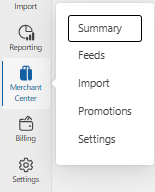
Before moving forward, make sure you have:
- A Microsoft Ads account
- Billing fully set up
- Correct timezone and currency selected
Timezone and currency cannot be changed later, so confirm them carefully.
2. Choose “Create New Store” or “Existing One”
After opening the Merchant Center, Microsoft gives you two options.
A. Create a New Store
Choose this if:
- You have never used Bing Shopping
- Setting up a new brand or domain
- No existing store exists
This option is common for new advertisers.
B. Claim an Existing Store
Choose this if:
- A store already exists for your website
- You need ownership or admin access
- Taking over an account
Microsoft requires proof of ownership before allowing a store to be claimed.
3. Enter Store Information
Microsoft now asks for basic store details to identify and verify your business.
You must provide:
- Store name
- Website URL
- Country of sale
- Short store description
- Business contact information
All details must match what appears on your website. Any mismatch leads to manual review delays.
4. Accept Microsoft Shopping Policies
Before approving your store, Microsoft checks compliance.
They review:
- Product authenticity
- Legal compliance
- Customer support clarity
- Secure checkout experience
You must confirm that all listed products follow Microsoft Shopping policies.
5. Verify Website Ownership
Products cannot go live until your domain is verified. Microsoft provides four verification methods.
Option 1: UET Tag (Recommended)
If you already run Microsoft Ads:
- Install the UET tag on your website
- Microsoft auto-verifies your domain
This method also enables conversion tracking and remarketing.
Option 2: Meta Tag Verification
Microsoft gives you a unique meta tag.
Add it inside your website header:
<meta name=”msvalidate.01″ content=”YOUR_CODE_HERE” />
Return to Merchant Center and click Verify.
Option 3: XML File Upload
Microsoft provides an XML file.
Steps:
- Upload the file to your root domain
- Confirm the file is accessible
- Click Verify inside Merchant Center
Option 4: DNS Verification
Add a TXT record to your domain DNS.
Example:
TXT ms=12345678
This option takes longer but works well for headless setups.
6. Configure Your Store Settings
After verification, Microsoft asks you to finalize store settings.
Store Category
Select the closest category, such as:
- Apparel
- Automotive
- Electronics
- Home and Garden
This helps Bing understand product relevance.
Store Logos
Upload:
- 1:1 square logo
- 4:1 wide logo
These logos appear in Shopping ads and partner placements.
Shipping Settings
Define:
- Delivery zones
- Shipping costs
- Carriers and methods
- Handling time
- Estimated delivery windows
Important note:
Your website shipping information must match these settings exactly.
Tax Information (US Only)
You can choose:
- Destination-based automatic tax
- Fixed-rate tax rules
- Platform-based tax syncing
7. Enable Enhanced Listings
Enhanced listings improve visibility.
They allow:
- Reviews
- Ratings
- Sale price highlights
- Free shipping badges
- Promotional overlays
Turning these on improves click-through rate.
8. Select Product Feed Input Method
Now choose how products are entered into the Bing Merchant Center.
Select Create Feed and fill the following:
Feed Name
A simple, descriptive name.
Feed Type
Choose the appropriate option (usually Products).
Destination
Choose Online Product Ads for ecommerce.
Language
The language you want your ads to appear in.
Country/Region of Sale
Where you plan to sell your products.
Currency
The currency customers will see.
Input Method
You’ll see three methods:
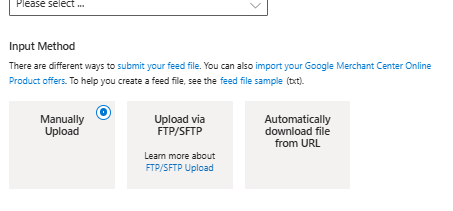
- Manual Upload: Upload the file directly from your device.
- FTP/SFTP Upload: Ideal if you use third-party tools that send feeds automatically.
- Automatically Download From URL: Add your feed URL and set the frequency. Microsoft will fetch it automatically.
Once created, your feed appears in the Feeds section of the merchant center.
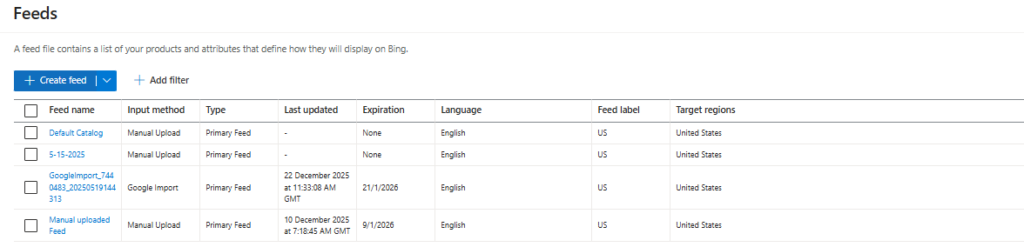
Click the feed to review:
- Approved products
- Rejected or pending products
- Any warnings that need fixing
This is where you’ll monitor what’s eligible for ads.
9. Submit Your Store for Review
After setup is complete, click: Submit for Approval
Microsoft reviews:
- Domain verification
- Store policies
- Product feed
- Images
- Shipping configuration
- Checkout flow
Approval usually takes 24 to 48 hours. Sensitive categories may take longer.
10. Start Publishing Products
Once approved:
- Products appear in Microsoft Shopping
- Shopping campaigns can go live
- Performance Max-style campaigns become available
- Free listings activate automatically
Your Bing Merchant Center setup is complete.
Types of Catalog Creation Options in Bing Merchant Center
Bing Merchant Center offers several ways to build and maintain your catalog. Each option suits a different store size and update frequency. Choosing the right method keeps your feed stable and campaigns healthy.
Below is a detailed breakdown.
Manual Upload (For Small Store Product Feeds)
Manual uploads work best for stores with small catalogs or infrequent updates.
What you can upload:
- CSV
- TSV
- XML
When to use it:
- Small product catalogs
- Rare price or stock changes
- Simple workflows
Limitations:
- No automation
- Entire feed must be replaced
- Higher error risk as catalog grows
Recurring Upload (Scheduled File Fetch)
This option pulls your feed automatically from a hosted URL.
How it works:
- Host your feed online
- Bing fetches it on a schedule
- Updates pricing and inventory automatically
Best for:
- Shopify stores
- WooCommerce stores
- BigCommerce and Magento stores
Advantages:
- Automation
- Reduced manual work
- Accurate data
FTP or SFTP Upload (Server-Based Feed Delivery)
FTP and SFTP allow secure feed delivery from internal systems.
Why brands use it:
- Higher security
- Automated exports
- ERP and PIM compatibility
Best for:
- Enterprise brands
- Large catalogs
- Stores with 50,000+ SKUs
Important note:
- File naming rules are strict
- Errors can reject the full feed
Google Import Tool (Fastest Way to Migrate From Google Merchant Center)
This tool copies your Google feed into Bing Merchant Center.
What it imports:
- Product data
- Prices
- Images
- GTINs
- Titles and descriptions
- Shipping settings
Best for:
- Active Google Shopping brands
- Agencies managing multiple platforms
- Fast setup needs
Limitations:
- • Google errors import too
- • Bing-specific optimization is still required
Content API (Real-Time Sync for Large Stores)
The Content API updates your feed instantly when changes occur.
Why it works:
- Real-time stock updates
- Instant price changes
- No feed delays
Best for:
- Shopify Plus
- BigCommerce Enterprise
- Brands with flash sales
- High-volume inventory movement
Bing Merchant Center Approval Timeline & Troubleshooting
Getting approved in Bing Merchant Center is not instant. Your store and product catalog pass through several checks before products can appear across Microsoft Shopping placements. Knowing how the timeline works helps you plan better and fix problems before they stall your account.
How Long Approval Usually Takes
Most stores fall within these timelines:
- Store verification: 24 to 48 hours
- Catalog or feed review: 48 to 72 hours
- Image and policy checks: an additional 1 to 3 days
- Full account approval: usually completed within 3 to 7 business days
If Microsoft finds any issue during these checks, the process pauses until the problem is resolved.
What Can Delay Approval
Bing slows down or rejects accounts for very specific reasons. The most common ones include:
- Missing or unclear shipping, return, or refund policies
- Product pages that do not match feed data such as price, stock, title, or GTIN
- Images that break Microsoft image rules, including small sizes, overlays, watermarks, or collage-style photos
- No clear business identity, missing About or Contact details
- Restricted or unsupported product categories
- Previously rejected items carried over from feed imports
- Checkout pages without HTTPS security
Most delays come from simple mismatches, not complex issues.
Troubleshooting Tips if Approval Is Stuck
If your approval takes longer than expected, follow these steps in order.
1. Check the Diagnostics Panel
Go to:
Merchant Center → Store → Catalog → Diagnostics
Review:
- Disapproved products
- Policy violations
- Missing GTIN or identifier issues
- Landing pages that Bing cannot crawl
This panel shows exactly where problems exist.
2. Revalidate Your Store URL
If your site fails initial verification, resubmit manually:
Store Settings → URL Verification → Re-verify
This often fixes stalled approvals caused by temporary crawl issues.
3. Fix Landing Page Mismatches
Confirm that your website matches your feed on:
- Price
- Availability
- Product title and description
Bing enforces price and value accuracy more strictly than Google.
4. Improve Policy Pages
Every store must clearly display:
- Refund policy
- Shipping policy
- Returns policy
- Contact page
- Legal business information
Missing even one of these pages can slow approval significantly.
5. Re-upload the Catalog or Trigger a Manual Review
You can restart the review process by:
- Re-uploading your feed
- Re-syncing from Google Merchant Center
This forces Microsoft to re-check your catalog.
6. Contact Microsoft Support
If everything looks correct but approval is still pending, contact:
Microsoft Ads Support → Merchant Center → Account Review Request
Support teams usually respond within 24 to 48 hours.
Why Choose Hustle Marketers for Bing Merchant Center Setup + Feed Optimization
Hustle Marketers works with ecommerce brands that want precision, not trial and error. The team focuses on building feeds that stay approved, scale cleanly, and perform consistently across Microsoft Ads.
This approach is based on real execution, not templates or shortcuts.
Below is what separates Hustle Marketers from general agencies.
1. 12+ Years of Hardcore Ecommerce Experience
The team has spent more than a decade working inside ecommerce platforms, solving feed issues, scaling Shopping ads, and adapting to policy changes. This experience leads to better feed structure, cleaner data, and faster approvals.
2. 500+ Feed Setups Across Google and Bing
Hustle Marketers has built and optimized hundreds of feeds across:
- Google Merchant Center
- Bing Merchant Center
- Shopify, Magento, WooCommerce, BigCommerce
Each feed adheres to proven taxonomy rules, attribute mappings, and error-prevention systems.
3. Experts in GTIN, Taxonomy, and Performance Max Feed Architecture
Hustle Marketers specializes in:
- GTIN validation
- Product category mapping
- Attribute enrichment
- Custom label frameworks
- Supplemental feeds
- Structured data alignment
This makes the feeds algorithm-friendly and scalable.
4. Certified Microsoft Ads and Shopping Specialists
The team understands Microsoft’s ranking signals, product graph behavior, and Shopping requirements. Bing does not behave like Google. Feeds must be optimized with that difference in mind.
5. Daily Feed Monitoring to Prevent Disapprovals
Feeds are checked every day to ensure:
- No price mismatches
- No image violations
- No policy conflicts
- No sudden product disapprovals
This keeps campaigns active without interruption.
6. Technical SEO and Feed Alignment
Product pages are aligned with feed data to improve:
- Click-through rate
- Match accuracy
- Conversion quality
- Merchant Center trust signals
A strong foundation supports better Shopping performance.
7. Always-On 24/7 Support
There are no long waits for fixes. With Hustle Marketers, the best Bing Ad agency to rescue businesses receive fast troubleshooting, direct feedback, and immediate support when issues appear.
8. Proven Results Across Ecommerce Industries
Hustle Marketers has delivered results for:
- Beauty and skincare
- Industrial B2B brands
- Home improvement
- Fashion
- Electronics
- Hobbies and collectibles
- Direct-to-consumer lifestyle brands
Where product feeds drive revenue, the team delivers.
Conclusion
Bing Merchant Center is no longer optional for ecommerce brands that want profitable scale in 2026. When feeds are built correctly, monitored daily, and aligned with Microsoft Ads, the platform becomes a reliable growth engine.
Hustle Marketers gives brands an edge by removing guesswork. The team builds feeds that rank, convert, and stay stable under pressure.
With more than 15 years of ecommerce experience, over 300 feed setups, and proven 1500% ROAS systems, Hustle Marketers turns Bing Merchant Center into a revenue-generating system rather than a technical burden.
Frequently Asked Questions
What is Bing Merchant Center and why do ecommerce brands need it?
How long does it take to get approved on Bing Merchant Center?
What product feed attributes are mandatory for Bing Shopping ads?
Can I import my Google Merchant Center feed into Bing Merchant Center?
What common mistakes cause disapproval in Bing Merchant Center?
How often should I update or sync my Bing product feed?
What is the difference between manual and recurring feed uploads?