Google Ad Grant Requirements: Eligibility and Application Checklist

Ishant
Published on November 7, 2026
Ishant

A current, evidence-based guide to deciding whether your nonprofit can apply, preparing a policy-ready website, completing Goodstack verification, submitting the activation request, and fixing the right problem if a stage is rejected.
By Ishant Sharma, Founder of Hustle Marketers | Policy checked September 3, 2026 | About 35 minutes to read
Summarize this article with:
Key Observations
A nonprofit meets the Google Ad Grant requirements when it meets country-specific charitable-status rules, passes Goodstack verification, controls a secure and substantial mission-focused website, and submits a separate Ad Grants activation request. Do not create a Google Ads account first. Google provides the grant account after approval. Save evidence at every gate so a rejection can be diagnosed correctly.
If the Ad Grants card says “Your activation request needs work”, open Learn more to see what Google asks you to change. In our Australian charity case, the notice specifically cited website policy, so a whole-site audit was the right response. See that case and its fixes below.
The Google Ad Grants eligibility and application process has four approval gates. Legal eligibility does not prove website readiness, and Google for Nonprofits approval does not automatically activate Ad Grants.
This distinction matters because many application guides mix old and current instructions. Some still send applicants to a former validation partner. Others tell nonprofits to create an empty advertising account, enter billing details, or build campaigns before approval. Following those instructions can waste time and make access harder to untangle.
This guide focuses narrowly on eligibility and activation. A separate Hustle Marketers Google Ad Grants guide explains how the program works after approval. Campaign maintenance, keyword rules, bidding, conversion policy, and suspension prevention deserve their own operating process and are only summarized here.
Contents
- The four approval gates
- Pass, fix, and evidence matrix
- Who is eligible
- US edge cases
- Information and documents
- Website requirements
- Donations and commerce
- How to apply
- Timelines and approval emails
- Rejection troubleshooting
- “Needs work” fixes and case
- P0-P5 remediation order
- Outdated advice to ignore
- FAQ
- Post-approval handoff
- Research method and sources
The four gates in the Google Ad Grants approval process
Think of the application as four yes-or-no decisions. A failure at one gate should not be repaired by changing something that belongs to another gate. For example, rewriting the homepage will not fix an unrecognized legal registration, while uploading another registration document will not repair broken navigation.
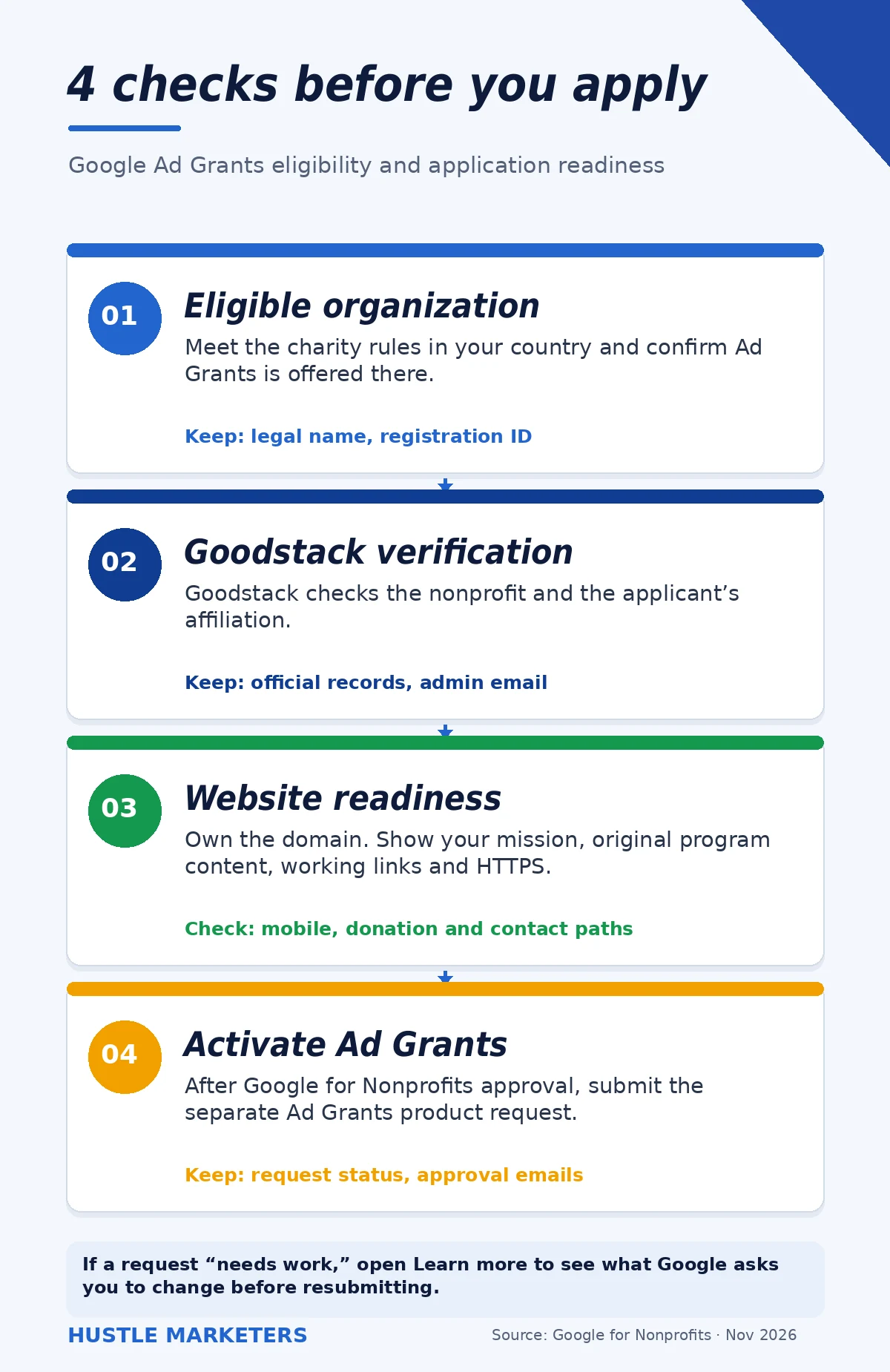
Gate 1: eligible legal organization and location
Under Google’s current country and organization eligibility guidelines, the organization must be registered as a charitable organization in a country or region where Google for Nonprofits is available. It must meet the specific recognition requirements shown for that location and agree to Google’s additional terms. Product availability can differ by location, so the relevant check is not only whether Google for Nonprofits exists there, but whether Ad Grants is available in the nonprofit’s account.
The same official eligibility page excludes government entities, hospitals and health care organizations, and schools, academic institutions, and universities as organization types. It notes important exceptions for separately qualifying charitable foundations or arms connected to health care and educational institutions. A cause-related project, informal community group, or commercial social enterprise is not eligible merely because its work benefits the public.
Gate 2: Goodstack verification and applicant affiliation
Google’s current validation partner is Goodstack. Goodstack verifies legal and programmatic information about the organization and may ask for documents. It also checks that the person requesting access is affiliated with the nonprofit. Those are related but different questions: “Does this legal nonprofit exist and qualify?” and “Is this applicant authorized to act for it?”
Use the legal name, registration or tax identifier, address, and other details exactly as they appear in the relevant registry. Monitor the inbox, spam folder, and junk folder for messages from Goodstack. A delay caused by an unanswered evidence request is not an Ad Grants website rejection.
Gate 3: nonprofit-controlled website readiness
Under Google’s website policy, the submitted site is reviewed for security, functionality, usefulness, and focus on the nonprofit’s mission. The nonprofit must own the domain in the practical sense of having administrative control over its content, structure, and technical settings. A developer, agency, or website platform can help operate it, but the nonprofit needs the authority to change it.
The review is site-wide, not a cosmetic inspection of one landing page. A polished homepage cannot compensate for unclear program pages, broken buttons, copied material, mixed HTTP content, a confusing menu, or a site built mainly to redirect visitors elsewhere.
Gate 4: separate Ad Grants activation
Google’s current Ad Grants activation instructions direct an approved Google for Nonprofits administrator to open the Ad Grants product card, enter the website, complete the welcome step, and submit an activation request. Google then makes a separate Ad Grants decision. This separation explains why an organization can be a verified Google for Nonprofits member and still need website work before receiving an advertising account.
Do not create a Google Ads account during activation. Google’s current activation instructions say the grant account will be provided at activation. Do not open a paid shell account, try to convert an existing paid account, or add billing in anticipation of approval.
Google Ad Grants application readiness matrix
Use this matrix as a working record, not as an unofficial Google scoring system. Mark a row Pass only when the condition is true and the team can point to evidence. Mark it Fix before applying when it is missing, uncertain, or contradicted by the site or registry.
| Requirement | Pass condition | Fix before applying | Evidence to save | Suggested owner |
|---|---|---|---|---|
| Supported location | Google lists the nonprofit’s country or region, and Ad Grants is available there | Do not use another country’s address or registration to bypass availability | Dated eligibility-page capture and account product screen | Executive or operations lead |
| Recognized charitable status | The exact legal entity meets its location-specific registration rule | Resolve an inactive, missing, mismatched, or ineligible registration first | Registry record, certificate, determination letter, or applicable equivalent | Legal or finance lead |
| Eligible organization type | The applicant is not an excluded entity, or a separately qualifying charitable arm can document its own eligibility | Do not apply through an excluded parent entity | Entity formation and relationship documents | Executive lead |
| Applicant affiliation | The requester can demonstrate an authorized relationship with the nonprofit | Use an appropriate organization contact and gather proof requested by Goodstack | Role confirmation, organization-domain email, or other requested evidence | Primary administrator |
| Accurate organization data | Name, address, country, and ID match official records | Correct spelling, abbreviations, old addresses, or duplicate records | Submitted values beside the current registry record | Primary administrator |
| Domain control | The nonprofit can edit content, navigation, forms, redirects, and technical settings | Recover administrator access and document vendor responsibilities | CMS role, DNS or hosting access, and ownership statement | Website owner |
| HTTPS everywhere | All public pages and assets load securely without mixed-content warnings | Install or renew certificates, redirect HTTP, and repair insecure assets | Browser tests and crawl export | Developer |
| Clear mission and status | A visitor can identify the organization, purpose, people served, activities, and nonprofit status | Replace vague slogans with specific mission, program, and trust information | URLs for home, about, mission, program, contact, and accountability pages | Content lead |
| Substantial original content | Core information is useful, unique, current, and available as accessible web content | Expand thin pages and add context around PDFs, videos, feeds, or external links | Content inventory with review date and responsible expert | Program and content leads |
| Navigation and functions | Menus, links, forms, contact paths, and donation buttons work on desktop and mobile | Repair errors, dead ends, inaccessible controls, and confusing labels | Manual test log and broken-link report | Website owner |
| Mobile experience and speed | Important pages remain readable, usable, and reasonably responsive on common devices and connections | Compress images, simplify scripts, repair layout shifts, and test real actions | Dated PageSpeed Insights results plus manual device tests | Developer |
| Mission-first commercial balance | Donations or limited mission-related sales support the mission rather than replacing it | Remove excessive advertising, unrelated sales, affiliate-first routing, or unclear financial purpose | Revenue-page review and secure checkout tests | Executive and website leads |
| Activation account path | The team will use Google for Nonprofits and let Google provide the grant account | Stop any attempt to pre-create, convert, or bill an Ads account | Administrator email and dated activation record | Primary administrator |
Copy these rows into a project tracker and add Status, Evidence URL, Owner, Due Date, and Retest Date columns. Evidence makes handoffs easier. It also prevents a team from resubmitting the same uncorrected site because one person assumed another person had fixed it.
Who is eligible for Google Ad Grants?
An organization must first be eligible for Google for Nonprofits under its country or region rules. Google’s country-specific eligibility page is the source of truth. Select the correct location and read its registration requirement instead of assuming that US 501(c)(3) language applies globally.
The general eligibility test
A likely eligible applicant can answer yes to all of these questions:
- Is the applying entity a currently registered charitable organization in a supported location?
- Does that exact entity satisfy the location-specific form of recognition Google lists?
- Can Goodstack verify both the organization and the applicant’s affiliation?
- Is the organization outside Google’s generally excluded entity categories?
- Can it agree to Google for Nonprofits and product-specific terms?
- Is Ad Grants currently available to it in the Google for Nonprofits dashboard?
Do not publish or rely on a static count of supported countries. Google can change availability, and not every Google for Nonprofits product is offered in every location. A current dashboard and the live eligibility selector are stronger evidence than an old marketing article.
Organization types Google generally excludes
Government entities and organizations are not eligible. Hospitals and health care organizations are not eligible as the operating institution. Schools, academic institutions, and universities are also excluded. These groups may have access to other Google programs, but that does not turn them into Ad Grants recipients.
Google states that charitable arms or foundations associated with health care organizations may qualify, as may philanthropic arms of educational organizations. The important word is qualify. The arm should be a separately eligible charitable organization with the required registration and verification, not merely a department using the parent’s name.
Nonprofit mission is necessary but not sufficient
Community benefit, responsible business practices, or a promise to donate profits does not by itself create eligible nonprofit status. Likewise, an unincorporated campaign cannot borrow a partner’s eligibility without fitting an approved legal relationship. Google and Goodstack evaluate the applying entity, not only the merit of its cause.
Country-specific check: Record the exact eligibility language, registration ID used, and date reviewed. If the organization operates internationally, apply through the actual eligible legal entity. Do not mix one entity’s registration with another entity’s website or administrator details.
United States eligibility: chapters, fiscal sponsors, group exemptions, and churches
The following details apply only to organizations using the United States eligibility route. They should not be generalized to charities in other countries.
Standard US 501(c)(3) route
Google’s US eligibility guidance requires an organization to be registered with the IRS as exempt from federal income tax under Section 501(c)(3), or to qualify through the group-exemption route described below. Check that the exact legal name and employer identification number can be matched to current IRS records.
Group-exempt organizations
A group-exempt organization may still qualify. Google’s US group-exemption guidance says it should supply its own EIN, its group exemption number, and documentation proving affiliation with a central organization that has 501(c)(3) status. After verification, the organization can activate products independently from other organizations sharing the exemption.
Local chapters or branches
A local chapter that is not a separate legal entity and uses its parent’s exemption may be eligible. Google’s US chapter guidance says the chapter should use the parent organization’s 501(c)(3) documentation and be officially recognized as a branch or chapter by that central organization. Prepare the relationship evidence before Goodstack asks for it.
Fiscally sponsored projects
Under Google’s current US fiscal-sponsorship rules, a fiscally sponsored organization without its own 501(c)(3) status, and not covered by group exemption, is not eligible. The existence of a fiscal sponsor does not automatically pass the sponsored project through Google’s entity check. Do not present the sponsor’s documents as though they belong to the project.
Churches and other automatically tax-exempt organizations
Some US organizations, including certain churches, may be treated as tax exempt under federal law without applying for an IRS determination. Google sets a narrower program condition: its current US tax-exempt-organization guidance says an applicant must obtain IRS recognition of 501(c)(3) status and appear in the IRS tax-exempt listing, unless it qualifies through the recognized group-exemption route. “A church is automatically eligible” is therefore unsafe advice.
If any legal-status point is uncertain, consult an appropriately qualified nonprofit or tax professional. This guide explains Google’s published program conditions but does not determine an organization’s legal or tax status.
What information and documents should a nonprofit prepare?
The universal starting point is the registration or tax identifier appropriate to the selected country and accurate organization information. Goodstack can request more evidence based on the entity, jurisdiction, public registry data, and applicant relationship. There is no honest one-size-fits-all document list.
Match the official record exactly
Prepare the organization’s legal name, registered address, country, registration or tax ID, website, and authorized contact. Compare each value with the official registry before submission. A trading name or familiar abbreviation may be valid branding but still fail an automated or manual match against the legal record.
If the address changed, determine whether the registry should be updated before applying. Do not improvise a current address in one field while leaving older details everywhere else. Inconsistent records can make both entity verification and later access recovery harder.
Create a practical evidence folder
The following items are preparation recommendations, not a claim that Goodstack requires every document from every applicant:
- Current registry record or official lookup URL.
- Registration certificate, IRS determination letter, or local equivalent where applicable.
- Evidence for a group exemption or chapter relationship when using the US route.
- Proof of the applicant’s role or affiliation if requested.
- The exact legal name, address, ID, website, and administrator email submitted.
- Evidence that the nonprofit controls the domain and content-management system.
- Screenshots or exports showing the application date, status, and later decisions.
- A record of messages from Google and Goodstack, including responses and attachments.
Use an organization-controlled administrator
Choose a durable Google account that the nonprofit controls and can recover. An outside consultant can assist, but should not become the only person able to receive decisions or administer the product. Google’s activation instructions associate the same username used for Google for Nonprofits with the Ad Grants account and explain that additional users can be invited after activation.
As a governance practice, maintain at least two trusted administrators once access is available. This is a resilience recommendation from Hustle Marketers, not a stated Google approval requirement. Document who owns recovery methods, who monitors policy messages, and how access will be removed when staff or vendors leave.
Google Ad Grant requirements for your website before applying
Google’s Ad Grants website policy asks whether the site is a credible, useful destination for a person who clicks an ad. It does not publish a universal minimum number of pages, words per page, PageSpeed score, or loading time in seconds. Replace invented thresholds with evidence of real quality and functionality.
Own and administratively control the destination domain
The nonprofit must own the domain or domains its ads point to. In Google’s explanation, ownership means administrative control over content, structure, and technical settings. The site does not need a .org ending. A .com, .ngo, .foundation, country-code domain, or another top-level domain can qualify when the nonprofit controls it and the site meets policy.
A social media profile, directory listing, marketplace page, or event platform is not a substitute for a nonprofit-controlled website. If an outside service processes donations or registrations, send an ad visitor first to a substantial mission page on the approved nonprofit domain. That page can explain the action and link to the provider when appropriate.
Publish substantial, original, mission-related content
A reviewer and a first-time visitor should be able to understand what the nonprofit does, whom it serves, where or how it works, and what someone can do next. Core pages should contain original information from the organization, not copied cause descriptions or generic text that could describe any charity.
Useful content often includes a developed homepage, about or mission page, program and service pages, contact information, impact or accountability evidence, and clear action pages. A complete nonprofit website checklist can help the team review the broader experience without treating an arbitrary page count as policy.
PDFs can support transparency, but they should not carry the entire burden of explaining the mission or programs. Summarize important information in accessible HTML, then offer the report or form as a download. The same principle applies to embedded videos, social feeds, maps, and link collections: add context that helps the visitor understand why the material matters.
Make mission, activities, and nonprofit status obvious
A vague statement such as “creating a better tomorrow” does not explain the work. Name the problem, population, activities, geography when relevant, and intended outcome. Describe current programs with enough operational detail that a person can decide whether a service, volunteer role, resource, partnership, or donation path fits.
Google’s current guidance recommends including a nonprofit registration number or tax ID and/or an annual report. Place trust information where people can find it, and keep the legal identity consistent with the application. Do not fabricate impact figures or publish personal beneficiary data merely to make the site look substantial.
Provide logical navigation and working functions
Test every primary menu item, button, form, donation path, and contact route. Check common mobile widths as well as desktop. A button that looks correct but does nothing is a failure. So is a navigation label that sends visitors somewhere unrelated to what it promises.
Repair broken internal and external links, empty pages, placeholder text, expired events that trap users, and loops that make it impossible to return to the main site. Provide contact information appropriate to the organization. If privacy or safeguarding concerns limit public contact details, explain the safe contact method clearly instead of leaving visitors with no route.
Serve the entire site securely with HTTPS
The entire website should use HTTPS, not only the donation form. Redirect HTTP versions to HTTPS and check for mixed content, such as images, scripts, stylesheets, or embedded resources loaded over an insecure connection. Test the certificate on key pages and common host variants.
A third-party donation or payment provider should also be secure. Verify the destination before applying and again after vendor or template changes. A secure-looking lock icon does not prove that a form submits correctly, a receipt arrives, or data handling is lawful.
Make the site usable on mobile and reasonable in speed
Open the important journey on a real phone. Can a visitor read the text without zooming, use the menu, complete the form, and understand validation errors? Check contrast, visible focus, headings, labels, tap targets, and zoom behavior. Accessibility improvements often strengthen the exact qualities Google describes: clear, usable, functional experiences.
Use PageSpeed Insights to identify opportunities, but do not turn one score into an invented pass mark. Compress oversized images, remove unused plugins and scripts, use efficient hosting and caching, and retest meaningful actions. The practical question is whether the page works reliably for the people the nonprofit needs to serve.
Review the whole submitted site
Website review should cover more than the proposed advertising landing page. Crawl the public domain, sample templates, review older resources, and inspect pages linked from the header and footer. One forgotten test page, insecure asset, broken donation button, or cluster of copied program pages can undermine the site’s overall credibility.
Can the website include donations, ticket sales, memberships, or products?
Yes. Transactional content is not automatically disqualifying. Google’s current website policy specifically expects donation links to be clear, secure, and functional. It also says limited commercial activity, such as selling mission-related items, may be acceptable when commerce is not the site’s primary focus.
| Content or action | Typical readiness view | What to verify |
|---|---|---|
| Secure donation form | Generally compatible | Clear purpose, working form, HTTPS, transparent amount and receipt flow |
| Event ticket or mission program fee | Potentially compatible | Explain the event or service, relationship to mission, price, terms, and destination |
| Membership or recurring support | Potentially compatible | Define benefits, mission purpose, billing terms, cancellation, and contact route |
| Mission-related store | Review balance carefully | Commerce should remain limited and connected to mission, with financial purpose clear |
| Unrelated product catalog as the main site | High policy risk | Restore a mission-first purpose rather than using nonprofit status to support ordinary retail |
| AdSense, excessive third-party ads, or affiliate-first pages | High policy risk | Remove monetization that makes sending visitors elsewhere the site’s main function |
| Broken or insecure checkout | Fail until repaired | Complete an end-to-end test and repair security, errors, disclosures, and receipts |
Use the mission-first test
Ask what a neutral visitor would think the site exists to do. If the clear answer is explain programs, deliver services, educate the public, mobilize volunteers, raise support, and report impact, a donation or limited sales path can fit that purpose. If the clear answer is sell unrelated goods, display third-party ads, or route traffic to affiliates, nonprofit language in the footer will not repair the mismatch.
Do not remove useful action pages out of fear
Deleting donation, registration, membership, or ticket pages can make the site less useful and leave the organization unable to measure meaningful outcomes later. Improve these pages instead. Explain what the action supports, use secure technology, disclose necessary terms, provide help, and make the confirmation experience work.
How to apply for Google Ad Grants?
The current process begins with Google for Nonprofits, moves through Goodstack verification, and ends with a separate Ad Grants product activation. Interfaces can change, so use the steps below as a decision sequence and confirm button names in Google’s live Ad Grants activation instructions.
Step 1: confirm country and entity eligibility
Open Google’s eligibility page, select the correct country or region, and verify that the exact applying entity meets the listed recognition requirement. Check the exclusion categories and any local nuance. Save a dated record of the rule you relied on.
Step 2: choose the nonprofit-controlled administrator
Select the Google account that should administer Google for Nonprofits and initially receive the Ad Grants account. Record its recovery ownership. If the nonprofit already has a Google for Nonprofits account, request administrative access through the proper route rather than creating a duplicate organization record.
Step 3: request Google for Nonprofits access
Go to Google for Nonprofits, choose Get started, and provide accurate organization details. If the system locates an existing account, follow the access workflow. If the organization must be entered manually, copy details directly from its registry record and follow Google’s registration-number and manual-entry guidance.
Step 4: complete Goodstack verification
Watch for requests about legal status, current activity, or the applicant’s relationship to the nonprofit. Respond with the specific evidence requested. Google’s current Goodstack verification page identifies a goodstack.org contact address for verification messages; applicants should still rely on the correspondence and help routes on that live page.
Do not assume that silence means rejection. Check the Google for Nonprofits request status, inbox folders, and any open Goodstack request. Escalate through the correct support channel for the stage instead of opening another application.
Step 5: audit the website before product activation
Confirm HTTPS, domain control, mission clarity, original content, program detail, navigation, forms, mobile use, speed, and the commercial balance described above. Save a pass/fix/evidence matrix. Fix the highest-risk gaps before submitting the website for review.
Step 6: open the Ad Grants product card
After Google for Nonprofits approval, follow the official activation sequence: sign in with the intended administrator, choose Get started under Google Ad Grants, and enter the nonprofit-controlled website that will be used for the program. Do not detour into ads.google.com to make an account.
Step 7: complete Google’s welcome step
Google’s current flow includes a short welcome video, described as about five minutes, followed by a checkbox confirming completion. Use this material to understand the program context, then continue in the same activation path.
Step 8: submit the activation request
Review the submitted domain and administrator details, then submit the activation request. Capture the confirmation and date. Avoid making major structural changes to the site during review unless a critical security or functionality issue requires immediate correction.
Step 9: act on the decision for the correct stage
If approved, follow the account and payments-profile invitations described below. If rejected, identify whether the decision concerns entity eligibility, verification, affiliation, website policy, or account access. Repair that category before resubmitting or contacting support.
Do not prebuild the grant account. Google’s activation instructions tell applicants not to create a Google Ads account at any time during the activation process. There is no current application step for entering billing, creating a shell account, switching it to an old interface mode, or building preapproval campaigns.
How long approval takes and what happens after submission
Google publishes phase-specific estimates rather than one guaranteed end-to-end deadline. Its general getting-started page says most Google for Nonprofits requests are reviewed in 2 to 14 business days. Its Goodstack verification page says most verification requests are reviewed in 3 to 5 business days. These descriptions overlap, so they should not be added together as if they were fixed consecutive service levels.
For Ad Grants activation, Google’s current activation page says review may take several business days. A complex verification, evidence request, website rejection, holiday, access dispute, or product issue can make the full journey longer. Do not schedule a launch or fundraising deadline around a promised approval date.
| Phase | Current official wording | What the applicant should monitor |
|---|---|---|
| Google for Nonprofits request | Most requests reviewed in 2 to 14 business days | Request status, administrator inbox, spam, and evidence requests |
| Goodstack verification | Most requests reviewed in 3 to 5 business days on the Goodstack-specific Google page | Messages asking for organization or affiliation documents |
| Ad Grants activation | May take several business days | Activation status and decision email |
| Post-approval invitations | Google’s account-access guidance allows up to 3 business days after approval | Two invitations, correct administrator email, spam, and promotions folders |
Expect two invitations after approval
Google’s current account-access guidance says an approved applicant receives two additional emails: one invitation to access the Google Ad Grants account and another invitation to accept the payments profile. Accept both using the Google for Nonprofits administrator account.
The payments profile invitation can look alarming because the program is free. Accepting it is part of account access and does not mean the nonprofit will be charged for grant advertising. Do not respond by adding a personal card or building a separate paid account.
Record the Customer ID and verify the account
After access, record the 10-digit Google Ads Customer ID in the organization’s password and asset-management process. Confirm that the signed-in user is looking at the provisioned grant account. If a paid or unrelated account appears, use the account switcher rather than assuming the wrong account must be converted.
If the invitations do not arrive
Verify that the approval is final, confirm the administrator email, check inbox categories and spam, and allow the period stated in Google’s current access guidance. If the invitations remain missing, follow Google’s official Ad Grants account-access support route. Goodstack verifies the nonprofit but does not provision the product account.
Why applications are rejected and how to fix the right stage
A generic response such as “apply again” is not enough. First identify who made the decision and what was being reviewed. Then collect the evidence for that stage, make a complete correction, and document the resubmission.
Organization not found or details do not match
Compare the submitted legal name, address, country, and registration or tax ID with the official registry. Look for punctuation, suffixes, historical names, inactive status, or a parent organization entered in place of the applicant. Follow Google’s current registration-number and manual-entry guidance, and contact Goodstack for a verification problem that cannot be resolved through accurate data.
Applicant affiliation cannot be verified
Respond to the specific Goodstack request and provide appropriate evidence of the user’s relationship to the nonprofit. Do not impersonate an officer, borrow credentials, or submit a vendor relationship as though it were employment. If an agency assists, keep the nonprofit’s authorized administrator involved.
The organization already has a Google for Nonprofits account
Request administrative access to the existing organization account. Creating a duplicate can split product ownership, obscure prior administrators, and delay resolution. Use Google’s administrator-access guidance and be ready to demonstrate affiliation.
The website does not meet policy
Audit the entire submitted site against Google’s current website policy. Fix every likely issue, not only the first visible weakness. Common problem areas include thin or copied content, unclear mission, broken navigation or forms, HTTP or mixed content, poor mobile usability, slow pages, excessive advertising, unrelated commercial focus, and insecure or nonfunctional donation paths.
Do not solve a website rejection by adding filler pages or repeating the same mission sentence hundreds of times. Add material that helps a real visitor understand and use the nonprofit’s work. Recheck the homepage, about page, program pages, action pages, contact route, global navigation, and older templates before requesting another review.
Seeing “Your activation request needs work”? Open Learn more first. If Google cites website policy, the fix list below maps common issues to Google’s published requirements and a real charity case.
The account is approved but access is missing
Follow Google’s account-access guidance: check for the two post-approval invitations, confirm the administrator username, allow the current invitation window, and inspect spam or promotions folders. Then use the official support route. Do not ask Goodstack to create the Ads account, since its role is verification rather than product provisioning.
A paid Google Ads account was created
Stop before adding billing or campaign spend. Do not assume that the paid account can be converted into Ad Grants. Return to the Google for Nonprofits product activation route and follow Google’s refunds guidance and warning not to create or bill an Ads account during activation. Keep the customer IDs clearly labeled so the team does not later launch ads in the wrong account.
Can a nonprofit apply again?
Google’s website-policy troubleshooting path directs applicants with an unapproved website to update it and submit the activation request again. That is not permission to submit unchanged requests repeatedly or a guarantee of approval after a specific edit. Fix the documented category comprehensively, save evidence, and use the current review or support route shown in the account.
What does “Your activation request needs work” mean in Google Ad Grants?
The “Your activation request needs work” status means Google needs additional information or changes before approving Ad Grants. Click Learn more on the product card and follow the reason shown there. In the charity case below, the expanded notice explicitly cited the Ad Grants website policy but did not name a failing page; that called for auditing the whole site before resubmitting. The organization’s Goodstack verification status appears separately under its name.
The status appears on the Google Ad Grants card in your Google for Nonprofits account. The notice a client of ours received said: “Your organization’s website doesn’t meet the Ad Grants website policy standards. Update your website and re-submit your activation request for review.”
It added one line of advice: “Change the website to load quickly and have clear navigation. Include substantial, up-to-date content and calls-to-action.” That line is general. Charities in the Google for Nonprofits Community report the same sentence even when they believe their site already complies. In one thread, Diamond Product Expert Jason King called it “just a generic list, not necessarily the actual problem”.
Is it a website rejection or an organization rejection?
Check two statuses in Google for Nonprofits. The status under your organization’s name shows whether verification passed. The status on the Ad Grants card shows the product decision.
“Needs work” on the Ad Grants card is a product activation issue; open Learn more before choosing a fix. If it specifically cites website policy, audit and repair the site. The organization’s verification status is a separate decision.
| Where you look | Status shown | What it means | What to do |
|---|---|---|---|
| Under your organization’s name | In progress | Goodstack is still reviewing the organization | Wait and watch for Goodstack’s email |
| Under your organization’s name | Action required | Goodstack needs more information or documents | Reply to Goodstack with what it asks for |
| Under your organization’s name | Verified | The organization is approved and can activate products | Request Ad Grants |
| Under your organization’s name | Not eligible | Goodstack could not confirm the organization or your link to it | Follow Goodstack’s email before anything else |
| Google Ad Grants card | Activation request received | Google is reviewing your website | Wait for the email |
| Google Ad Grants card | Your activation request needs work | Google needs additional information or changes | Open Learn more; address the stated issue, then resubmit |
| Google Ad Grants card | Approved | Ad Grants is activated | Accept the invitations Google sends |
| Google Ad Grants card | Not eligible | The organization does not currently qualify for Ad Grants | Contact Google for Nonprofits support |
A quick tell from our own work: if your organization page lists other products with “Get started” buttons, verification is already done. Google’s Google for Nonprofits FAQ says: “Once your organization has been verified, you can activate Google for Nonprofits products.”
Why do fast, secure websites still get rejected?
Fast, secure websites still get rejected because speed is only one of the seven rejection reasons Google lists, and the notice does not say which one applied. A site can score well in PageSpeed Insights and still fail on mission clarity, missing charity details, thin pages, a commercial focus or a redirect. Google’s policy names slow load speed but publishes no target score.
Community threads show this pattern. In one October 2026 thread, a nonprofit reports scores of 94 on mobile and 100 on desktop after several rejections. In another, Diamond Product Expert Jason King found a site fast, secure and well organized, but noted: “Nothing to say it’s a nonprofit. Needs a clear statement in the footer.” Other thread titles in the same community describe a fourth and a fifth rejection with identical wording.
Which website fixes match Google’s rejection reasons?
Google’s Ad Grants website policy lists seven reasons a website is rejected. Work through all seven, because the notice will not tell you which one applied. This table pairs each reason with a check you can run yourself.
| Rejection reason (Google’s wording) | How to check it yourself | Fix |
|---|---|---|
| Insufficient unique content | Open every program page. Flag pages with one short paragraph, PDF-only content or text copied from elsewhere. | Explain what each program does, who it helps, how to access it and what it costs. |
| Unclear mission | Load the homepage on a phone. Can a stranger see who you are and that you are a nonprofit? Check the footer on every page. | Google’s fix: “Add a prominent mission statement, physical address, and Charity or Tax ID.” Use your EIN in the US or your ABN in Australia. |
| Poor navigation / broken links | Click every menu item, donate button and form. Run a link checker. | Repair or remove dead links. Make missing pages return a real 404. |
| Slow load speed | Test the homepage and one program page in PageSpeed Insights on mobile. | Compress images and remove heavy scripts. |
| Not secure (no HTTPS) | Type the http:// address. It should redirect to https:// with no browser warnings. | Fix the certificate and any mixed content. |
| Disallowed commercial activity | Read the homepage and service pages as a stranger. Does the site read like a business? | Lead with the mission and free programs. Explain how fees support them. |
| Domain redirect | Type the exact address you submitted and watch where it lands. | Submit the final domain visitors land on. Google says the domain “cannot automatically redirect visitors to a different web address”. |
Program pages need the same clarity as a good landing page. The rules in our PPC landing page guide apply here too: one clear purpose, the key facts near the top and a visible next step.
Easy-to-miss problems that can keep a site in “needs work”
Google’s notice does not name these, but each one can make a charity site look unfinished, commercial or health-first. Our audit found all of them on one client’s site. Google never said which item it objected to, so the charity’s team worked through every one.
- Hidden placeholder images. The page builder had left a gray placeholder image in the homepage code. Visitors could not see it, but anyone reading the page code could. The widget was deleted.
- “Coming soon” labels. A program page carried a “Coming soon” badge. It now says “Register your interest”. Church Fuel gives similar advice about unfinished pages.
- Sales lines in blog posts. Posts promised “immediate capacity” and “no waitlists”. That reads like a clinic’s ad, so the lines were replaced with “Talk to our team about current availability.”
- Posts about services the charity no longer offered. Several blog posts still promoted a therapy the charity had stopped providing. They now redirect to the therapy overview page.
- Clinical topics on a charity site. Posts on adult ADHD diagnosis, ADHD medication shortages and autism assessment wait times made the site look more like a health provider. They were removed.
- A vague revenue claim. A line about where all revenue goes was replaced with a precise sentence about fees and surplus on each paid service page.
- A broken charity register link. The register button on the About page opened a different charity’s record. It now opens the correct one.
- Charity details missing from the footer. The footer now shows both office addresses, the company and charity numbers and a link to the official charity register.
- No governance or funding information. The site gained a Governance and Financials page. The board is shown through a link to the official charity register, so no names had to go on the site.
- The wrong site language. WordPress was set to US English on an Australian charity’s site. It is now English (Australia).
- Social profiles that tell a different story. The Facebook page category included “Mental health service”, and the YouTube channel description opened with allied health services. Google’s notice says nothing about social profiles. We recommended matching both to the charity-first site as a precaution.
Can a nonprofit that charges fees or offers health services get Ad Grants?
A nonprofit that charges fees can get Ad Grants if paid work is not the main focus and the site explains how the money supports the mission. Google’s website policy says limited commercial activity “may be acceptable” but “shouldn’t be the primary focus”. Health is stricter. Google excludes hospitals and healthcare organizations, with an exception for their charitable arms.
Google’s help page on hospitals and healthcare organizations states that “charitable arms of hospitals and healthcare organizations are eligible”. The website policy also asks you to “clearly disclose how those proceeds directly support your nonprofit programs.”
For a charity that also offers paid therapy, we used three moves:
- Free community programs first in the menu and on the homepage, with paid services grouped under their own menu item.
- A disclosure line at the top of each paid service page, for example: “Occupational therapy is a fee-supported program of our charity. Fees cover the cost of delivering the service, and any surplus helps fund our free community programs.”
- A cost line on each free program page: “Cost: Free. This program is funded by donations and by surplus from our fee-supported services.”
A clinic is a different case. In the thread above, Jason King said he “might have expected this to get rejected on the basis of the organization”. If your organization is mainly a health provider, website edits may not change the outcome.
How do you resubmit after a “needs work” rejection?
To resubmit after a “needs work” response, open Learn more and address the reason shown. If it cites website policy, complete the site checks above before sending another activation request from the same Google for Nonprofits account. An unchanged site gives the reviewer nothing new. Google’s activation guide says review may take several business days.
- Work through the seven reasons in the table and the easy-to-miss list above.
- Sign in to Google for Nonprofits and open the Google Ad Grants card.
- Enter the exact address visitors land on, not a domain that redirects.
- Watch the welcome video, tick the confirmation box and click “Submit activation request”.
- Do not create a Google Ads account while you wait. Google says: “Do not create a Google Ads account at any time during the Google Ad Grants activation process.”
- If the same notice comes back, post your site address and your list of fixes in the Google for Nonprofits Community. Product Experts there are community members, not Google employees, so treat their advice as a second opinion.
A paid Google Ads account you already run for something else does not block Ad Grants. Google’s Ad Grants FAQ says: “Your accounts will not compete with one another because Ad Grants ads are in a separate auction after paid ads.” Just never use that account as the grant account.
Case: what we changed before Google approved an Australian charity
This client is Nhanya Foundation, an Australian registered charity that runs free community programs and also offers fee-based disability and therapy services. The charity agreed to be named in this case study. Read the full Nhanya Foundation Google Ad Grants case study for the timeline, Google’s emails and the client’s verified Clutch review.
Ishant Sharma, a Google Ads specialist who has worked in digital marketing since 2013 and founded Hustle Marketers in 2020, led the Ad Grants website audit and worked through every fix with the charity’s team.
| Stage | What happened |
|---|---|
| 30 September 2026 | Google’s notice said the website did not meet the Ad Grants website policy. The organization was already verified. |
| October to early November 2026 | We audited every page and blog on the site, about 130 URLs, and worked through the fixes with the charity’s team. |
| Final checks, early November | Mobile PageSpeed Insights scored 100 on the homepage and a program page. Google Safe Browsing showed no unsafe content. http and www addresses redirected to the https site. |
| 6 November 2026 | An email from The Google for Nonprofits Team opened with “Congratulations! Google Ad Grants is activated” for the charity. |
The changes were to words, menu order and a few pages. Nobody changed the site’s design, its templates or its Google for Nonprofits record. An unrelated paid Google Ads account run by the same team stayed exactly as it was.
The honest lesson: Google never said which item failed, so we cannot tell you which fix made the difference. By the time Google approved the charity, nearly every item in this section was fixed. One blog line and the social profiles were still being updated. Treat “needs work” as a full website audit, not a speed fix.
The approval email came from The Google for Nonprofits Team (googlefornonprofits-noreply@google.com) at 15:16 IST on 6 November 2026. It opened with “Congratulations! Google Ad Grants is activated” and then said: “Follow these steps to complete your Google Ads setup.”
| Step in Google’s email | What the email says | What to do |
|---|---|---|
| Accept the invitation to a new Google Ads account | “You are the administrator of this account, and you can use it to set up and run your organisation’s campaigns.” | Click Accept and sign in with the administrator’s Google account. |
| Accept the Google Payments billing profile (separate email) | Look for a subject line like “Action required for your Google Account”. | Accept the billing profile, but do not enter card or payment details. |
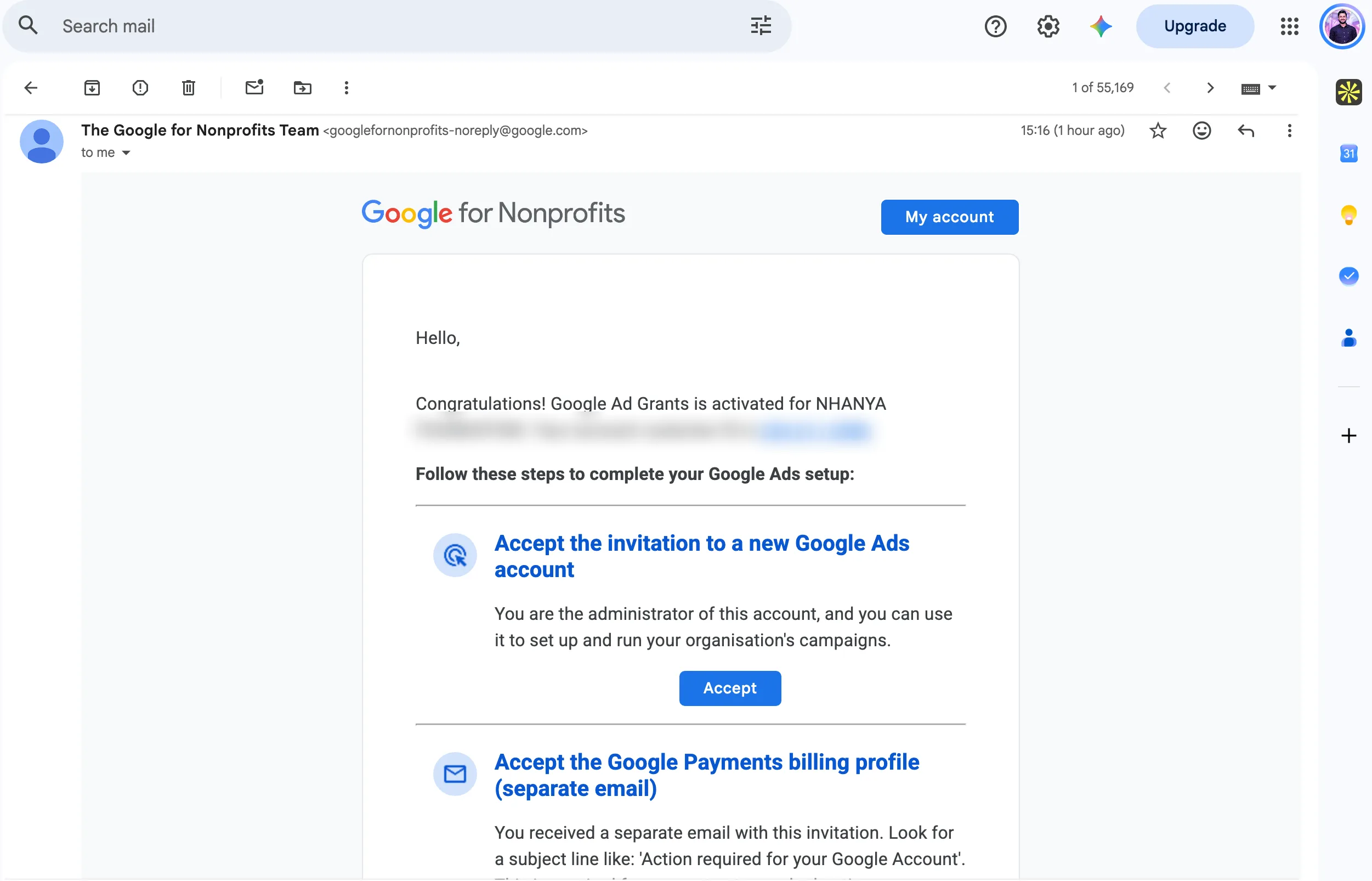
Google’s Ad Grants account help says to skip the billing section during setup and ignore any prompts to submit billing information. Check that the sender address is Google’s own before you click anything. Our section on what to do immediately after approval covers access and compliance.
Before you build campaigns, our Google Ads audit checklist covers tracking and account setup. If a grant account is ever suspended, our guide to Google Ads account suspensions explains the appeal route.
Stuck on “needs work”? Send us your site. Our team, led by Google Ads specialist Ishant Sharma, reviews it against Google’s Ad Grants website policy and sends you a prioritized fix list. Google makes the final decision.
Want help running the grant account after approval? See our PPC management pricing.
P0-P5 remediation order before reapplying
This Hustle Marketers priority model is an editorial project framework, not a Google score or official application stage. Its purpose is to stop teams from polishing low-impact details while a legal, security, or ownership blocker remains.
P0: legal eligibility and entity identity
Resolve unsupported location, ineligible entity type, inactive registration, missing US recognition, or an entity mismatch first. No amount of SEO copy or design work can make an ineligible entity eligible. For a chapter, group exemption, fiscal sponsor, church, educational arm, or health care foundation, confirm the exact route and evidence.
P1: administrator and domain control
Recover the Google for Nonprofits account, establish applicant affiliation, and confirm that the nonprofit controls the submitted domain and content system. Record the durable administrator. A website vendor’s willingness to make edits is not the same as the nonprofit having documented authority and recoverable access.
P2: security and critical functionality
Repair HTTPS, mixed content, expired certificates, broken navigation, dead forms, inaccessible buttons, and failed donation or registration flows. Test the full action from the entry page through confirmation. These defects directly undermine the secure and functional experience Google describes.
P3: mission clarity, program depth, and trust
Develop original pages that explain the mission, current activities, audience, geography where relevant, and results or accountability. Clarify nonprofit identity and contact routes. Turn essential PDF-only information into useful web content, while keeping the downloadable original when it adds value.
P4: mobile experience and performance
Fix layouts, menus, forms, contrast, image weight, third-party scripts, and template problems that impede mobile users. Use diagnostic tools and manual journeys. Do not chase an invented PageSpeed pass score while ignoring a form that cannot be completed.
P5: application evidence and handoff
Capture the final matrix, key URLs, tests, screenshots, legal details, administrator email, submission date, and responsible owners. Have a second person review the application data against the registry and the site. Then submit once the preceding priorities pass.
Resubmission rule: a P0, P1, or P2 failure is a stop condition. Finish those corrections before resubmitting. P3 and P4 work should demonstrate real visitor value, not a collection of arbitrary numbers. P5 preserves the evidence needed to diagnose the next decision.
Outdated and unsupported application advice to ignore
Search results can retain pages written for old workflows, even when a heading includes the current year. Verify any instruction that asks you to create an account, obtain a token, change billing, or meet an exact website number.
Old validator instructions
A tutorial that asks for a TechSoup validation token is obsolete for the current Google for Nonprofits process. Goodstack is Google’s present verification partner. TechSoup states that it stopped new Google for Nonprofits validations in 2023 and cannot create those former tokens.
Creating a shell or paid Google Ads account
Do not create a blank Ads account, enter billing, switch an account into a former interface mode, or try to convert an existing paid account. Google’s current activation page explicitly says not to create a Google Ads account during activation because one will be provided.
Building campaigns before approval
Older tutorials may tell applicants to create campaigns as an application requirement. The current activation sequence is website check, Google for Nonprofits sign-in, website entry, welcome video, and activation submission. Campaign design begins after the nonprofit can access the provisioned account.
Invented minimum page and word counts
Google asks for substantial, unique content but does not publish a rule such as five pages, ten pages, or 300 words per page. A short contact page can serve its purpose, while a 1,500-word program page can still be vague or copied. Evaluate whether each important page answers the visitor’s questions credibly.
Invented speed thresholds
Google tells applicants to provide a fast, mobile-friendly site and recommends PageSpeed Insights. Its website policy does not set a universal score of 50, 80, or 90, nor a two-second or three-second application cutoff. Use tool findings to make the experience better, not to claim a threshold Google does not publish.
Blanket bans on donation or commerce pages
Secure donations are expected, and limited mission-related commercial activity may be acceptable. The risk is an unrelated or sales-first primary purpose, excessive third-party advertising, affiliate routing, unclear financial information, or broken and insecure transaction paths. Review purpose and execution instead of deleting every monetary action.
Google Ad Grant requirements FAQ
Does Google tell you why your Ad Grants application was rejected?
Check Learn more on the product card for the stated reason. A website-policy notice may still be general and may not name the failing page. If Google cites website policy, audit the whole site against its published requirements before resubmitting.
Can you reapply for Google Ad Grants after being rejected?
Yes. Check the reason under Learn more, address the stated issue, then resubmit from the Google Ad Grants card. If the reason is website policy, fix the website before requesting another review. See the resubmission steps above.
How long does the Google Ad Grants review take?
Google’s activation guide says the review “may take several business days”. Verification and website issues can make the full journey longer. In our client’s case, both the rejection notice and the approval arrived by email. See how long approval takes for each phase.
Can a healthcare nonprofit get Google Ad Grants?
Hospitals and healthcare organizations are not eligible, but Google says their charitable arms are. A charity that also offers paid health services should lead with its free programs and explain on each paid page how fees support the mission.
Should you create a Google Ads account before applying for Ad Grants?
No. Google says: “Do not create a Google Ads account at any time during the Google Ad Grants activation process.” After approval, Google sends an invitation to the new grant account.
Does a paid Google Ads account stop Ad Grants approval?
No. Google’s Ad Grants FAQ says paid and grant accounts “will not compete with one another” because grant ads run in a separate auction. Keep the two accounts separate and never use the paid account as the grant account.
What to do immediately after approval
Eligibility and activation are only the entry point. A clean handoff protects access and prepares the organization to build campaigns without confusing the grant with a paid account.
Complete account access and governance
- Accept both post-approval invitations with the intended administrator.
- Record the grant account’s 10-digit Customer ID.
- Label any paid account separately and verify the account switcher before changes.
- Add another trusted nonprofit administrator as an organizational resilience practice.
- Store recovery ownership, support records, and vendor access in a controlled system.
- Remove former staff or agency users promptly when relationships end.
Separate approval from ongoing compliance
Approval does not mean the account can be left unattended. Google maintains policies for mission-based campaigns, account structure, keywords, conversions, performance, and responsiveness. Those operational rules change and should be checked against official sources inside the live account.
Keep this application checklist focused on becoming eligible and receiving access. Build a separate recurring compliance calendar for account checks. That avoids mixing a one-time website gate with weekly, monthly, and annual operating responsibilities.
Research method and official sources
This guide was written by Ishant Sharma for Hustle Marketers after mapping applicant questions and search intent, reviewing current Google and Bing results, and comparing a broad sample of nonprofit marketing and Ad Grants guides. Program requirements were taken from the official Google pages below, not from other guides.
Points that most often confuse applicants, and that this guide checks against Google’s pages: older validation instructions, pre-created advertising accounts, invented page or speed thresholds, US entity edge cases, post-approval invitations, and blanket warnings about transactional pages. The four-gate model, evidence matrix, stage-specific rejection routing, and P0-P5 remediation order are original Hustle Marketers editorial frameworks. They are not Google policies, scores, or approval guarantees.
Primary official sources
- Google for Nonprofits five-step getting-started guide
- Google for Nonprofits country and organization eligibility guidelines
- Google guidance for Goodstack verification
- Google guidance for nonprofit registration numbers and tax IDs
- Current Google Ad Grants activation instructions
- Google Ad Grants website policy
- Google for Nonprofits request-status guidance
- Google Ad Grants account-access and invitation guidance
- Google refunds page and warning not to create or bill an Ads account during activation
- Google guidance for US group exemptions, chapters, and fiscal sponsors
- Google guidance for US tax-exempt organizations and churches
- Google for Nonprofits administrator-access guidance
- Official Google Ad Grants FAQ
- TechSoup notice about its former Google validation role
Policy verification log
| Claim area | Source used | Checked | Refresh trigger |
|---|---|---|---|
| Entity and country eligibility | Google eligibility guidelines and US edge-case pages | September 3, 2026 | Before each application or jurisdiction change |
| Verification partner and timing | Google Goodstack and getting-started pages | September 3, 2026 | Before applying and after any validator announcement |
| Website policy | Google Ad Grants website policy | September 3, 2026 | Before activation, resubmission, or major redesign |
| Activation and account creation | Google activation and accidental-account pages | September 3, 2026 | At the start of every activation |
| Post-approval invitations | Google account-access guidance | September 3, 2026 | After approval or when access is missing |
Policy checked September 3, 2026. Google can change eligibility, product availability, interfaces, validation partners, review practices, and program rules. Recheck the live official pages before acting. This article is educational information, not legal, tax, technical-security, or approval advice. Hustle Marketers does not guarantee acceptance, account access, advertising delivery, or fundraising results.
Your next step
Copy the readiness matrix into your project tracker. Resolve P0 legal and entity questions first, then P1 access, P2 security and functionality, P3 content and trust, P4 mobile experience, and P5 evidence. Submit only when the exact entity, administrator, domain, and website tell one consistent story.
After the related Hustle Marketers articles are published, continue with the Google Ad Grants program guide, nonprofit SEO guide and nonprofit website checklist. Those resources cover strategy beyond this application gate.
Browse the Hustle Marketers blog for currently published search and digital marketing resources.
If you would rather have the application and the ongoing compliance handled for you, our Google Ads agency page covers how we manage Google Ads accounts, and PPC management covers the monthly upkeep the grant rules require.
Frequently Asked Questions
How to apply for Google Ad Grants?
How to get a Google Ad Grant?
Who is eligible for Google Ad Grants?
What information or documents are needed for the application?
Is Goodstack the current Google for Nonprofits verification partner?
Does a nonprofit website need a .org domain?
Can a nonprofit website accept donations or sell mission-related products?
Can schools, hospitals, or government organizations qualify?
How long does Google Ad Grants approval take?