Webflow SEO: The Complete Guide and Checklist

Ishant
Published on November 9, 2026
Ishant

Webflow SEO is the work of setting up a Webflow site so Google and AI answer engines can crawl, understand and rank it. Webflow covers a lot natively: clean code, an automatic sitemap, 301 redirects, canonical tags, alt text, Open Graph and a schema field. Your results still depend on settings, structure, content and plan limits.
Summarize this article with:
Key Observations
- The Webflow Premium site plan allows 20,000 CMS items and 40 Collections and is listed at $25 a month billed yearly, per the Webflow pricing page (checked October 14, 2026). The Basic plan has no CMS.
- A Collection list shows up to 100 items by default, and a page can hold up to 40 Collection lists, per Webflow’s dynamic content limits.
- Webflow sets no hard cap on redirects but recommends 1,000 as a best-practice maximum, per its redirect guide. A CSV import replaces every existing redirect.
- Webflow now has a schema markup field in Page settings, and it can bind CMS fields into the markup, per its schema help article.
- Google says you do not need new AI text files or special markup to appear in its AI features, per its generative AI optimization guide.
Is Webflow good for SEO?
Yes, Webflow is good for SEO for most marketing, SaaS and content sites. Webflow gives you control over titles, meta descriptions, URLs, redirects, canonicals, sitemaps and schema without plugins. Its weak spots are plan limits on CMS items, Collection list limits on a page, paid localization and slow pages from heavy interactions.
Webflow does not rank a site by itself. Google ranks pages, not platforms. A Webflow site with thin pages and broken redirects will lose to a plain site with clear, useful content.
Webflow users asked for native structured data for years. A Webflow Wishlist idea for schema support collected 388 votes from 2017 onward. Webflow has since added a schema markup field, so many older guides that say schema “requires custom code only” are out of date.
Webflow vs WordPress for SEO
Webflow and WordPress can both rank well. The difference is how you get there: Webflow builds SEO controls into the platform, while WordPress relies on plugins and your hosting choice.
| SEO area | Webflow | WordPress |
|---|---|---|
| Titles and meta descriptions | Built into Page settings; CMS templates use field patterns | Usually through an SEO plugin |
| Sitemap and robots.txt | Generated by Webflow, editable in Site settings | Core features plus plugin options |
| Redirects | Site settings, CSV import, 1,000 recommended maximum | Plugin or server rules |
| Schema | Schema markup field per page, CMS field binding, custom code | Plugins or custom code |
| Hosting and SSL | Hosted by Webflow, SSL included | Depends on your host |
| Content volume | Capped by plan (CMS items, Collections) | Limited by hosting and database |
| Multilingual | Webflow Localize with automatic hreflang | Multilingual plugins |
Choose Webflow when design control and a clean editing workflow matter most and your content fits the plan limits. Choose WordPress when you need a very large catalog or a plugin your workflow depends on.
What does Webflow do natively for SEO?
Webflow natively generates a sitemap and robots.txt, manages 301 redirects, sets global and page-level canonical tags, stores alt text on assets, and gives every page SEO and Open Graph fields. It also adds SSL, minification, a staging indexing switch, a schema markup field, an llms.txt upload and an AI audit panel.
| Feature | Where in Webflow | What to check |
|---|---|---|
| Auto sitemap | Site settings, SEO, Sitemap | Webflow updates it on every publish (sitemap guide) |
| robots.txt | Site settings, SEO | Webflow adds the sitemap address automatically; do not add it twice |
| 301 redirects | Site settings, Publishing, 301 redirects | Needs a paid Site plan or paid Workspace (redirect guide) |
| Global canonical | Site settings, SEO, Global canonical tag URL | Use https, match www, leave off the trailing slash (canonical guide) |
| Page canonical | Page settings, SEO settings | Full absolute URL; overrides the global tag for that page |
| Alt text | Assets panel or image settings | Asset alt text applies everywhere; element alt text overrides one instance (alt text guide) |
| Open Graph | Page settings | Set per page; Collection templates use fields for unique tags |
| Schema markup | Page settings, Schema markup | Validate before publishing; keep it in one place |
| Staging indexing | Site settings, SEO, Indexing | Turn off indexing of the webflow.io subdomain (indexing guide) |
| Minification and SSL | Site settings, Publishing | Minify HTML, CSS and JS; SSL comes with Webflow hosting |
| Custom code | Site settings and Page settings | Head and footer fields hold up to 50,000 characters each (Webflow site-level SEO) |
| llms.txt | Site settings, SEO, LLMs.txt | UTF-8, under 100 KB; optional |
| Audit panel | Left toolbar, Audit | Flags missing alt text, meta titles, meta descriptions and schema |
The “clean code” claim is mostly about control. Webflow writes the HTML from your design, so semantic tags and one H1 per page are your job in the Designer. Check heading tags on every template before launch.
What can Webflow not do well for SEO?
Webflow struggles with SEO when a site outgrows its plan limits, when a page needs more than 100 items in one Collection list, when you need many languages without the Localize add-on, and when designers stack interactions that slow pages down. Redirects also need care, because they do not cover localized subdirectories.
Webflow CMS item and Collection limits by plan
Plan limits decide how far a content program can grow. Some older articles quote a single 10,000 item cap, but the current Webflow pricing page shows different numbers by plan. Check it before you plan a large blog or a programmatic build.
| Plan (billed yearly) | Static pages | CMS items | CMS Collections |
|---|---|---|---|
| Starter (free) | 2 | 50 | 20 |
| Basic ($15 a month) | 300 | No CMS | No CMS |
| Premium ($25 a month) | Not stated | 20,000 | 40 |
| Ecommerce Standard ($29 a month) | 150 | 2,000 | 20 |
| Ecommerce Plus ($74 a month) | 300 | Up to 10,000 | 40 |
| Ecommerce Advanced ($212 a month) | Not stated | Up to 10,000 | 40 |
| Enterprise | Custom | Custom | Custom |
Source: Webflow plans and pricing, checked October 14, 2026. Webflow changes plans often, so treat this as a snapshot.
Collection list limits on a single page
A Collection list displays up to 100 items by default. You can show more with pagination or the Skip option. A page can hold up to 40 Collection lists, up to 10 nested lists, and up to three levels of nesting, per Webflow’s dynamic content limits. This matters for hub pages that try to link to every item in one place.
Localization and hreflang with Webflow Localize
Webflow Localize adds page-level hreflang tags and sitemap hreflang entries automatically, per Webflow’s localized SEO guide. Secondary locales live in subdirectories. Three details catch teams out:
- Locale routing uses 302 redirects, and Webflow says there is no native way to change that.
- 301 redirects do not apply to localized subdirectories, so /old-url and /es/old-url need separate rules.
- A custom sitemap on a localized site needs hreflang added by hand.
The pricing page lists Localize add-ons priced by number of locales: Essential at $9 a month for up to 3 locales and Advanced at $29 a month for up to 10 locales. Webflow’s SEO checklist notes that custom localized page slugs need an advanced plan.
Page speed with heavy interactions
Webflow’s own site speed guide says each interaction adds load time and that large images are the most common reason for slow pages. Reuse one interaction across elements, animate only the properties you need, and remove unused third-party scripts. Measure against Google’s Core Web Vitals targets: LCP within 2.5 seconds, INP under 200 milliseconds and CLS under 0.1. Some Webflow guides still list First Input Delay; INP is the current responsiveness metric.
How do you set up SEO fields in Webflow CMS Collections?
Webflow CMS SEO works through templates. You add dedicated fields to each Collection, then bind the Collection page’s SEO title, meta description, Open Graph tags, image alt text and schema to those fields. Every item then gets unique metadata without editing pages one by one, and editors fill the fields when they publish.
Webflow lets you define a pattern for titles and descriptions on Collection pages by inserting field values, per its SEO title and meta description guide. Fields also create unique Open Graph data for each item, per the Collection pages guide.
| Field to add | Field type | Bind it to | Note |
|---|---|---|---|
| SEO title | Plain text | Title tag pattern | Fall back to the Name field only if editors will not fill it |
| Meta description | Plain text | Meta description pattern | Write one per item; avoid a shared summary |
| Open Graph image | Image | Open Graph image | Use WebP, not AVIF, for Open Graph images |
| Main image alt text | Plain text | Image alt text on the template | Webflow’s Audit panel does not check CMS image alt text |
| Schema values | Plain text, Image, Option | Schema markup field | Reference, Multi-reference and Multi-image fields are not supported |
| Sitemap indexing | Item setting | Item details toggle | Turning it off adds noindex and removes the item from the sitemap |
The WebP advice comes from Webflow’s image conversion guide, which says AVIF has limited Open Graph support. The Audit panel gap is stated in Webflow’s SEO and AEO audit guide, so check CMS alt text yourself.
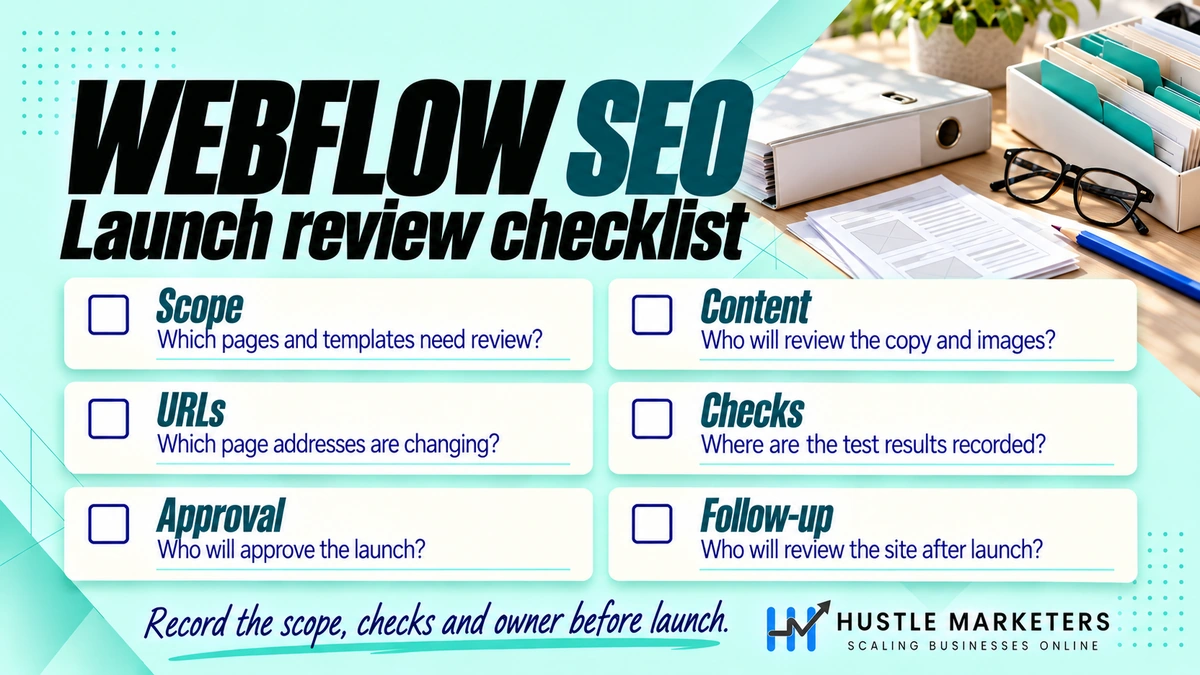
Webflow SEO checklist: step by step
A Webflow SEO checklist works best in launch order: plan structure, build templates, configure site settings, launch safely, then monitor. The table below gives each step, where it lives in Webflow and a “done when” test, so you can hand it to a designer, a developer or an editor and check the work afterward.
How to structure SEO on a Webflow site
Plan URLs before you design. Static pages can sit in folders, and Collection item pages live under a Collection URL such as /blog/post-name. Webflow page URLs support only lowercase letters a to z and numbers, per its page URL rules, and a folder cannot share a URL with a Collection. Keep one Collection per content type, such as blog posts, case studies, integrations or locations.
| # | Phase | Step | Where in Webflow | Done when |
|---|---|---|---|---|
| 1 | Plan | Map keywords to page types and Collections | Outside Webflow (sheet) | Every target query has one URL |
| 2 | Plan | Choose a plan that fits CMS items and Collections | Plans page | Projected items stay under the plan cap |
| 3 | Build | One H1 per template, logical H2 and H3 tags | Designer, element settings | Each template passes a heading check |
| 4 | Build | Use semantic tags (header, nav, main, footer) | Designer, tag settings | Main content sits in a main element |
| 5 | Build | Add SEO fields to every Collection | Collection settings | Title, description, OG image and alt fields exist |
| 6 | Build | Bind Collection page SEO and OG settings to fields | Collection page settings | Two test items show different titles |
| 7 | Build | Write static page titles and descriptions | Page settings, SEO settings | No page uses the default title |
| 8 | Build | Set alt text on meaningful images; mark decorative ones | Assets panel | Audit panel shows no missing alt text |
| 9 | Build | Convert JPG and PNG assets to WebP or AVIF | Assets panel, Compress | Largest images are converted; originals backed up |
| 10 | Build | Limit interactions and third-party scripts | Interactions panel, custom code | Key templates meet Core Web Vitals targets |
| 11 | Build | Add schema (Organization, Article, Product or other fitting types) | Page settings, Schema markup | Markup validates with no errors |
| 12 | Configure | Set the default domain | Site settings, Publishing | Sitemap URLs use the live domain |
| 13 | Configure | Set the global canonical URL | Site settings, SEO | Canonical on every page matches its live URL |
| 14 | Configure | Turn on the auto-generated sitemap | Site settings, SEO, Sitemap | /sitemap.xml lists only pages you want indexed |
| 15 | Configure | Review robots.txt rules | Site settings, SEO | No important folder is disallowed |
| 16 | Configure | Turn off staging indexing | Site settings, SEO, Indexing | webflow.io robots.txt blocks crawling |
| 17 | Configure | Minify HTML, CSS and JS | Site settings, Publishing | Options enabled and site republished |
| 18 | Configure | Noindex thank-you, search and thin utility pages | Page settings, Sitemap indexing | Those pages carry noindex and leave the sitemap |
| 19 | Launch | Import or add 301 redirects for every changed URL | Site settings, Publishing, 301 redirects | Every old URL returns one 301 to its match |
| 20 | Launch | Build a helpful 404 page | Utility pages, 404 | 404 has navigation and search or key links |
| 21 | Launch | Verify Google Search Console and submit the sitemap | Site settings, Google site verification | Sitemap status shows success |
| 22 | Launch | Connect analytics and Tag Manager | Site settings, custom code or integrations | Page views and conversions record |
| 23 | Monitor | Check page indexing and 404s weekly after launch | Search Console | No unexpected drops in indexed pages |
| 24 | Monitor | Run the Audit panel sitewide each month | Audit panel | No missing titles, descriptions, alt text or schema |
| 25 | Monitor | Refresh and merge weak pages | CMS and 301 redirects | Each page earns impressions or is merged |
Webflow’s own SEO checklist follows a similar order. The table above adds the plan check, CMS field binding and a pass test for each step.
How to migrate WordPress to Webflow without losing SEO
To migrate WordPress to Webflow without losing SEO, export every live URL, map each one to its new Webflow URL, import content into Collections, then add a 301 redirect for every URL that changes. Keep titles, content and internal links close to the original, launch, submit the new sitemap and watch Search Console for weeks.
Google says to map old URLs to new ones and to keep redirects “generally at least 1 year,” per its site move guide. Google also says medium-sized sites can take a few weeks or more before new URLs replace old ones in results.
Step 1: Export URLs and content
Pull URLs from your XML sitemaps, Search Console, analytics and a crawl. WordPress exports XML by default, and Webflow’s WordPress migration guide suggests converting it to CSV before import. Webflow accepts CSV files up to 4 MB, per its CMS import guide, so split large blogs into several files.
Step 2: Plan for Webflow URL differences
Most WordPress sites change URLs during a move. Posts often sit at the root (/post-name/), while Webflow Collection items live under a Collection folder. Webflow lets you rename the folder Collection pages live under, but it does not create redirects for you. Archives for categories, tags, authors and dates also need a decision: rebuild, merge or redirect.
Step 3: Build the redirect map
Use one row per old URL. Redirect to the closest match, not the homepage. This sample map shows common WordPress patterns:
| Old WordPress URL | New Webflow URL | Rule type |
|---|---|---|
| /how-to-price-saas/ | /blog/how-to-price-saas | Single 301 |
| /2023/05/launch-notes/ | /blog/launch-notes | Single 301 |
/category/(.*) | /blog/category/%1 | Wildcard 301 |
/tag/(.*) | /blog | Wildcard 301 (tags merged) |
/author/(.*) | /about | Wildcard 301 |
| /?p=123 | /blog/how-to-price-saas | Query string 301 (escaped) |
Webflow captures wildcards with (.*) and reuses them as %1, %2 and so on. Webflow runs redirects in the order they were added, so add specific rules before broad wildcards. Query strings must be escaped with a % before characters such as ? and =, per the redirect guide. Check the exact escape syntax there before you import.
Step 4: Import redirects and content carefully
- Export current Webflow redirects first. A CSV import overwrites all existing redirects, and one invalid row fails the whole file, per Webflow’s redirect import guide.
- Remove or rename a static page before you redirect its URL. Collection items must be archived, unpublished, deleted or renamed first.
- Re-upload key images. Images imported by CSV URL do not get responsive variants (srcset and sizes), per the CMS import guide.
- Copy each post’s SEO title and meta description into the new SEO fields.
- Rebuild internal links inside rich text so they point to new URLs, not through redirects.
Step 5: Launch and monitor
Test a sample of old URLs from every pattern on launch day. Each should return a single 301 to the right page.
Submit the new sitemap in Search Console. Compare clicks per page against the pre-launch baseline each week. If rankings fall and stay down, a Webflow SEO expert who diagnoses traffic drops can trace the cause.
Webflow SEO for SaaS sites
Webflow SEO for SaaS means using static pages for core product pages and CMS Collections for scalable page types such as integrations, use cases, comparisons, templates and blog posts. The app, docs and login screens usually live elsewhere, so canonical, robots and subdomain choices decide which content earns search visibility for the main domain.
| SaaS page type | Build in Webflow as | SEO note |
|---|---|---|
| Homepage, pricing, feature pages | Static pages | One primary query per page; keep pricing text in HTML, not images |
| Integrations directory | Collection | Write what each integration does; avoid logo-only pages |
| Use cases and industries | Collection | Real workflows and screenshots per page |
| Comparison and alternatives pages | Collection or static | Fair, dated comparisons with sources |
| Blog and guides | Collection | Answer-first sections and author fields |
| Docs or help center | Often another platform | Subfolder needs a reverse proxy; subdomain is simpler |
| App, login, signup | Outside Webflow | Keep out of the index; link to signup from marketing pages |
Webflow supports serving content under your own domain or a subdirectory through a self-managed reverse proxy, per its reverse proxy guide. Webflow advises setting a global canonical to the public site, and warns that the auto-generated sitemap and robots.txt will point to the origin subdomain if it is the default domain. Webflow support does not set up third-party proxies, so plan developer time.
For SaaS teams, our technical SEO team usually starts with the integration and comparison Collections, because each item maps to a query with clear buying intent.
How to do programmatic SEO in Webflow safely
Programmatic SEO in Webflow means generating many Collection pages from structured data, such as integrations, locations or templates. It works when each page answers a distinct query with unique, useful data. It fails when pages differ only by a swapped keyword, which Google’s spam policies describe as scaled content abuse or doorway abuse.
Google’s spam policies define scaled content abuse as many pages generated mainly to manipulate rankings rather than help users. Doorway examples include pages targeted at specific regions or cities that funnel users to one page.
Rules we follow for programmatic pages
- Start from real demand. Only build items for queries with search volume or a clear user need.
- Require unique data. Give each template at least a few fields that change meaningfully per item, such as specs, steps, prices or examples.
- Write a human intro per item. A one-line swap of the city or product name is not enough.
- Noindex thin items with the Sitemap indexing toggle until they have enough content.
- Publish in batches and check indexing in Search Console before adding more.
- Watch plan limits. Premium caps CMS items at 20,000, and hub pages show 100 items per Collection list before pagination.
For bulk work, Webflow’s Data API can create Collection items from an items array, using staged or live endpoints. Test on a staging site first.
How do you make a Webflow site ready for AI search?
A Webflow site is ready for AI search when its pages are indexable, crawlable and written so each section answers one question clearly. Google says a page must be indexed and eligible to show with a snippet to appear in its AI features, and that no special AI files or markup are required.
Google’s generative AI optimization guide says “You don’t need to create new machine readable files, AI text files, markup, or Markdown to appear in Google Search.” It recommends unique, helpful content, clear headings and crawlable pages.
- Check robots.txt in Site settings so search crawlers are not blocked.
- Open each H2 with a direct answer of 40 to 60 words that names the subject.
- Use tables for comparisons and numbered lists for steps.
- Add schema in the Schema markup field. It supports rich result eligibility, though Google says it is not required for AI features.
- Treat llms.txt as optional. Webflow’s own llms.txt guide says its impact on AI-driven search is unclear.
Webflow’s Schema markup field can generate markup with Webflow AI, but Webflow says valid schema improves eligibility for rich results without guaranteeing them. For a full program, see our answer engine optimization services and our guide to structured data for SEO.
Is there an SEO plugin for Webflow?
Webflow has no plugin system like WordPress, so there is no direct Yoast equivalent. Most SEO settings are built in, and the Audit panel flags missing titles, descriptions, alt text and schema. For more, teams add Webflow Marketplace apps, Google Search Console, an analytics tool and a desktop crawler.
| Need | Webflow SEO tool or option |
|---|---|
| Missing metadata and alt text | Audit panel (Webflow AI can fill gaps; uses AI credits) |
| Schema generation | Schema markup field, or Marketplace apps such as Schema Flow |
| Indexing and queries | Google Search Console |
| Broken links, redirects, canonicals | A crawler run against the live site |
| Speed | PageSpeed Insights and Search Console Core Web Vitals report |
Review any AI-generated title, description or schema before you publish it. Webflow’s audit guide says generated content should be checked, and schema should be validated.
Webflow SEO mistakes that cost traffic
The most common Webflow SEO mistakes are leaving the staging domain indexable, duplicate canonical tags, redirect imports that wipe older rules, wildcard rules in the wrong order, and using robots.txt to hide pages. Each one is easy to fix once you know where to look in Site settings.
- Staging left indexable. Turn off staging indexing so webflow.io copies do not compete with the live site.
- Two canonical tags. Webflow warns that a global canonical plus canonicals injected by Google Tag Manager creates multiple tags on a page.
- Redirect CSV overwrite. Every import replaces existing redirects, so always export, merge and re-import.
- Wildcards first. A broad wildcard created before a specific rule will catch the URL first.
- Hiding pages with robots.txt. Webflow says blocked pages can stay indexed; use the Sitemap indexing toggle or password protection.
- Changing slugs without redirects. Webflow does not add redirects when a slug changes.
- No default domain. Without one, sitemap URLs can hit redirects.
- AVIF Open Graph images. Use WebP for social previews.
In our Webflow audits, we check items 1 to 4 first, because they can undo good content work overnight. Our client work is covered by signed NDAs, so this guide shares the process we follow rather than client names or results.
When should you get Webflow SEO help?
Get Webflow SEO help when a migration is coming, when traffic drops after a redesign, when a site nears its CMS limits, or when content is not ranking despite a clean build. An audit finds the technical issues first. Ongoing support then adds content, structure and links that match what searchers want.
- Need a one-off review? Our Webflow SEO consultant audits cover settings, templates, redirects and content.
- Lost rankings after a launch or redesign? Our Webflow SEO expert work focuses on finding the cause of traffic drops.
- Need writing at scale? See our SEO content services.
Hustle Marketers was founded in 2020. Our founder, Ishant Sharma, has worked in Google Ads, Microsoft Ads and SEO since 2013. We are based in Zirakpur, India, and work with clients worldwide.
SEO starts from $500 a month. For ongoing work, see our Webflow SEO agency service.
Webflow SEO FAQs
Is there a Webflow SEO course?
Webflow University publishes free SEO lessons and an interactive SEO checklist, including videos on topics such as schema markup and llms.txt. Start with the official checklist, then use this guide’s table to test each step. Paid courses exist, but the official material covers the core settings.
Does Webflow add redirects when I change a slug?
No. Webflow does not create redirects automatically when a page or Collection slug changes. Add a 301 redirect in Site settings for every live URL you change, then publish the site, because redirects only take effect after publishing.
Can Webflow handle thousands of blog posts?
Yes, up to your plan’s CMS item limit. The Premium site plan allows 20,000 CMS items across 40 Collections. Larger sites need an Enterprise plan or a different setup. Plan pagination and category hubs early, because one Collection list shows 100 items before pagination.
Does Webflow create hreflang tags automatically?
Yes, when you use Webflow Localize. Localize adds page-level hreflang tags and hreflang entries in the auto-generated sitemap. If you use a custom sitemap, you must add hreflang entries by hand.
How long does Webflow SEO take to show results?
Technical fixes such as titles, canonicals and redirects show in search only after Google recrawls the pages, which often takes days to weeks. New content usually takes months to build rankings. After a migration, Google says new URLs can take a few weeks or more to replace old ones on a medium-sized site.
Should I noindex Webflow Collection pages?
Noindex only items that add little value, such as empty tag pages, thank-you pages or thin programmatic items. Use the Sitemap indexing toggle on the item, which adds noindex and removes it from the sitemap. Keep useful Collection pages indexed and linked from hub pages.
Want a clear list of what is holding your Webflow site back? We review your settings, templates, redirects and content and send you a prioritized action plan. Get Free Audit Worth $500