Ecommerce Core Web Vitals: What Actually Fails on a Store, and What It Costs to Fix

Ishant
Published : October 5, 2026 at 9:30 am
Updated : October 16, 2026 at 12:14 pm
Ishant

Your Shopify admin web performance report says your store is poor on Largest Contentful Paint. PageSpeed Insights gives you a lab score of 92. Search Console says your product pages are failing. You compressed the hero image, installed a speed app, and a month later nothing has moved.
All three can be right at once. Two of them measure different real people, on different browsers, over different windows, on different pages. The third measures nobody at all, because it is a simulated load on one device. Until you know which one answers which question, every fix you pay for is a guess.
This post is written from primary sources. Every threshold, parameter, limit, filter name and date below comes from Chrome documentation, Google Search Central, the Chrome UX Report methodology, or the platform’s own developer documentation for Shopify, WooCommerce, Adobe Commerce and BigCommerce. Where a number comes from a vendor case study or a community report, it is labeled as that. Where a widely repeated statistic could not be traced to a source, it is not used, and there is a list at the end of the ones I left out and why.
Written by Ishant Sharma, founder of Hustle Marketers, working in Google Ads, Microsoft Ads and ecommerce SEO since 2013. Checked September 2026 against web.dev, Chrome for Developers, Google Search Central, the Chrome UX Report methodology, Shopify theme and app documentation, WooCommerce and WordPress core references, Adobe Commerce documentation and BigCommerce developer documentation.
Key Observations
- Interaction to Next Paint replaced First Input Delay on 12 March 2024. A quarter of the pages currently ranking for these terms still teach FID, and one of them states the INP target as 100ms when it is 200ms.
- The Lighthouse score out of 100 is not what Google ranks on. Core Web Vitals are assessed on field data at the 75th percentile, and the two can disagree in both directions because they measure different things.
- CrUX only sees Chrome users on desktop and Android who enabled usage statistics and sync history with no passphrase. Every Safari and iOS visitor is invisible to your Core Web Vitals report.
- Your checkout is excluded from CrUX by design, because noindexed pages are not eligible. The highest-stakes page on your store cannot appear in Search Console’s report at all.
- Search Console runs on a 28 day rolling average. A fix shipped today is fully reflected 28 days later, which is why retesting tomorrow shows nothing.
- Shopify’s admin speed score uses Shopify’s own RUM from Chromium and Firefox over 7 days across three pages. Search Console uses CrUX from Chrome over 28 days across URL groups. They will never match and neither is wrong.
- LCP breaks into four consecutive parts with published target proportions. Compressing the image only helps one of them, which is why compression so often changes nothing.
- Shopify publishes a suggested limit of 10 KB of compressed JavaScript per theme app extension. The gap between that number and what apps actually ship is most of your problem.
Table of Contents
- What counts as good Core Web Vitals for an ecommerce store in 2026?
- Why does Google Search Console disagree with PageSpeed Insights?
- How much do Core Web Vitals actually affect rankings?
- Which pages on my store should I measure first?
- Why is my LCP slow, and which of the four parts is the problem?
- Why is my INP bad, and which interaction is causing it?
- What causes layout shift on a store, and how do I stop it?
- Shopify: what is actually slowing my store?
- WooCommerce: what is actually slowing my store?
- Magento and Adobe Commerce: what is actually slowing my store?
- BigCommerce: what is actually slowing my store?
- Which of my apps and scripts is actually costing me?
- Why did my optimization work in the lab but not in the field?
- How long before a fix shows up, and how do I know it worked?
- What does this work cost, and should I do it myself?
- How do I stop my store getting slow again?
- Why do the published statistics about this disagree with each other?
- What is the order of work for an ecommerce Core Web Vitals audit?
- Why work with Hustle Marketers on ecommerce Core Web Vitals?
- Ecommerce Core Web Vitals FAQs
What counts as good Core Web Vitals for an ecommerce store in 2026?
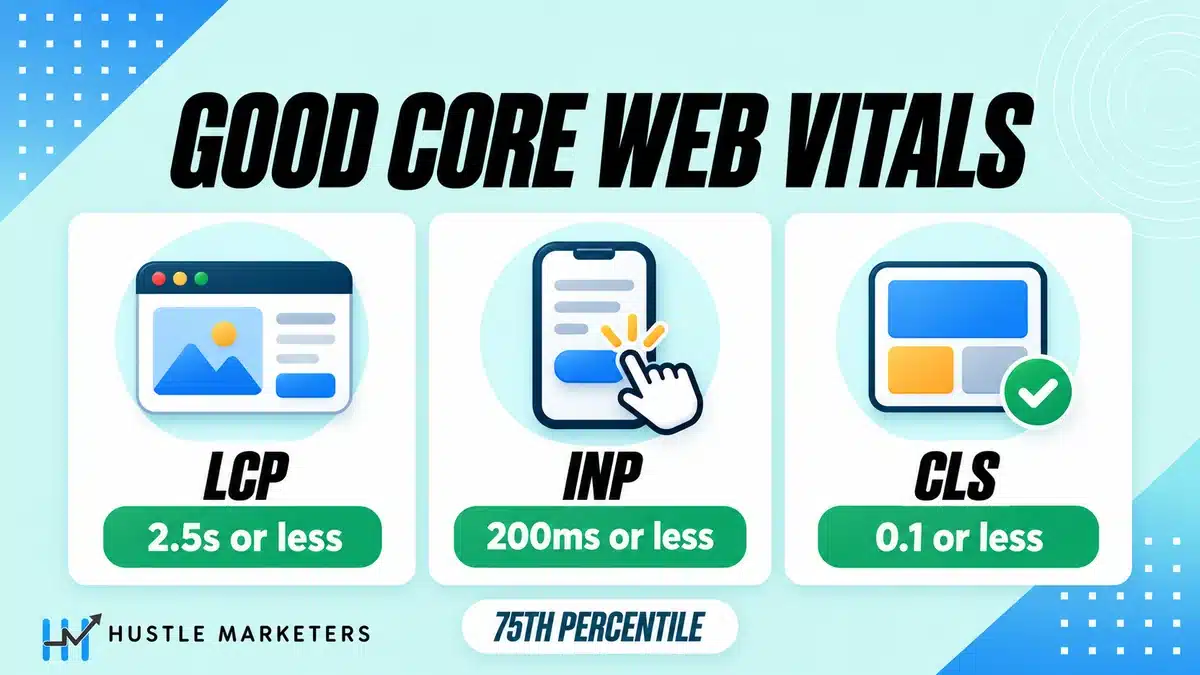
Three metrics, three thresholds, and all three have to pass. There is no average, no score, and no partial credit.
| Metric | Good | Needs improvement | Poor |
|---|---|---|---|
| Largest Contentful Paint | 2.5s or less | 2.5s to 4.0s | over 4.0s |
| Interaction to Next Paint | 200ms or less | 200ms to 500ms | over 500ms |
| Cumulative Layout Shift | 0.1 or less | 0.1 to 0.25 | over 0.25 |
Those are assessed at the 75th percentile of page loads, segmented separately for mobile and desktop. web.dev states the rule directly: a page passes if it meets the targets at the 75th percentile for all three metrics.
What does each metric actually measure?
Largest Contentful Paint reports the render time of the largest image, text block or video visible in the viewport, relative to when the user first navigated. On a store that is almost always the product image, the collection banner or the hero.
Interaction to Next Paint observes the latency of every click, tap and keypress across the whole visit and reports close to the worst one. It does not measure hovering, scrolling or zooming. On a store the candidates are variant selection, add to cart, cart drawer, filtering and search.
Cumulative Layout Shift is the largest burst of unexpected layout shift on the page, not the total. A burst is a run of shifts with less than one second between them and a maximum window of five seconds. It is unitless, which is why 0.1 has no seconds or pixels attached to it.
Is First Input Delay still a Core Web Vital?
No. INP replaced FID on 12 March 2024, and FID was removed from Search Console on that date. PageSpeed Insights and CrUX got a six month deprecation period instead. Chrome announced the end of FID support on 10 September 2024, PageSpeed Insights stopped reporting it in the real user section, and the CrUX BigQuery dataset dropped it starting with the 202409 dataset published in October 2024.
This matters more than it sounds. When I read the pages currently ranking for ecommerce Core Web Vitals terms, 11 of the 42 I read still present FID as a live metric, including Shopify’s own blog and WooCommerce’s official guide. Several of them carry recent update dates, so they look current. One page updated in September 2026 still benchmarks FID averages.
The practical consequence is that the advice is pointed at the wrong thing. FID measured only the delay before the handler started. INP measures the whole interaction through to the next painted frame, so it includes your handler running and the browser rendering the result. Work tuned for FID often does nothing for INP.
Why is it the 75th percentile and not my average?
Because an average hides the tail and a higher percentile is dominated by outliers. Google’s own threshold documentation says the percentile should ensure a majority of visits experienced the target level, and that the 75th “strikes a reasonable balance”.
There is a second thing in that document worth knowing. A good threshold is only set if at least 10 percent of origins already meet it. The thresholds are partly a statement about what the web was already capable of, not purely about what users want.
Do I need a PageSpeed Insights score of 90?
No. There is no score requirement anywhere in the assessment.
The number out of 100 is the Lighthouse performance score, and it is a weighted average of five lab metrics. In Lighthouse 10 the weights are Total Blocking Time 30 percent, Largest Contentful Paint 25 percent, Cumulative Layout Shift 25 percent, First Contentful Paint 10 percent and Speed Index 10 percent.
Read that list again. INP is not in it at all. Total Blocking Time stands in for it and carries the single heaviest weight. Speed Index and First Contentful Paint are in it and are not Core Web Vitals. So the score and the assessment overlap but are not the same thing, and a store can pass the assessment in the field while scoring badly in the lab, or the reverse. Merchants report lab scores in the thirties and forties as normal for a working store, which tells you how little the number decides.
For context on how much the score is worth chasing, the Shopify Theme Store’s own published requirement for themes sold in it is a minimum Lighthouse performance score of 60, averaged across home, product and collection pages. Not 90.
Which numbers are diagnostics rather than targets?
Time to First Byte, First Contentful Paint and Total Blocking Time are all useful and none of them is a Core Web Vital.
TTFB is the time until the first byte of the HTML arrives, and it includes redirect time, service worker startup, DNS, connection, TLS and the request itself. Good is 0.8 seconds or less. Redirects sitting inside TTFB is the part stores miss, because http to https to www to locale chains are common and each hop is paid before the byte count starts.
Total Blocking Time sums how much each long task exceeded 50 milliseconds, between First Contentful Paint and Time to Interactive. A 70ms task contributes 20ms, not 70ms. Google’s own wording on its relationship to INP is careful: a low TBT “often correlates” with a low INP. Often correlates is not predicts.
Why does Google Search Console disagree with PageSpeed Insights?
Because one is field data and the other has both, and people read the wrong panel. This single confusion causes more wasted money in ecommerce performance work than any technical problem on this page.
What is the difference between field data and lab data?
Field data is what real users experienced. Lab data is a simulated load on a specified device and connection from one location.
Field data tells you there is a problem. Lab data tells you how to fix it. Neither replaces the other, and web.dev says so plainly: lab measurement “is not a substitute for field measurement”, because each Core Web Vitals metric can be affected by user interaction.
PageSpeed Insights shows you both on one screen. The top panel, labeled as real user experience, is CrUX field data. The bottom panel is a Lighthouse lab run that happens when you press the button. Search Console only ever shows you the first kind.
Where does the field data in Search Console actually come from?
From the Chrome UX Report. Google’s Search Console documentation states it directly: the data comes from CrUX, which gathers anonymised metrics from actual users visiting your URL.
Four mechanics of that report cause most of the confusion.
It is a 28 day window. The p75 value is described as what 75 percent of page requests experienced in the last 28 days.
URLs are grouped. The documentation says URLs are grouped into pages that have a similar user experience, and the status “applies to the entire group”. You are not looking at per-URL results. You are looking at a group verdict painted onto every URL in it.
Worst metric wins. The status for a group defaults to the slowest status assigned to it for that device type.
Mobile and desktop are separate tables, assessed separately.
The grouping is actually good news for a store. On Shopify or WooCommerce the groups usually fall out along template lines, which makes the report a decent template diagnostic even though it is a poor page diagnostic.
Which of my customers are in CrUX, and which are invisible?
This is the part almost nobody writes about, and for an ecommerce store it changes what the numbers mean.
The CrUX methodology documents the user criteria exactly. A Chrome user’s data is included only if they enable usage statistic reporting, sync their browser history, have no sync passphrase set, and are on desktop or Android Chrome.
Read the last condition. Desktop or Android. iOS Chrome is not a supported platform for CrUX, and no non-Chrome browser is in it at all.
If you sell fashion, beauty, jewelry or anything else with a heavily iPhone audience, a large share of your real mobile revenue contributes nothing to your Core Web Vitals report. Your report is not wrong. It is just describing a subset. One merchant thread I read had their worst reported experience on Safari on iOS with an Arabic right to left layout, which is an experience their Core Web Vitals report structurally cannot see.
Safari has since added some Core Web Vitals measurement support, which one page in my competitor sample dates to Safari 26.2 in December 2025. I have not checked that against Apple’s own release notes, so treat the version and the date as secondhand. Either way it is your own real user monitoring, not CrUX, and it will not change what Search Console shows you.
Why does my store show no URL-level data at all?
Two separate reasons, and it is worth knowing which one you have.
The first is eligibility. A page has to be publicly discoverable to be in CrUX. Pages served with a non-200 status, an X-Robots-Tag noindex header, or a noindex meta tag do not qualify.
The second is volume. CrUX requires a minimum number of samples, and Google does not publish the number. The methodology page says an exact number is not disclosed. If you see a specific traffic threshold quoted anywhere, it did not come from Google.
When a URL group does not have enough data, Search Console falls back to an origin group, combining all URLs under the same protocol, host and port. That origin figure is a real measurement of your whole site, not an estimate of that page. Acting on it as if it described your product template is a mistake a lot of stores make.
Why is my checkout missing from the report?
Because you noindexed it, and noindexed pages are not eligible for CrUX.
Cart, checkout, account and order confirmation pages are routinely noindexed on every well-configured store. That is correct SEO. It also means the slowest, highest-stakes pages you own are invisible to Google’s entire Core Web Vitals reporting stack, permanently and by design.
Nothing in Search Console will ever tell you your checkout is slow. If you want to know, you have to measure it yourself with your own real user monitoring, and you should, because it is the page where speed converts most directly into money.
Why did my good URL count drop to zero overnight?
Usually because the group lost enough data to fall out of the report, not because your store got slower.
The rule is explicit: if a URL group does not have a minimum amount of reporting data for both LCP and CLS, it is omitted from the report. Seasonal traffic, a canonical change, a template change that splits one group into two, or a robots change can all move a group below the line.
Before you spend anything, check whether the URL count fell or the status changed. A drop from 77 good URLs to zero, with nothing appearing in the poor bucket, is a data availability story. A drop from 77 good to 77 poor is a performance story.
Why does the same page give a different LCP on every test?
Because a lab run is one device on one connection from one location, and almost everything about it varies between runs.
Chrome’s own Lighthouse documentation names the causes: A/B testing, internet routing changes, different testing devices, browser extensions and antivirus software. Add third party scripts whose response times vary, and a spread of several seconds on the same page is normal rather than alarming.
The practical rule is that a single lab run is a lead, not a measurement. Run it several times and look at the shape. If you need a number you can defend, take it from field data, because the 75th percentile over 28 days of real traffic is not going to swing on one slow response from a chat widget.
Why does my Shopify admin speed score not match PageSpeed Insights?
Because they measure different browsers, different windows and different pages, and Shopify documents all three differences.
| Shopify admin report | Search Console and PSI field data | |
|---|---|---|
| Data source | Shopify’s own RUM | Chrome UX Report |
| Browsers included | Chromium-based and Firefox | Chrome only, desktop and Android |
| Window | Last 7 days | 28 day rolling average |
| Pages covered | Home, top product, top collection | URL groups across the site |
| How it is presented | Relative to comparable Shopify stores | Absolute pass or fail against fixed thresholds |
Shopify’s own documentation is explicit that it collects real user data from visitors using Chromium-based browsers and Firefox, and contrasts that with tools that use CrUX for opted-in Chrome browsers only. The score combines data from your home page, most visited product page and most visited collection page from the last 7 days.
So a poor Shopify report against a PageSpeed Insights field assessment of passing is not a contradiction. It is a Firefox-inclusive 7 day three-page average, presented relative to comparable stores, against a Chrome-only 28 day site-wide grouping presented as an absolute pass or fail. Both are describing your store. Neither is lying.
The Shopify report has one feature nothing else has, and almost nobody uses it. The web performance reports carry event annotations for app installations, theme updates and new code, so you can line up a regression against the change that caused it. Data lands with about 36 hours of latency. If you install apps regularly, that timeline is the cheapest diagnostic you own.
How much do Core Web Vitals actually affect rankings?
Less than most agencies imply and more than the sceptics claim. Google’s own wording is hedged, and the hedges carry the meaning.
What has Google actually said, in its own words?
Four statements from the current page experience documentation, which was last updated on 22 September 2026.
There is no single page experience signal. Google’s answer to that question opens with “There is no single signal” and goes on to say its core ranking systems look at a variety of signals that align with overall page experience. The phrase “page experience signal” was Google’s own framing in 2020 and 2021 and it is not used any more.
Core Web Vitals are used. The sentence is “Core Web Vitals are used by our ranking systems”. Present tense, unqualified, and silent on magnitude.
The other page experience aspects are not. Google says that beyond Core Web Vitals, other page experience aspects “don’t directly help your website rank higher”. HTTPS, mobile friendliness, ad density and intrusive interstitials sit in that group. Core Web Vitals do not. That asymmetry is worth knowing.
Relevance wins. “Google Search always seeks to show the most relevant content, even if the page experience is sub-par.” What follows is a conditional, not a promise: for many queries there is lots of helpful content available, and having a great page experience “can contribute to success in Search, in such cases”.
That conditional is the honest summary. Speed is a differentiator between comparable results. It is not a substitute for being the right result.
What do working SEOs think this is worth?
Google will not quantify it, so the next best evidence is what people who do this every day believe. In September 2026 Cyrus Shepard and Dawn Shepard surveyed 131 SEO professionals who rated more than one hundred candidate ranking factors, producing 13,665 data points. Two findings in it bear directly on this section.
Technical SEO health came eighth on the list of factors respondents named in their top three, at 17.5 percent. Ahead of it sat relevance at 57.1 percent, backlinks at 54.8 percent, content quality at 47.6 percent, authority and trust at 36.5 percent, behavior and click signals at 29.4 percent, brand signals at 27 percent and user satisfaction at 19.8 percent. Speed is not obviously inside that eighth place group either. The survey describes technical SEO health as crawling and indexing forming the foundation for everything else, and rates site speed and Core Web Vitals separately, in its user experience section. If your product pages are not the right answer to the query, no LCP number rescues them.
Site speed and Core Web Vitals were also among the most contested items in the entire survey, and the disagreement is more useful than the average. One respondent called them the most over rated things in SEO, on the reasoning that a page either loads in time or it does not. Another drew the line by business type, arguing that for a huge ecommerce site speed really matters, while a local car dealership commonly has pages that take several seconds to load and that this is more or less expected, because visitors want the large detailed images. A third argued that user experience factors matter more because they influence behavior: Google does check them and they do directly affect rankings, but behavior matters more because it feeds systems like Navboost.
That is a survey of practitioner belief, not a statement from Google, and it should not be read as one. The split is still worth having, because the business type distinction is the same one this page keeps drawing. Speed is worth more on a store than on a service site, for the reason given above: on a store the competing results are comparable, so the tie breakers decide. The third view is the one we would bet on, though that is our judgment and not something the survey tests.
What happens once I pass?
Probably very little, and anyone who tells you precisely is guessing. Google publishes the assessment as pass or fail against the three thresholds. It does not publish how Core Web Vitals are weighted inside its ranking systems, so nobody outside Google can say whether an LCP of 1.2 seconds is worth more than one of 2.4 seconds. What is documented is that relevance comes first and that page experience can contribute to success in Search where lots of comparably helpful content exists.
That is enough to justify getting a failing template into the good band. It is not enough to justify chasing a number past the threshold on SEO grounds. The work to get a failing template from 4.5 seconds to 2.3 seconds is worth doing. The work to get a passing template from 2.3 seconds to 1.4 seconds is a conversion rate project, and it should be justified on conversion numbers.
How do I tell if speed caused my traffic drop?
Usually it did not, and the shape of the drop tells you.
A Core Web Vitals effect is a tie-breaker between comparable results. It shows up as small movement across a set of queries where you were already competitive, on the templates that actually failed, on the device that actually failed, and it follows the field data by weeks rather than appearing overnight.
An 80 percent impressions drop across most of your keyword set is not that shape. Neither is a drop that starts on a single day. Neither is a drop on desktop when only mobile is failing.
Before you spend on performance work to recover traffic, check four things. Did the templates that lost traffic match the templates that fail in Search Console. Did the device match. Did the drop start before or after the field data moved. And is there a core update, an indexing change, a canonical change or a lost link in the same window. If the answer to any of the first three is no, speed is not your story.
Does page speed affect AI search and AI Overviews?
I am not going to invent an answer to this one.
None of the 42 pages I read on this topic addresses it, and I found no Google guidance connecting Core Web Vitals to generative surfaces. What can be said honestly is narrower. Inclusion in an AI surface starts with being crawled, rendered and retrieved, and a page that is slow to render server side is slower to crawl and can be rendered incompletely. That is a crawl and rendering argument, not a Core Web Vitals argument, and the fix is TTFB and server-rendered content rather than layout shift.
If you want the actual levers for that surface, they are content, entity clarity and citations, and we cover them on the AI SEO side rather than here.
Does site speed affect Google Ads and Performance Max?
Yes, and this is the part of the argument that ecommerce performance writing leaves out entirely. Of the 42 pages I read on this topic, one connects Core Web Vitals to paid media at all.
The mechanism is not a Core Web Vitals input into Quality Score. It is simpler and more expensive than that. You pay for the click at the moment it happens. If the page takes five seconds to become usable on a mid-range Android on 4G, a share of those clicks are paid for and then abandoned before anything renders. That is not a ranking cost, it is a direct cash cost, and unlike organic it is measurable from your own account.
Do the arithmetic on your own numbers rather than on a statistic. Take the sessions from a paid campaign, the bounce rate on the landing template, and the average cost per click. A landing template that fails LCP on mobile and carries a materially higher bounce rate than your other paid landing pages is telling you what that gap costs per month.
Three practical points that follow.
Your paid landing pages are often not the templates Search Console reports on. Campaign landing pages with tracking parameters, collection pages built for a single campaign and one-off promo pages can each sit outside the URL groups Search Console shows you, or have too little traffic to appear at all.
Shopping and Performance Max send traffic straight to product pages, which is usually the heaviest template on a store. If you run Shopping, your product template is your paid landing page whether you designed it that way or not, and the feed side of that matters too. We cover the feed itself in product feed optimization and the common feed rejections in Google Merchant Center errors.
The scripts that make paid media work are the scripts that cost you INP. Conversion tags, remarketing pixels, consent tooling and a tag manager container are all things you added deliberately for advertising. They are not waste, but they are a cost, and nobody in the business is measuring that cost against the campaign it serves.
If you want that measured properly against spend rather than against a score, that is what we do on the ecommerce PPC and Google Ads side, and the same applies on Microsoft Ads where the audience skews to desktop and the arithmetic changes.
Which pages on my store should I measure first?
Not your home page. Almost certainly your product and collection templates.
Why does measuring the home page tell me almost nothing?
Because it is one page out of thousands, it is usually the most heavily optimized page on the store, and it is rarely where your organic or paid traffic lands.
Search Console groups URLs by similar user experience, which on a store means roughly by template. Your home page is its own group of one. Your product pages are a group of thousands. A pass on the first tells you nothing about the second.
The habit comes from lab testing, where you paste one URL into PageSpeed Insights and the home page is the obvious one to paste. Field data does not work that way.
Which templates matter, and what should I measure on each?
Six templates carry almost all of the risk on a store. They fail differently and they need different targets.
| Template | Usually fails on | Measure this first |
|---|---|---|
| Home | CLS from banners and sliders | Hero and promo bar shift |
| Collection or category | LCP and CLS from grids | First row images, filter interaction |
| Product | LCP and INP | Gallery image, variant and add to cart |
| Search results | INP and CLS | Autocomplete, result injection |
| Cart | INP, invisible to CrUX | Quantity change and update |
| Checkout | Invisible to CrUX entirely | Your own RUM only |
The two that decide your assessment are product and collection, because that is where the traffic and the URL count are. Fix the template, not the page. One bad Liquid loop or one plugin script on the product template is failing every product URL you have, and fixing one product page fixes nothing.
What target should I set per template?
Set the target on the field metric that is failing, on the device that is failing, and write down the date you started.
A workable default for a store that is currently failing: get the product and collection templates into the good band on mobile first, at the 75th percentile, in Search Console, and treat desktop and the remaining templates as a second phase. Mobile is usually where stores fail on loading and interactivity. The Web Almanac’s 2024 figures, which cover all websites rather than stores specifically, put mobile INP at 74 percent good against desktop at 97 percent, and mobile LCP at 59 percent against desktop at 72 percent. Note the exception: on CLS the split runs the other way, 79 percent good on mobile against 72 percent on desktop, which is why a desktop-only CLS failure is a real pattern rather than a measurement error.
Do not set a target on the Lighthouse score. It is not what the assessment reads and it will move for reasons that have nothing to do with your store.
Do Core Web Vitals work on a headless or single page storefront?
Partly, and the gap matters if you run Hydrogen, a headless build or any storefront that changes route on the client.
As of September 2026, Core Web Vitals are still measured against the initial hard navigation. A client-side route change from a collection to a product does not produce a new LCP measurement or a new CLS window. Chrome is working on this: the Soft Navigations origin trial was announced in April 2026, running from Chrome 147 to Chrome 149, with detection requiring a user interaction, a visible paint and a URL update together. The announcement is explicit that the trial is to evaluate the API and not to decide how the data will be used in CrUX or tooling, so nothing has changed in the assessment yet.
INP behaves differently and this is the part that bites. INP accumulates across the whole page lifespan, so a single page storefront concentrates every interaction a shopper makes during the entire visit into one INP value. A traditional storefront spreads the same interactions across several page loads and several INP values. That is a structural disadvantage for a headless build, and it is not a bug in your code.
Why is my LCP slow, and which of the four parts is the problem?
LCP is not one number. It is four consecutive parts that add up to the whole, and they have completely different fixes. This is the single most useful diagnostic framework in the subject and almost no ecommerce guide uses it.
What are the four parts of LCP?
From web.dev’s LCP optimization guidance, in order, with the published target proportions.
| Part | What it is | Target share of LCP |
|---|---|---|
| Time to first byte | Until the first byte of HTML arrives | About 40 percent |
| Resource load delay | Between TTFB and the browser starting the LCP resource | Under 10 percent |
| Resource load duration | Loading the LCP resource itself | About 40 percent |
| Element render delay | Between the resource finishing and the element rendering | Under 10 percent |
Google frames these as guidelines rather than strict rules and specifically advises against absolute millisecond budgets per part, because the proportions are relational. Use them to find which bucket is out of shape, not as a contract.
If the LCP element is text rendered in a system font, load delay and load duration are both zero, because there is no resource to load.
How do I read the four numbers PageSpeed Insights gives me?
PageSpeed Insights prints these four numbers under the LCP section. Take your total, work out the percentage in each bucket, and compare against the table above. The bucket that is wildly over its share is your problem.
Worked from a real merchant post I read: a store reporting a load delay of 10,190 milliseconds and a render delay of 1,650 milliseconds. Load delay is supposed to be under 10 percent of the total. Theirs was most of it. The only substantive reply told them to convert the image to WebP, which addresses load duration. The merchant had to correct the responder that Shopify’s CDN already negotiates WebP automatically. The image format was never the problem. The browser had not started fetching the image for over ten seconds, and nobody in the thread said why.
That is the whole argument for learning the four parts. The wrong bucket means the right fix does nothing.
My TTFB is slow. Is that the server, the platform or the cache?
Start by separating server time from front end time, because merchants ask whether to change hosts constantly and almost nobody gives them a test.
TTFB includes redirect time, DNS, connection, TLS and the request. So the first thing to check is not your server, it is your redirect chain. Request the exact URL a customer would land on, from a phone, and count the hops. An http to https to www to locale chain is three round trips before your server has done anything.
Then check the cached and uncached cases separately. On WooCommerce or Magento, request a category page twice and compare. If the first is slow and the second is fast, your problem is cache coverage, not server power. If both are slow, you have a genuine server or application problem.
Then check whether the page is cacheable at all. On WooCommerce, cart, my account and checkout are documented as pages that must stay dynamic, and the cookies that bypass cache are published: woocommerce_cart_hash, woocommerce_items_in_cart, wp_woocommerce_session_, woocommerce_recently_viewed and store_notice with the notice id. The fourth one, woocommerce_recently_viewed, is the one most often missed in a cache configuration, because it gets set on ordinary browsing rather than on a cart action.
On Shopify you cannot do any of this. The storefront runs on Shopify’s CDN, it uses HTTP/3 and TLS 1.3, and assets are compressed with Brotli and gzip automatically. The infrastructure is not yours to change, so what is left inside TTFB is mostly Liquid render cost. Shopify does not publish a breakdown, but its own performance guidance points at nested loops, metafield access inside loops and over-fetching variants rather than at infrastructure, which tells you where it expects the time to go.
My load delay is high. Why has the browser not started fetching the image?
Because it does not know about the image yet, or it has been told the image is not urgent.
Four common causes on a store, in the order I check them.
The image is lazy loaded. web.dev’s wording is absolute: never lazy-load your LCP image, as that will always lead to unnecessary resource load delay. Shopify’s theme guidance says the same thing, that loading lazy should be applied only to images outside the initial viewport. This is the most common self-inflicted LCP failure in ecommerce, and it is usually the result of a blanket lazy loading setting rather than a decision.
The image is a CSS background. Background images loaded with the url function are eligible to be the LCP element, but the browser cannot discover them until it has parsed the CSS. Shopify explicitly advises against CSS background images for hero content and tells theme developers to use an img element instead, which is the opposite of what a lot of themes do.
The image is inserted by JavaScript. A slider or a gallery that builds its markup on the client means the browser cannot see the image in the HTML at all, so discovery waits for the script.
Render blocking resources sit above it. Everything the browser has to fetch and parse before it reaches the image is load delay.
My load duration is high. Is the image too big?
Possibly, but check what is actually being served before you compress anything.
On Shopify, format negotiation is automatic. The documentation states that Shopify automatically detects which image formats the client supports, including WebP and AVIF, and the format parameter on image_url only accepts pjpg and jpg. You do not request AVIF. You cannot. Manually converting your images to WebP before upload is work the CDN was already doing.
What does go wrong on Shopify is sizing. The maximum width and height for image_url is 5760 pixels, and a theme that asks for a larger file than the slot needs pays the full download. LCP does not even reward it: for a resized image the size reported is the visible size or the intrinsic size, whichever is smaller. A 4000 pixel hero in a 400 pixel slot is scored at 400 pixels and downloaded at 4000.
The legacy filter is worth checking on older themes. img_url has been replaced by image_url, and its named size presets are fixed: grande is 600 by 600, large is 480 by 480, master is 1024 by 1024. A theme using img_url with grande for a full width hero is serving a 600 pixel image into a 1400 pixel slot, and the fix is sharpness, not weight.
My render delay is high. What is holding the paint back?
The resource arrived and the browser still could not paint it. Usually fonts, blocking CSS, or a script that has to run first.
Fonts are the common one on a store. A web font that has not arrived yet will hold text back, or swap in and shift the layout. web.dev names font-display optional as the setting that avoids re-layout entirely, because the web font is only used if it is available by the time of initial layout, and names size-adjust, ascent-override, descent-override and line-gap-override as the descriptors for matching the fallback to the real font.
Blocking CSS is the second. On Shopify there is a specific instruction most themes ignore: place base stylesheets and font preloads before content_for_header in theme.liquid. Shopify streams the HTML, and the first flush is everything from the top of the document to content_for_header. Anything after that point is discovered later.
Why did compressing my hero image change nothing?
Because compression only addresses load duration, and three out of four LCP buckets are not load duration.
This is the most common wasted afternoon in store performance work. A merchant halves their hero image file size, sees no movement, and concludes Core Web Vitals is nonsense. The file size was never the constraint. Work out the four buckets first.
When does a preload help, and when does it make things worse?
Preload solves discovery. It tells the browser to fetch something sooner than it would otherwise find it. It does not raise priority. fetchpriority raises priority and does not help discovery. For a CSS background image that is the LCP element, web.dev’s instruction is to preload it and set fetchpriority high, because you need both.
Three documented ways preload backfires, all from web.dev’s guidance, plus one that page does not name.
Omitting or misdeclaring the as attribute makes the request behave like an XHR and can cause some resources to be fetched twice.
Fonts preloaded without the crossorigin attribute are fetched twice. The documentation states this as a warning, in those words.
Preloading too much cancels itself out. The wording is “if too many resources are prioritized, effectively none of them are”. Shopify puts a number on it and tells theme developers to reserve preload for one or two late-discovered resources.
Preloading the wrong file. This one is not on that page, and I am adding it from experience rather than from documentation. A hand-written preload that requests a different URL than the img element eventually uses wastes the bandwidth and can delay the real image. On a responsive image with srcset this is easy to get wrong, because the preload has to match the candidate the browser will actually pick.
There is a free way to find the mistakes. Unused preloads trigger a console warning in Chrome about three seconds after the load event. Open DevTools, load the page, wait, and read the warnings.
One more caveat that matters for fetchpriority specifically: it is a hint, not a directive. The documentation says the browser tries to respect the preference but can also apply its own.
Why is my INP bad, and which interaction is causing it?
Because something on your store takes too long between a shopper tapping and the screen changing, and on an ecommerce site the list of candidates is short and specific.
What are the three parts of INP?
Input delay is from the moment the shopper touches the screen until your event callbacks begin to run. It is usually main thread contention: something else was running.
Processing duration is your callbacks running to completion. It is your code, your theme’s code and your apps’ code.
Presentation delay is the browser producing the next frame showing the result. It is layout, style and paint cost.
Unlike LCP, there is no published target split for these three. Google does not publish percentages for INP sub-parts, so any percentage split you see attributed to Google is not from Google.
One mechanic worth knowing. An interaction is a group of event handlers that fire during the same logical gesture. A single tap produces pointerdown, pointerup and click, and that is one interaction, not three. The latency reported is the duration of the longest single event in the group, not the sum.
Which interactions on a store actually drive INP?
This is the list nobody publishes, and it is short enough to work through in an afternoon.
| Interaction | Where it lives | Why it costs |
|---|---|---|
| Variant or swatch selection | Product | Rerenders price, image, availability |
| Quantity stepper | Product, cart | Often triggers a cart recalculation |
| Add to cart | Product, collection | Network call plus drawer render |
| Cart drawer open and update | Everywhere | Section rendering, totals, upsells |
| Collection filter and sort | Collection | Full grid replacement |
| Search autocomplete | Everywhere | A request per keystroke |
| Size guide and zoom modals | Product | Large DOM insertion |
| Sticky add to cart bar | Product | Scroll-driven layout work |
| Cookie or consent accept | Everywhere | Fires the whole tag stack at once |
The last one deserves attention because it is universal and almost never measured. On a consent-gated store, the accept click is a strong candidate for the most expensive interaction on the site, and it is almost never the one anybody measures. Everything that was waiting for consent fires at once: analytics, remarketing pixels, conversion tags, chat, reviews. The shopper taps one button and your tag stack lands on the main thread in one block. That interaction is in your INP. Measure it before you assume anything about it. The point is that it belongs on your list, not that I can tell you where it ranks.
Two platform mechanics make the cart and search entries worse than they look.
On Shopify, the Cart AJAX API supports a sections parameter that requests rendered HTML for up to five sections in one call. A cart drawer asking for five sections is asking Shopify to render five section templates server side before it can respond, and that sits inside your processing and presentation delay.
Also on Shopify, predictive search defaults to a limit of 10 results per resource type across five types, and with limit_scope set to each, that is up to 10 each for products, collections, pages, articles and queries, so fifty results per keystroke at the defaults. A search box that fires per keystroke at those defaults is rendering dozens of product cards on every letter typed. Shopify does not publish the rate limit, but it does document that exceeding it returns a 429 with a Retry-After header.
How do I measure one interaction instead of the whole page?
Open DevTools on the page, go to the Performance panel, start recording, do the single interaction, stop. You will see the task, its duration, and what ran inside it. Do it on a throttled CPU, because your laptop is not the device that is failing.
For field attribution, the Long Animation Frames API is the thing to know about. A long animation frame is a rendering update delayed beyond 50 milliseconds, and the useful part is that it catches what Long Tasks misses: several 40 millisecond tasks are each below the long task threshold but together they produce a long animation frame. Entries carry a scripts array with sourceURL and sourceFunctionName, which is what makes third party attribution possible at all.
Three documented caveats on that attribution, and on a store they all apply at once. Script attribution excludes cross-origin iframes, web workers, service workers and extension code. Source locations point at script entry points, not necessarily the slowest code. And source data may be unavailable for no-cors cross-origin scripts.
Why is “which button is slow” so hard to answer?
Because interaction attribution genuinely is harder than paint attribution, and this is a known limitation rather than a tooling failure on your side.
CLS and LCP attribution reliably name an element. INP attribution does not always. There is an open issue on the web-vitals library where the target element comes back null for INP while CLS and LCP attribution works. If you run your own real user monitoring you will get INP values with no element attached to some of them.
That is worth knowing before you hire someone, because it tells you what a competent answer looks like. Somebody who tells you they can name the exact slow button from your field data alone is overstating what the data gives them. The honest method is field data to find the template and the rough severity, then lab reproduction on a throttled device to find the interaction.
Is Total Blocking Time the same as INP?
No, and treating it as a substitute is why a lot of optimization work does not land.
Total Blocking Time is a lab metric measured between First Contentful Paint and Time to Interactive, with no real interaction involved. It exists because a lab run cannot know when a shopper will tap add to cart. Google’s own phrasing is that a low TBT often correlates with a low INP.
Two consequences for a store. TBT only covers the load window, so an interaction cost that only exists after a cart has items is invisible to it. And TBT carries 30 percent of your Lighthouse score while INP carries none of it, so you can move the score meaningfully without moving the metric Google assesses.
What causes layout shift on a store, and how do I stop it?
Content arriving late and pushing things that were already on screen. On a store the offenders are predictable.
Which elements shift on an ecommerce page?
Images and video without reserved space. The fix is the oldest one in the subject and still the most skipped: always include width and height attributes, or reserve the space with the aspect-ratio CSS property. Modern browsers set the default aspect ratio from the width and height attributes, so those attributes are not about rendering size, they are about reserving the box.
One catch with responsive images: with srcset, every candidate should use the same aspect ratio, otherwise the reserved box is wrong for whichever candidate gets chosen.
Fonts swapping. Covered above, and it shows up in CLS as well as render delay.
Promo bars, shipping threshold bars and announcement bars injected above the fold after the page has painted. Anything that appears at the top of the document after first paint pushes the entire page down.
Cookie and consent banners. web.dev’s guidance is either to reserve the space in advance or to overlay the content where that makes sense. Overlaying is usually the right answer for a banner, because reserving space for something most visitors dismiss costs every visitor.
Review stars, trust badges and back-in-stock widgets that load from a third party. These land late, they have variable height, and they usually sit right under the product title. web.dev is honest that for variable-height content you may not be able to reserve the exact space needed, and offers two fallbacks: place late-loading content lower in the viewport, and avoid inserting dynamic content without user interaction.
Infinite scroll and lazy loaded grids. This is the one that makes lab and field CLS diverge the most, and it is covered below.
Why does my lab CLS look fine when my field CLS is poor?
Because they measure different spans of the page’s life.
A lab test captures shifts above the fold and during load. Field CLS includes every unexpected shift throughout the whole lifespan of the page, including the ones a shopper encounters while scrolling a collection grid.
There is a second trap in lazy loading specifically. If a gallery of images has no dimensions, the browser may decide all of them fit in the viewport at the start, because each takes up no space and nothing is pushed offscreen. Lazy loading a grid without width and height therefore risks more shifting, not less. That is exactly the Shopify or WooCommerce collection grid case.
And Chrome’s lazy loading distances are larger than most people assume: roughly 1250 pixels from the viewport on fast connections and 2500 pixels on slower ones. Lazy loading does not mean loads when visible.
Does scrolling excuse a layout shift?
No, and this is the detail that catches sticky headers.
Shifts within 500 milliseconds of user input get the hadRecentInput flag and can be excluded. But that flag only applies to discrete input events: tap, click, keypress. Scrolls, drags and pinch-zoom do not set it.
So a sticky header that appears on scroll, a promo bar that collapses on scroll, or a filter bar that becomes fixed after 100 pixels is generating fully counted layout shift. The fix is to animate with transform rather than by changing box dimensions or position, because transform animations do not generate layout shifts at all.
Why is my CLS only failing on desktop?
Usually because the desktop layout has something the mobile layout does not: a wider grid that reflows differently, a hover-triggered element, a sidebar filter panel, or a banner that only renders above a breakpoint.
Check the two layouts as two separate problems. Search Console reports and assesses them separately, and a desktop-only CLS failure will not be found by testing on a phone.
Why can I not reproduce a shift I can see in the field?
Possibly because it is inside an iframe.
CLS occurring inside an iframe is counted in the field data, but web.dev describes it as not measurable from web APIs. Embedded reviews, chat widgets, payment buttons and video players on a store are all commonly iframed. Your own real user monitoring cannot see those shifts, and neither can your lab run, but they are in your score.
If your field CLS is worse than anything you can reproduce, inventory your iframes.
Shopify: what is actually slowing my store?
Most of it is apps, and the rest is a theme doing something Shopify’s own documentation tells it not to do.
What does Shopify control, and what do I control?
Shopify owns the infrastructure, the CDN and a set of platform optimizations you cannot switch off. You own theme selection, app curation and your images. App and theme developers own their own code.
Four things Shopify does for you that you should not pay anyone to redo.
The CDN is Cloudflare-backed and serves assets on the same domain as the page, on a /cdn path, so there is no extra DNS or connection setup. Requests use HTTP/3 and TLS 1.3. CSS and JavaScript are minified and compressed with Brotli and gzip automatically, though note the documentation’s qualifier that automatic JavaScript minification applies to valid syntax to ES5.
Early Hints are implemented at platform level. Shopify scans the rendered head for render blocking scripts and stylesheets and sends 103 Early Hints Link headers preloading them, before the HTML is sent. This is the most concrete Early Hints deployment documented by any ecommerce platform.
Speculation rules are injected automatically in supporting browsers, with default rules Shopify describes as aiming for the largest speed gains without causing problems with data usage, caching or analytics.
Image format negotiation happens at the CDN, as covered above.
There is also one script Shopify adds that you cannot remove: the es-module-shims polyfill, which the documentation says Shopify includes in the storefront when needed.
How much JavaScript should an app be adding?
Shopify publishes the number, and it is smaller than you think.
The theme app extension configuration documentation lists enforced and suggested limits. Enforced: 10 MB total size, 30 blocks, 100 locale files at 15 KB each, and 100 KB of Liquid across all files. Suggested, not enforced: 100 KB of compressed CSS and 10 KB of compressed JavaScript.
Ten kilobytes of compressed JavaScript per app extension is Shopify’s own published expectation. Hold your installed apps up against it. The gap between that number and what apps actually ship is most of what is wrong with your store.
Two more details from the same documentation that are useful in an audit. App embed blocks inject immediately before the closing head and body tags, with compliance_head blocks rendered first, so an app’s head injection lands after everything your theme put there. And app embed blocks are deactivated by default after installation, which means the App embeds panel under Theme Settings is a literal list of every app currently injecting code into your theme. That panel is the fastest app audit available to a merchant and it takes thirty seconds.
What are ghost scripts and how do I find them?
Code left behind in your theme by apps you no longer use.
Shopify’s own help documentation on improving web performance states it plainly: uninstalling an app does not automatically remove its code from your theme. On a store that has been running for a few years and has tried twenty apps, the snippets folder and theme.liquid accumulate includes and script tags for apps that are long gone.
There is a second mechanism behind the same symptom. Script tags are a legacy feature that let an app load JavaScript on a storefront without any changes to theme code, which is why scripts appear that are not in theme.liquid. Shopify has been retiring them. Per Shopify’s script tag blocking documentation, apps have been blocked from creating script tags on Thank You and Order Status pages since 1 February 2025, with further blocking dates of 28 August 2025 for Plus shops and 26 August 2026 for non-Plus shops, and the changelog states Shopify will stop injecting script tags into storefronts entirely on 1 March 2027.
Worth being precise about why. Shopify’s stated reason on the blocking page is to prevent merchants being blocked or adding work to future upgrades. They did not say they deprecated script tags for performance reasons.
To find ghost scripts, duplicate your live theme, search the theme files for the names of apps you have removed, and check the App embeds panel against your installed app list. Work on the duplicate, publish when it is verified.
Why does PageSpeed Insights tell me to do things Shopify already does?
Because the tool does not know what platform it is testing.
Shopify’s help documentation has a section on this that is the most useful thing on the page and almost nobody reads it: understanding third party performance recommendations, and when those recommendations do not apply. Recommendations to enable text compression, to use a CDN, to serve modern image formats or to use HTTP/2 are frequently already handled by the platform.
Before you action a PageSpeed Insights recommendation on Shopify, check whether it is asking for something the platform already does. Paying an agency to implement a recommendation Shopify implemented for you is a real and common waste.
Why is Liquid in the LCP conversation?
Because Liquid render time lands in TTFB, and TTFB is supposed to be about 40 percent of your LCP.
Shopify names the anti-patterns directly: nested loops creating order n squared patterns, metafield access inside loops, over-fetching product variants, and repeated filter calls instead of caching a result with assign. The named tools are the Shopify Theme Inspector for Chrome for finding the slowest Liquid lines and Theme Check as the linter.
There is also a hard limit worth knowing if you run a large catalog: Shopify limits pagination of arrays of objects to 25,000 objects.
What about my checkout?
On Shopify, checkout is Shopify’s surface, not yours. App blocks and app embed blocks cannot be rendered on checkout pages at all, covering everything from contact information to order status.
Combine that with the CrUX eligibility rule and you get the practical position. Your checkout is not in your Core Web Vitals report, and most of what determines its speed is not yours to change. Do not pay an agency to optimize Shopify checkout performance. Do measure it yourself, because the conversion argument still holds even when the SEO argument does not.
WooCommerce: what is actually slowing my store?
A short list of core behaviors, and then everything your plugins add on top of them.
What is the cart fragments problem?
It is the most famous WooCommerce performance issue and WooCommerce documents it themselves.
Cart fragments are a script that uses the WordPress admin-ajax API to update the cart without refreshing the page. The file is cart-fragments.js and the request handle is get_refreshed_fragments. WooCommerce’s own developer blog acknowledges that the script “can cause performance issues on stores not using that functionality”, and that before version 7.8 it loaded on every page regardless of whether a mini-cart widget existed, causing unnecessary AJAX requests that could severely impact server load.
The reason it is hard to remove is in the same document. If you show a mini-cart on every page and you also have page caching enabled, the widget will not update to show the real cart contents. Cart fragments exist to solve exactly that. So the choice is a header cart count that is always correct plus an AJAX call on every page that shows the mini-cart, or a cached header and a cart count that can be stale. Since 7.8 the script is only loaded where a mini-cart widget is present, so on a current version the first question is whether your theme is putting a mini-cart on every page in the first place.
The named filter for altering the behavior is woocommerce_get_script_data. As for the size of the effect, the strongest first-party-hosted figure is a merchant report on WooCommerce’s own issue tracker stating that dequeueing the script halved their server resource usage. That is a user report in a first party tracker, not a WooCommerce measurement, and it should be read that way.
Why is my WooCommerce TTFB slow even with caching on?
Because the pages that matter most are the ones that cannot be cached, and because of what WordPress does on every request underneath.
WooCommerce names exactly three pages that must stay dynamic because they display customer-specific information: cart, my account and checkout. The published cache bypass cookies are woocommerce_cart_hash, woocommerce_items_in_cart, wp_woocommerce_session_, woocommerce_recently_viewed and store_notice.
Then there is what runs on every page load. WP-Cron checks a list of scheduled tasks on every page load, and it only runs when a page is loaded, so a visitor’s request can be the request that does the scheduled work. Action Scheduler, which WooCommerce uses for webhooks and Subscriptions uses for payments, inherits that WP-Cron trigger, and separately checks on the shutdown hook of admin requests whether actions are pending, firing an async loopback request back at your own server when they are. Its documented limits are batches of 25 actions per cycle, processing until it hits 90 percent of available memory or 30 seconds, and a 5 minute action timeout.
And then the database. WordPress 6.6 changed the Options API so that options larger than 150,000 bytes are not autoloaded by default, adjustable with the wp_max_autoloaded_option_size filter. Separately, the Site Health check added in WordPress 6.6 warns when total autoloaded options exceed 800,000 bytes. Those are two different numbers and they get conflated constantly: 150 KB is the per-option cutoff, 800 KB is the total at which WordPress complains. Transients live in the same wp_options table unless you have an object cache, and WordPress’s own documentation admits it “infrequently cleans out expired transients”, so expired rows accumulate.
High Performance Order Storage is the structural fix on the order side. From WooCommerce 8.2 in October 2023 it is stable and enabled by default for new installations, replacing post and postmeta storage for orders with four dedicated tables. That is a TTFB story rather than an asset story: it reduces contention on wp_posts and wp_postmeta, which your storefront reads from too.
There is more on the crawl and indexation side of all this in WooCommerce technical SEO, which covers the URL and schema behavior rather than the speed behavior.
Why does my product page load three JavaScript libraries I never asked for?
Because your theme asked for them, in three separate lines.
The WooCommerce product gallery is three independent theme supports: wc-product-gallery-zoom, wc-product-gallery-lightbox and wc-product-gallery-slider. The gallery uses Flexslider, Photoswipe and the jQuery Zoom plugin. A theme that declares all three loads three libraries plus jQuery on every product page. A theme that declares none loads none. It is a decision in functions.php, not a plugin setting.
Underneath that is the dependency chain rule. WordPress resolves the entire dependency chain before rendering any script, so any plugin declaring jquery as a dependency forces jQuery to load for everyone. And the in_footer parameter on wp_enqueue_script defaults to false, meaning a plugin author who does nothing gets a render blocking script in the head. Since WordPress 6.3 there is a strategy argument accepting defer or async, but plugins written before 6.3 do not use it, which is why WordPress stores accumulate head scripts structurally rather than accidentally.
Why do my two optimization plugins cancel each other out?
Because they are both rewriting the same output and neither knows about the other.
Three documented examples from vendor documentation and issue trackers. WordPress core marking an image as high priority while a caching plugin lazy loads it, so the two instructions fight. A delay JavaScript feature breaking a reviews grid. And the most instructive one: WP Rocket’s own documentation stating that its Delay JavaScript Execution feature could potentially have a negative effect on INP, and that WP Rocket’s impact on INP cannot be measured properly at this time.
That is a vendor documenting the limits of its own product, and it is more honest than most of what is written about these tools. It is also the reason a store can install two performance plugins and get slower.
Every one of these vendors publishes an incompatibility list. Read it before you install, not after.
What does WooCommerce itself say about speed plugins?
WooCommerce’s official Core Web Vitals guidance says of plugins claiming to fix them that “they almost never work”. The page then names no alternative, which is not very helpful, but the direction is right and it comes from the platform.
What WooCommerce does publish usefully is a benchmark for extension developers: a Lighthouse performance score of 90 or above on a basic WooCommerce site. Worth putting next to Shopify’s Theme Store bar of 60 for themes. Two platforms, two published bars, both real, and neither is a ranking threshold.
Magento and Adobe Commerce: what is actually slowing my store?
Two things, mostly: the JavaScript module system on the front end, and the private content mechanism that punches holes in your full page cache.
Why is Luma INP so hard to fix?
Because the front end is built on RequireJS, Adobe’s module loader, which stays in place whether or not you enable bundling. Vendor write-ups on Luma performance also put KnockoutJS and jQuery in the same critical path. I could not confirm that from Adobe’s own documentation, so treat it as a secondhand claim.
Adobe’s bundling is off by default and needs four settings to agree before it works: dev/js/enable_js_bundling set to 1, dev/js/minify_files set to 1, dev/static/sign set to 1, and dev/js/merge_files set to 0. Merging must be disabled for bundling to work, which is the single most common reason a Magento bundling attempt does nothing.
And bundling is not a free win. Adobe’s own documentation states that with bundling on, “page rendering is blocked until all bundles finish downloading”, with the argument being that it reduces requests from hundreds to just a few. That is a trade, not an optimization: you exchange many requests for one large render blocking download. Files excluded from bundling are still loaded asynchronously by RequireJS, which remains in place either way.
What is private content and why does it slow my pages?
Private content is Adobe’s hole-punching mechanism. Data specific to an individual user is handled on the client instead of being cached for everyone, which is how a fully cached page can still show your name and your cart.
The customer-data JavaScript library stores that data in local storage and synchronises it with the backend. The cache is invalidated on a POST or PUT request, and which sections invalidate on which action is declared in sections.xml under each module’s etc/frontend directory.
That last detail is the performance story. Every module can add its own entries. So the number of sections refreshed after an add to cart grows with the number of modules you have installed, and a store with forty extensions is doing considerably more work on add to cart than a clean install.
Should I use Varnish?
Adobe’s own documentation is unusually direct about it: the built-in full page caching, to either the file system or the database, is “much slower than Varnish”, and Varnish is designed to accelerate HTTP traffic.
One architectural constraint to plan for: Varnish does not support SSL, so you need SSL termination or a termination proxy in front of it.
On the backend side, Adobe recommends Update on Schedule for indexers, with the documented exception that the Customer Grid index must stay on Update on Save. Update on Save indexers are a direct TTFB risk, because a catalog write blocks on reindexing while shoppers are on the site.
There is a segmentation lever worth knowing for B2B and heavily segmented stores. Setting real-time customer segment matching to No moves the matching to a combined SQL query rather than a per-request check, and on a segmented store it is one of the larger TTFB levers Adobe names.
Does moving to Hyva fix it?
It removes a category of problems rather than the need to do the work. A modern front end takes RequireJS out of the critical path, and vendor write-ups on Luma to Hyva migrations report roughly halving LCP. I have not found an Adobe or Hyva source quantifying the INP effect, so I am not going to put a number or a ranking on it. What the same vendor does say is that a modern front end gives a significant head start but that real world results often require additional optimization. It does not get your hero image, your fonts or your third party tags right.
The honest framing for a migration decision is in the cost section below, and it is the same framing as a Shopify theme rebuild.
BigCommerce: what is actually slowing my store?
Fewer published mechanisms than the other three, and the platform’s own targets contain two errors worth knowing about.
How many scripts can be on a BigCommerce store?
More than you would want. The Scripts API documentation publishes hard limits: 10 API-created scripts per app, 50 control panel created scripts per channel, and up to five inline script tags.
Fifty control panel scripts per channel is a high ceiling, and Script Manager is where they live. That panel is your audit.
Placement values are all_pages, storefront, checkout and order_confirmation. Unlike Shopify, BigCommerce does allow scripts on checkout, gated by the Modify Checkout Content OAuth scope, with Subresource Integrity hashes required for PCI 4.0 compliance. So on BigCommerce, checkout performance is partly yours to influence and partly yours to break.
One operational detail that catches people mid-test: new or updated scripts take 20 seconds to cache on a BigCommerce-hosted storefront.
What does BigCommerce recommend, and where is it wrong?
The Stencil performance documentation names real mechanisms: the cdn Handlebars helper for WebDAV-uploaded images, the inject and jsContext helpers for passing data into JavaScript with the instruction to inject only what you need, the Chrome DevTools Coverage tab for finding unused JavaScript, and a caution against bulk folder image imports because they degrade page load.
Two of its stated targets do not match Google. BigCommerce states Total Blocking Time should be 300 milliseconds or less, where web.dev states less than 200 milliseconds on average mobile hardware. And it writes CLS as “0.1 seconds or less”, where CLS is a unitless score with no time unit at all.
Neither error is fatal, but both are a reminder to check platform documentation against the source rather than treating it as the source.
It is also the platform where you are most likely to be told to prefer JPEG. The Stencil performance page recommends JPEGs over other formats, which is a useful reality check against the assumption that every platform is pushing you to AVIF.
Which of my apps and scripts is actually costing me?
Everybody’s advice is to audit your apps. Almost nobody says how. Here is a method that works on any platform.
How do I isolate whether the problem is the platform, the theme or the apps?
Three measurements, in this order, on the same template and the same device profile.
Measure a clean install of the same theme with no apps. On Shopify that means a duplicate of the stock theme in preview. On WooCommerce it means a staging copy with plugins deactivated except WooCommerce. This is your floor. Whatever this number is, the platform and the theme are giving it to you, and no amount of app curation goes below it.
Measure your live theme with apps disabled where you can disable them. On Shopify, turn off app embeds one at a time in Theme Settings. On WooCommerce, deactivate on staging.
Measure the live store.
The gap between the first and second numbers is your theme. The gap between the second and third is your apps. If the first number already fails, you have a theme or platform decision, not an optimization project, and no amount of app removal will save it.
Do this on staging or a preview theme. Never disable apps on a live store to run a test.
How do I read a waterfall by third party origin?
Open DevTools, Network panel, and sort by domain. Your own domain and your platform’s CDN are one bucket. Everything else is a third party, and each distinct domain costs a DNS lookup and a connection before it delivers anything.
What you are looking for is not the biggest file. It is the requests that happen before your LCP image, the requests that block the main thread, and the domains you do not recognize. A domain you cannot identify is almost always either an app you forgot about or a ghost script from one you removed.
For interaction cost rather than load cost, record a performance trace while doing the interaction and look at what is on the main thread inside the task.
Which app categories tend to damage which metric?
There is no published measured cost table for ecommerce app categories, and I am not going to invent one. What can be stated is the mechanism, which is enough to know where to look first.
| App category | Mechanism puts at risk | Why |
|---|---|---|
| Reviews and UGC | CLS, LCP | Late-loading variable height block under the title, often iframed |
| Consent and cookie banners | CLS, INP | Above-fold injection, then the whole tag stack on accept |
| Live chat | INP | Large script, loads everywhere, main thread work |
| Upsell, bundles, quantity breaks | INP | Runs on add to cart and cart update |
| Back in stock and subscriptions | INP, LCP | Injects into the product template, adds a network call |
| Loyalty and rewards | LCP | Loads on every page for a feature few visitors use |
| Analytics and pixels | INP | Multiple tags firing on the same interactions |
| Search and filter apps | INP, CLS | Replaces the grid, per keystroke requests |
Two rules that follow from the mechanisms rather than from measurements. An app that loads on every page for a feature that only exists on one template is pure cost everywhere else, and Shopify’s own app guidance tells developers to use app embed blocks precisely because they can load scripts only on specific pages. And an app that renders into the area above the fold is a CLS risk regardless of how small its script is.
What do I do about the consent banner and the tag manager?
Treat them as two separate problems, because they fail differently.
The banner is a CLS problem. Overlay it rather than reserving space for it, unless your legal position requires otherwise. Reserving space for something most visitors dismiss in two seconds costs every visitor.
The accept click is an INP problem, and it is the one nobody measures. Everything gated behind consent fires in one block on that click. Measure that interaction specifically, with DevTools, on a throttled CPU. If it is the worst interaction on your store, stagger what fires: the tags you need for attribution first, the ones you need for remarketing a moment later.
Two points of honesty here. I could not find published primary documentation quantifying consent mode’s performance cost or publishing tag manager container weights, so there is no figure to give you. And these tags are not waste. They are the instrumentation your advertising runs on. The question is not whether to have them, it is whether the cost is proportionate to the campaign, which is a question you can only answer against your own spend.
What if the app cannot be removed?
Then change where and when it loads.
Three options in order of preference. Restrict it to the template it is needed on, which on Shopify means an app block on that template rather than a site-wide app embed. Load it on interaction rather than on page load, which is the right answer for size guides, chat and anything below the fold. Or replace the app with the thing it does, which for something like a simple trust badge row is usually a few lines in the theme.
If none of those is possible and the app is genuinely load bearing for revenue, keep it and accept the cost. Not every number has to be green.
Why did my optimization work in the lab but not in the field?
Because the lab always tests the easiest possible visit, and a meaningful share of your real visits are not that.
What is the logged-in and cart-bearing session problem?
Most optimization layers, and most caching, step aside when a visitor has a cart or is logged in.
This is documented by the vendors themselves. NitroPack’s help documentation describes exactly this behavior, in an article about OpenCart: after a customer adds an item to the cart, logs in or adds to a wishlist, the site becomes slower again, and that is the optimization layer standing down rather than a bug. The mechanism is not specific to that platform, but the documentation I found for it is. WooCommerce publishes the same thing from the other direction with its list of cache bypass cookies.
Now connect it to the measurement. Those sessions are real users and they count in your field data. Your lab run is a first visit with an empty cart, no session cookie and a cold cache. It is the best case your store can produce, by construction.
So a store can be genuinely fast for a browsing visitor and genuinely slow for a shopper with items in the cart, pass every lab test, and fail the field assessment. That is not a contradiction and it is not a measurement error.
How do I test as a real shopper?
Do the boring thing. Add an item to the cart, then test. Log in, then test. Test the second page view rather than the first, and the back navigation from a product to a collection.
For back navigation specifically, check bfcache. The documented blockers are worth a look because two of them are common on stores: an unload event listener anywhere on the page, and Cache-Control: no-store on the page response. The second one gets applied site wide to avoid caching cart and account pages, and when it lands on your collection and product templates it costs you bfcache on every back navigation. Given how much of a store visit is back and forth between a listing and a product, that is a real cost. Chrome’s guidance on the first one is absolute: never use the unload event.
How long before a fix shows up, and how do I know it worked?
Longer than you want, and the answer is written into the reporting.
Why does nothing move the day after I ship a fix?
Because the Chrome UX Report is a 28 day rolling average. The API documentation states it directly, and the Search Console report describes its p75 value as covering the last 28 days.
Rolling means it does not reset when you deploy. For roughly four weeks after a fix, the reported number is a blend of pre-fix and post-fix experiences, improving gradually rather than stepping. Judging a fix at day three is meaningless. Judging it at day ten is judging a mostly-old average.
The one case study I found that states both timelines is a BigCommerce store write-up published by the Tag Rocket vendor, so treat it as a vendor report rather than primary documentation. It puts it well: their own real user monitoring showed the change the next day, and Search Console took 28 days.
What can I check tomorrow?
Three things, all of which are leading indicators rather than the assessment.
Your own real user monitoring, if you have it, which will move immediately. On Shopify, the admin web performance report runs on a 7 day window with roughly 36 hours of latency, so it moves in days rather than weeks.
A lab run, which tells you whether the change did what you intended to the thing you changed. Not whether it moved the metric for real users.
The mechanism itself. Did the LCP element change. Is the image now eager loaded. Is the preload matching the served candidate. Did the console preload warnings go away. Those are verifiable immediately and they are what you should be signing off on, not the field number.
What does done actually look like?
Nobody writing about this subject says, so here is a definition you can put in a contract.
Named templates, named metric, named percentile, named tool, named window. For example: product and collection templates report good LCP, INP and CLS at the 75th percentile on mobile in the Search Console Core Web Vitals report, measured on a 28 day window beginning no earlier than 28 days after the final change ships, with the URL group containing at least the same number of URLs it contained at the start.
That last clause matters. Without it, a group can fall out of the report for lack of data and be reported as no longer failing.
Two things that should not be in a definition of done: a Lighthouse score, and a single page. Scores move on their own and a single page is not what gets assessed.
What does this work cost, and should I do it myself?
This is the question every store owner actually has, and of the 42 pages I read on this subject, exactly one exposes any monetary figure at all, and that one is budget tiers inside an enquiry form. So let me be useful about it in the ways I honestly can.
What can I fix myself in an afternoon?
More than you would expect, and these are the items with the best ratio of effect to risk.
Take the lazy loading attribute off your LCP image, and make sure the first viewport loads eagerly. On most themes this is one template edit.
Add width and height attributes to images that are missing them.
Turn off app embeds for apps you no longer use, and remove leftover snippets from apps you uninstalled, working on a duplicate theme.
Check your redirect chain on the URL a customer actually lands on, and remove any hop you control.
On WooCommerce, check whether your theme declares gallery zoom, lightbox and slider support it does not need, and check Site Health for the autoloaded options warning.
Check your image sizing against the slot it renders into, and stop serving a 4000 pixel file into a 400 pixel box.
None of that needs a developer. All of it needs a staging copy or a duplicate theme and half a day.
What needs a developer?
Anything touching script loading order, Liquid or PHP logic, critical CSS, or the way your theme builds the page.
| Work | Who | Typical effort |
|---|---|---|
| Lazy loading and image attributes | You or a theme editor | Half a day |
| App audit and removal of ghost code | You, on a duplicate theme | One day |
| Preload and fetchpriority on the real LCP element | Theme developer | Half a day |
| Head ordering and critical CSS | Theme developer | One to three days |
| Font loading and metric overrides | Theme developer | Half a day |
| Breaking up long tasks on add to cart | Theme or app developer | Two to five days |
| Liquid or query optimization | Platform developer | Two to ten days |
| Cache architecture on WooCommerce or Magento | Server or platform engineer | Two to ten days |
| Theme rebuild or migration | Agency or theme studio | Weeks |
Those effort figures are my own estimates from scoping and buying this work, not published benchmarks and not my own billable hours on the developer rows. Treat them as what to expect on a quote rather than as a measurement. They assume a store of ordinary complexity with a staging environment that exists. If you do not have staging, add that first, because every figure above doubles when the only place to test is production.
Is a theme migration cheaper than optimizing what I have?
Sometimes, and the test is the isolation measurement from earlier.
If your clean theme with no apps already fails, optimizing the live theme cannot get you there. You are paying to improve something whose floor is too high. That is the case for a rebuild or a migration, and on Magento it is the case for Hyva.
If your clean theme passes comfortably and your live store fails, you have an app and theme customization problem, and a migration will reproduce it. New theme, same apps, same result, plus a redesign project you did not need.
Run the three measurements before you take a migration quote seriously. It is one day of work and it decides a decision worth an order of magnitude more.
What does the market charge?
I am not going to publish a price list for someone else’s store, because the honest answer depends on the template count, the platform, whether staging exists and how much of the problem is apps you can simply remove.
What I can tell you is what is publicly visible. Of the pages currently ranking on this topic, one agency exposes budget tiers in its enquiry form at 1,500 to 2,500 euro, 2,500 to 5,000 euro and over 5,000 euro. Another has an entire section on how to price this work and gives no figures at all. That is the state of public pricing in this niche.
What you should insist on regardless of who you hire. A baseline measured from field data, not a lab screenshot. A named list of templates. A definition of done in the shape described above. And a statement of what is out of scope, because on Shopify the checkout is out of scope whether anyone says so or not.
When is the honest answer that I should not spend money on this yet?
Four situations, and they are more common than the industry admits.
Your store is already passing. Once all three metrics are in the good band you have satisfied the published assessment, and there is no documented additional ranking credit for going further. Spend the money on conversion or on traffic, and justify any further speed work on conversion numbers.
You have no field data. If your product URLs show no URL-level data and Search Console is falling back to origin data, you do not have enough traffic for this to be your constraint. Traffic is your constraint.
Your traffic problem is not shaped like a speed problem. Covered above. Check the shape before you buy the fix.
The fix is a business decision you are not going to make. If the honest answer is that four apps have to go and you are not going to remove them, do not pay someone to work around them. Work around costs more than removal and delivers less.
There is a well-argued contrarian position in this space, and it is worth engaging with rather than dismissing: the page currently ranking first for WooCommerce Core Web Vitals argues that perceived speed matters more than the metrics and that small stores may get more from marketing spend. On the second half of that, for a store under a certain traffic level, it is often right.
How do I stop my store getting slow again?
Every store that gets fixed gets slow again, because the thing that made it slow was a series of reasonable decisions and those decisions keep getting made.
What should the rule be for installing an app?
Measure before, measure after, on the same template and the same device profile, and write the numbers down.
That is the whole policy. It takes ten minutes per app. If an app costs more than you are prepared to pay for what it does, you find out on day one rather than in six months when the store is slow and nobody remembers what changed.
On Shopify, use the annotation tags in the admin web performance report. They record app installations, theme updates and new code against the timeline, which means the store already keeps this log for you and almost nobody reads it.
What else belongs in a maintenance routine?
A named owner for the number, checked monthly. A budget per template written down, so there is something to fail against. A quarterly pass through installed apps against actual usage. And a check of the App embeds or Script Manager panel against the list of apps you believe you have.
When should I do this work relative to peak season?
Finish it 28 days before you need the field data to be clean, and freeze changes before peak.
The arithmetic is forced by the rolling window. If you want Search Console to show a good result before Black Friday, the last change ships more than four weeks earlier. And peak is when stores add their heaviest scripts: countdown timers, promo overlays, urgency badges, extra pixels for extra campaigns. Those land on top of the work you just paid for, during the period with the most traffic, which means they land with the most weight in your field data.
Plan the work for the quiet part of your year, freeze in the run-up, and treat the peak season script pack as a change that gets measured like any other.
Why do the published statistics about this disagree with each other?
Because they measure different populations at different times, and almost nobody dates them.
Across the pages I read I found at least seven mutually inconsistent pass rate figures, ranging from 4 percent of websites achieving good scores to 75 percent of Shopify sites passing. They cannot all be describing the same thing, and none of the pages carrying them acknowledges the others.
Here is what can actually be sourced. The HTTP Archive Web Almanac’s 2024 Performance chapter reports 43 percent of mobile sites good on all three Core Web Vitals and 54 percent of desktop, with mobile INP at 74 percent good against desktop at 97 percent, and mobile LCP at 59 percent against desktop at 72 percent. One counterintuitive figure from the same chapter: the top 1,000 websites performed worse than average, at 40 percent on mobile.
And here is the important caveat. That chapter does not break its figures down by ecommerce, by CMS or by platform. So there is no sourceable “X percent of Shopify stores pass” figure available from it, and any per-platform pass rate you see quoted needs its own source before you believe it.
The same applies to the business statistics. The famous ones, the Amazon latency claim, the Walmart conversion figures, the Marissa Mayer latency claim, the mobile abandonment figure and the Google and Deloitte conversion coefficient, are recycled endlessly and I could not trace a fetchable primary source for any of them, so I am not going to restate their numbers here either. They may well all be real. They are not verifiable from where I sit, so I have not used them above, and you should treat a page that leans on them without dating and sourcing them as making a decorative argument rather than an evidential one.
What is at least sourceable and dated, which none of those are, is Chrome’s published case study collection. Read it for what it is: figures reported by the companies themselves and hosted by Chrome, with no independent verification, and in the Rakuten case with no discussion of confounders. Rakuten 24 ran a one month A/B test with half the traffic on an optimized landing page: revenue per visitor up 53.37 percent, conversion rate up 33.13 percent, average order value up 15.20 percent, exit rate down 35.12 percent, alongside a 92.72 percent CLS improvement and single digit improvements elsewhere. Read that carefully, because it is largely a visual stability result rather than a loading result. Farfetch, using real user monitoring and correlation analysis, reported conversion rate decreasing on average 1.3 percent with each additional 100 milliseconds of LCP, and an exit rate decrease of 3.1 percent for each 0.01 improvement in CLS. Those are correlations from observational data, not experimental elasticities, and the source does not present them as causal.
What is the order of work for an ecommerce Core Web Vitals audit?
Twenty five checks, in the order I run them. Work down it and stop when you have found enough to fill a sprint.
- Pull the Search Console Core Web Vitals report and note which templates, which metric and which device are failing.
- Check whether URL groups have URL-level data or whether the report has fallen back to origin data.
- Note the URL count per group and compare it to the previous period, so a data drop is not read as a fix.
- Run PageSpeed Insights on one URL from each failing template and read the field panel, not the score.
- Record the four LCP sub-part numbers and work out which bucket is over its share.
- Identify the LCP element on mobile and on desktop separately. They are often different.
- Check whether the LCP image is lazy loaded, is a CSS background, or is inserted by JavaScript.
- Check the served image dimensions against the rendered slot.
- Check for a preload on the LCP resource, and check it matches the candidate actually served.
- Open DevTools, load the page, wait three seconds and read the unused preload warnings.
- Count the redirect hops on the URL a customer actually lands on.
- Compare a cached and an uncached request for the same template.
- List every third party domain in the network panel and name the app behind each one.
- Record a performance trace for add to cart, variant change, filter and search, on a throttled CPU.
- Record a trace for the consent accept click specifically.
- Test with an item in the cart and while logged in, and compare against the empty-cart run.
- Test the back navigation from product to collection and check bfcache is working.
- Check for unload listeners and for Cache-Control no-store on browse templates.
- Inventory iframes, because their layout shift is counted and not locally measurable.
- Check images and embeds for width and height, or a reserved aspect ratio.
- Check anything that appears above the fold after first paint: promo bars, banners, badges.
- Check sticky elements that appear on scroll, which do not get the recent input exclusion.
- On Shopify, open the App embeds panel and compare it to the installed app list.
- On Shopify, search the theme for code belonging to apps that were removed.
- Measure clean theme, live theme with apps off, and live store, to split platform, theme and apps.
Anything you cannot answer from that list needs a developer rather than a bigger tool.
Why work with Hustle Marketers on ecommerce Core Web Vitals?
Because most of what gets sold as Core Web Vitals work is score chasing, and score chasing is measurable, billable and largely pointless.
I am Ishant Sharma. I have run Google Ads, Microsoft Ads and ecommerce SEO since 2013, across Shopify, WooCommerce, Magento and BigCommerce stores. Hustle Marketers works with ecommerce, local service, SaaS and white label agency clients, and a large share of that work is stores where the technical side and the paid side are the same conversation.
Four things that are different about how we approach this.
We start from field data, not from a lab screenshot. The first deliverable is which templates fail, on which device, at which percentile, with the date the clock started. If a store does not have enough traffic for URL-level field data, we say so and tell you that performance is not your constraint.
We separate the platform, the theme and the apps before recommending anything. The three-measurement isolation test in this post is the first hour of the engagement, because it decides whether you are buying an optimization project or a rebuild, and those differ by an order of magnitude.
We count the paid media cost, not just the ranking one. Most stores we work with spend more on Google Ads and Shopping than they would on this work. A slow landing template is an ongoing cash cost against that spend, and it is measurable from your own account in a way the SEO argument never is. If you are already running ecommerce PPC with us, that arithmetic is already in your reporting.
We will tell you when not to buy it. The section above on when not to spend is not a rhetorical device. Passing stores, low-traffic stores and stores whose traffic problem is not shaped like a speed problem get told that.
On the evidence question, I will be straight with you, because this niche has a credibility problem. I am not going to show you an anonymous before-and-after LCP chart, because almost every one of those you see is a lab screenshot with no date, no traffic figure and no field data, and it is unfalsifiable by design. What is published, with real numbers, is our pet ecommerce SEO case study, a Shopify store in Australia and New Zealand where a three month engagement included technical SEO cleanup: crawlability, indexation, canonical tags and internal linking across the collection and product structure, not speed work. Organic clicks went 6,517 to 10,189, impressions 421,365 to 579,659, average position 10.3 to 9.4, comparing the previous three months to the most recent three. I am citing it as evidence that we report real numbers, not as evidence of a Core Web Vitals result. That page makes no speed claim and neither do I.
We also publish how we report, in reporting integrity, for the same reason.
If you want the wider technical picture for your platform, we have written it up for Shopify SEO issues, WooCommerce technical SEO and Magento SEO, and there is a platform-level comparison in ecommerce SEO platforms. The broader service is our SEO agency work.
Want a second opinion? Ask us to run the three-measurement isolation test on your store and we will tell you which of the three you are actually paying for.
Ecommerce Core Web Vitals FAQs
What are the Core Web Vitals thresholds in 2026?
Largest Contentful Paint 2.5 seconds or less, Interaction to Next Paint 200 milliseconds or less, Cumulative Layout Shift 0.1 or less, all assessed at the 75th percentile of page loads and segmented separately for mobile and desktop. All three have to pass.
Is First Input Delay still a Core Web Vital?
No. Interaction to Next Paint replaced it on 12 March 2024, and FID was removed from Search Console on that date. PageSpeed Insights and CrUX ran a six month deprecation period, ending with Chrome’s September 2024 announcement and the removal of FID from the CrUX BigQuery dataset in the 202409 release published in October 2024. Any guide still teaching FID predates that change or has not been reviewed since.
Do I need a PageSpeed Insights score of 90 to pass Core Web Vitals?
No. The assessment is pass or fail against three field thresholds and there is no score requirement anywhere in it. The two can disagree in both directions, because the score is a weighted lab composite that does not contain INP at all. For scale, the Shopify Theme Store’s own published bar for the themes it sells is a Lighthouse score of 60, not 90.
Why does Search Console say my pages are failing when PageSpeed Insights says they are fine?
Almost always because you are reading the lab score in PageSpeed Insights and comparing it to field data in Search Console. Read the top panel of PageSpeed Insights, which is the same CrUX data Search Console uses. If the field panels genuinely disagree, check the date, because Search Console is a 28 day rolling window.
Why does my Shopify speed score not match PageSpeed Insights?
Different data. Shopify uses its own real user monitoring from Chromium-based browsers and Firefox, over 7 days, across your home page, top product page and top collection page. Search Console and PageSpeed Insights use CrUX, which is Chrome only on desktop and Android, over 28 days, across URL groups. Both are correct.
Are iPhone users included in my Core Web Vitals data?
No. CrUX includes Chrome users on desktop and Android who enabled usage statistic reporting, sync their history and have no sync passphrase. iOS Chrome and Safari are not included. If your audience skews to iPhone, your Core Web Vitals report describes a minority of your real mobile visitors.
Why is my checkout not in the Core Web Vitals report?
Because it is noindexed, and CrUX requires a page to be publicly discoverable. Pages served with a noindex meta tag or X-Robots-Tag header are excluded by design. Your cart, account and order confirmation pages are excluded for the same reason. Measure them with your own real user monitoring instead.
How long does it take for a Core Web Vitals fix to show up?
Up to 28 days in Search Console, because the Chrome UX Report is a 28 day rolling average that blends pre-fix and post-fix experiences during that period. Your own real user monitoring moves within a day. The Shopify admin report runs on 7 days, and Shopify says its data can be delayed by up to 36 hours.
Why did my good URL count drop to zero without my store getting slower?
Most likely the URL group fell below the minimum data threshold and was dropped from the report, rather than moving into the poor bucket. Check whether the URL count fell or the status changed. A canonical change, a template split, a robots change or a traffic dip can all do it.
Will compressing my images fix my LCP?
Only if your problem is resource load duration. LCP has four consecutive parts, and compression only addresses one of them. If your load delay is high, the browser had not started fetching the image yet, and a smaller file changes nothing. Read the four sub-part numbers in PageSpeed Insights before you compress anything.
Should I lazy load all my images?
No. Never lazy load the LCP image or anything in the first viewport, because it guarantees added resource load delay. Lazy loading a grid without width and height attributes can also increase layout shift rather than reduce it. Chrome’s lazy loading distance is roughly 1250 pixels on fast connections, so it is not the same as loads when visible.
Do I need to convert my Shopify images to WebP?
No. Shopify’s CDN detects which formats the client supports, including WebP and AVIF, and serves accordingly. The format parameter on image_url only accepts pjpg and jpg. What does matter is requesting the right dimensions for the slot, because an oversized file is downloaded in full and scored at its displayed size.
Will fixing Core Web Vitals improve my rankings?
It can, within limits. Google says Core Web Vitals are used by its ranking systems, and also that relevance comes first and page experience “can contribute to success in Search” where lots of comparably helpful content exists. It does not publish how heavily they are weighted, and once all three metrics are in the good band you have met the published assessment, so further improvement should be justified on conversion rather than on ranking.
Does site speed affect my Google Ads performance?
Yes, and more directly than it affects rankings, because you pay for the click before the page renders. Slow landing templates waste a measurable share of paid clicks, and that share is calculable from your own sessions, bounce rate and cost per click. Shopping and Performance Max send traffic to product pages, which are usually the heaviest template on a store.
Can a speed app or plugin fix Core Web Vitals?
Sometimes partly, and it adds JavaScript of its own. Two documented cautions: WP Rocket’s own documentation says its delay JavaScript feature could have a negative effect on INP, and optimization layers commonly step aside for logged in and cart-bearing sessions, which are real users who count in your field data. WooCommerce’s own guidance on plugins claiming to fix Core Web Vitals is that they almost never work.
Should I migrate to a faster theme instead of optimizing?
Run the isolation test first. Measure a clean install of the theme with no apps, then the live theme with apps disabled, then the live store. If the clean theme already fails, optimization cannot get you there and a rebuild is justified. If the clean theme passes comfortably, a migration will reproduce your problem with a new design attached.
Sources and verification
Everything above was checked in September 2026. Thresholds, definitions, sub-part names, percentages, dates and eligibility rules come from Chrome and Google documentation rather than from summaries of it. Platform mechanisms, parameter names, file names, filters and published limits come from each platform’s own developer or help documentation. Where a behavior is version dependent, the version is given. One source here is not documentation, and it is labeled where it appears. The September 2026 ranking factors survey by Cyrus Shepard and Dawn Shepard records what 131 practitioners believe, and it is cited for the spread of opinion, not as evidence of how Google ranks.
Some things are deliberately absent. I have not used the widely recycled business statistics attributed to Amazon, Walmart, Marissa Mayer, Google and Deloitte, or the widely quoted mobile abandonment figure, because I could not reach a primary source for any of them. I have not published per-platform Core Web Vitals pass rates, because the Web Almanac’s 2024 Performance chapter does not break its figures down by platform and no other sourceable figure was available. I have not named the Shopify platform scripts that circulate in performance writing, because I could not find them documented by name on any Shopify page. I have not given a measured millisecond cost per app category, because no such measured table exists publicly and inventing one would be worse than leaving the gap.
The competitor observations in this post come from a set of 42 pages that I read end to end in September 2026, drawn from the top results for fifteen related queries. Where I say something is not covered, it means it was not covered in that set of 42, which is a sample and not the whole web. One page in the set could not be read because of a robots restriction and is excluded from every count. A further set of pages that appeared in those results was not opened at all, so the counts describe what I read rather than everything that ranks. The community observations come from 30 threads and issue reports on Shopify Community, WordPress.org, Google Search Central Help Community listings, GitHub and vendor knowledge bases, plus vendor documentation. Reddit, Stack Overflow and the wider Stack Exchange network, the BigCommerce support community and Adobe Experience League were all unreachable during that research and are not represented. That makes the Magento and BigCommerce sections here a thinner evidence base than the Shopify and WooCommerce ones, resting on platform documentation rather than on merchant reports.
Chrome and Google references used include Web Vitals, Largest Contentful Paint, optimize LCP, Interaction to Next Paint, optimize INP, Cumulative Layout Shift, optimize CLS, Time to First Byte, Total Blocking Time, lab and field data differences, defining the thresholds, the INP switchover post, the end of FID, bfcache, preload, fetch priority, browser level lazy loading, Lighthouse performance scoring, Long Animation Frames, the CrUX methodology, the CrUX API, page experience, Core Web Vitals in Search Central and the Search Console report documentation.
Platform references used include Shopify’s theme performance guidance, platform performance, theme app extension configuration, the image_url filter, the Cart AJAX API, predictive search, the web performance report and the script tag deprecation changelog; WooCommerce’s cart fragments guidance, caching configuration, performance best practices and High Performance Order Storage; WordPress core references for wp_enqueue_script, transients, WP-Cron and the autoload changes in 6.6; Adobe Commerce references for JavaScript bundling, private content and Varnish configuration; and BigCommerce references for the Scripts API and Stencil performance optimization.
Case study figures come from Chrome’s business impact collection, the Rakuten 24 case study and the Farfetch case study. Aggregate pass rates come from the HTTP Archive Web Almanac 2024 performance chapter. Vendor documentation cited includes WP Rocket on Interaction to Next Paint, NitroPack on optimization stepping aside for logged in sessions and the Tag Rocket BigCommerce Core Web Vitals case study for the two measurement timelines. First party issue trackers cited include WooCommerce issue 7777 and web-vitals issue 335.
Work out the sequencing before you start, because ecommerce fixes rarely pay off in isolation. Our guide to ecommerce SEO covers what to do first and what to leave until later.