Why Google Ads, Meta and GA4 Report Three Different ROAS Numbers

Ishant
Published : September 18, 2026 at 8:10 am
Updated : October 16, 2026 at 1:04 pm
Ishant

Summarize this article with:
Most conversion tracking guides stop at “create a conversion action and paste the tag.” That gets you a number. It does not get you a number you can bid on, defend to a client, or reconcile against your own sales records.
This guide covers the setup, and then the four things that actually break: the method you picked, the status the tag reports, the count being higher than your orders, and the 2026 migration that stopped a lot of offline imports working without anyone noticing. Every Google claim below is quoted from Google’s own documentation with the article number, and where Google’s docs do not say what the industry believes they say, this guide says so.
If your reported conversions and your store revenue already disagree and you want the reporting explanation rather than the setup one, start with why Google Ads, Meta and GA4 report three different numbers and come back here to fix the tracking.
What is Google Ads conversion tracking, and what counts as a conversion?
Conversion tracking connects an ad interaction to something valuable that happened afterwards. Google defines the unit plainly: “A conversion action is a specific customer activity that is valuable to your business.” (Google Ads Help 1722022)
Worth noting before you go looking for it: that article is now called “About conversion measurement”, not “About conversion tracking”. The old title is gone, the article ID survived, and a lot of guides still link to the old name.
The mechanism, in Google’s words: “You add a Google tag, or code snippet, to your website or mobile app code. When a customer clicks on your ad from Google Search or selected Google Display Network sites, or when they view your video ad, a temporary cookie is placed on their computer or mobile device. When they complete the action you defined, our system recognizes the cookie (through the code snippet you added), and we record a conversion.” (Google Ads Help 1722022)
Google’s own list of what you can track is shorter than most guides suggest. From “Different ways to track conversions”, the four categories are website actions, app installs and in-app purchases, phone calls, and offline conversions such as store visits or calls after the ad ran (Google Ads Help 1722054).
Two things follow from that list, and they matter more than the setup steps.
- Anything that closes in a CRM weeks later is an offline conversion, not a website one, and it has its own rules and its own deadlines. Most lead gen accounts are tracking the form fill and calling it done.
- A conversion is only as valuable as the value attached to it. An untagged value, or the same value on every action, makes Target ROAS bidding meaningless.
Which conversion tracking method should you use?
This is the question the whole internet promises to answer and nobody does. Across the pages currently ranking for this topic, not one contains a genuine side by side comparison of the four methods. One page is literally titled “All Set Up Options Explained” and still does not compare them.
Here it is. Pick the row that matches your situation, not the method you already know.
The four Google Ads conversion tracking methods compared
| Google tag, set up with URL | Google tag, set up with code | Google Tag Manager | Import from GA4 | Server-side (sGTM) | |
|---|---|---|---|---|---|
| What it tracks | Page loads only | Any event, dynamic values, transaction IDs | Any event, plus everything else you tag | GA4 key events you already collect | Same as GTM, routed through your own server |
| Google’s own description | “Best for simple tracking of page loads. It’s fast and requires no code changes once your tags are set up.” | “Required for tracking button clicks, dynamic values, like variable purchase amounts, or transaction IDs.” | Not compared by Google, see below | “You can use any combination of these 2 at the same time.” | Not covered in Google Ads Help |
| Dev work needed | None | Yes, for the event snippet and data layer | Container install once, then none | None if GA4 is already live | Container plus hosting |
| Dynamic purchase value | No | Yes | Yes | Yes, if GA4 captures it | Yes |
| Survives ad blockers and browser restrictions | Poorly | Poorly | Poorly | Poorly | Best available |
| Duplicate risk | Low | Medium | Medium | High if run alongside a native tag for the same action | Medium |
| Monthly cost | Free | Free | Free | Free | Hosting, typically $20 to $120 |
| Best for | A thank-you page URL and nothing else | One ecommerce site with dev support | Anything with more than two conversion actions | Accounts where GA4 is already the source of truth | Ecommerce at scale, heavy Safari traffic, consent-heavy markets |
| Avoid when | Purchases have different values | You have no dev access | Nobody owns the container | You need values Google Ads can bid on reliably | You do not have someone to maintain it |
The honest recommendation for most accounts: Google Tag Manager for the conversion actions, plus server-side for ecommerce once revenue justifies the maintenance. Import from GA4 only when you have decided GA4 is your single source and you are prepared to keep native tags out of the same conversion action.
The practical guides for the two harder paths are already on this site: server-side GTM hosting, Stape vs Cloud Run, and for stores, Shopify server-side tracking.
Does Google recommend Google Tag Manager over the Google tag?
No, and this is worth getting right because half the guides on this topic claim it does.
The closest Google comes is on “Use the Google tag for Google Ads conversion tracking”, and it is scoped to a conflict, not to a fresh setup: “If you’re using multiple tracking methods, for example, gtag.js and Google Tag Manager simultaneously, check for conflicts and consider consolidating to a single method, preferably Google Tag Manager to avoid tracking problems.” (Google Ads Help 7548399)
Read it carefully. Google is saying that if you are running both, consolidate, and if you must pick one to consolidate on, pick Tag Manager. That is not a greenfield recommendation. There is no Google Ads Help article that compares the two and tells you which to choose.
So the Tag Manager preference in this guide is our recommendation, made for our reasons: one place to see every tag, version history and rollback, preview mode, and no developer ticket every time you add a conversion action. Those are good reasons. They are not Google’s published position, and you should not tell a client they are.
How do you set up conversion tracking in Google Ads, step by step?
This is the native path, without Tag Manager. It takes about fifteen minutes if you have the Google tag already installed, and about an hour if you do not.
- In Google Ads, open Goals, then Conversions, then Summary, and select New conversion action.
- Choose Website. Enter your domain and let Google scan it. If it finds an existing Google tag it will tell you.
- Pick the conversion goal and action. Purchase for ecommerce, Submit lead form or Contact for lead gen. The category is what feeds Google’s goal grouping, so do not put a purchase under Page view because it was quicker.
- Choose Set up with URL or Set up with code. Google’s rule: URL is “Best for simple tracking of page loads”, code is “Required for tracking button clicks, dynamic values, like variable purchase amounts, or transaction IDs” (Google Ads Help 16560108). If you sell things at different prices, you need code.
- Set the value. Use the same value for each conversion only if every conversion really is worth the same. Otherwise pass it dynamically, covered below.
- Set the count to Every or One. Covered below, and it is not a detail.
- Set the conversion window. The default is 30 days for clicks, and you should change it deliberately rather than leave it.
- Set primary or secondary. New actions should start secondary. Covered below.
- Install or confirm the Google tag on every page, and the event snippet on the conversion page or bound to the conversion event.
- Test it before you trust it. The next section is the whole method.
One warning from Google’s own setup page that belongs in step 9, because it causes a conversion-count problem you will spend a day chasing later: “Third-party CMS platforms may have specific plugins that manage tags. If using these, ensure that you’re not double-tagging your site, which can cause duplicate conversion reporting.” (Google Ads Help 16560108)
If you are on Shopify, WooCommerce or a similar platform with a Google channel app installed, assume you are already tagged until you have proved otherwise.
How do you set up conversion tracking with Google Tag Manager?
Same conversion action in Google Ads, different deployment. The sequence that avoids the common failures:
- Create the conversion action in Google Ads as above, and at step 4 choose Use Google Tag Manager. Copy the Conversion ID and Conversion label.
- In GTM, add a Google Tag with your Google Ads ID, firing on All Pages. This is the one people skip when they already have GA4 in the container.
- Add a Conversion Linker tag firing on All Pages. Without it, click data is lost on any page the user lands on from a redirect.
- Add a Google Ads Conversion Tracking tag with the ID and label, firing on your conversion trigger.
- For purchases, pass value, currency and transaction ID from the data layer, not as fixed values.
- Use Preview mode, complete a real conversion, confirm the tag fired and that value, currency and transaction ID all populated. A tag that fires with an undefined value is a tag that will report zero revenue.
- Publish the container. Preview mode proves the tag works. It does not make it live. This is the single most common reason a tag “works in debug but Google Ads shows nothing”.
Step 7 deserves the emphasis. The most repeated complaint in the Google Ads community forum on this entire topic is some version of “the tag fires in Tag Manager preview but Google Ads records nothing”. An unpublished container is the first thing to rule out, and it takes ten seconds.
Platform-specific implementations where the checkout or booking flow fights back are written up separately: Olo, Thanx loyalty, restaurant ordering platforms, and a booking platform that broke revenue tracking entirely, and the fix that recovered $66K.
Should you import conversions from GA4 instead?
You can, and for some accounts you should, but understand what you are accepting.
Google’s requirements: “You need at least a Marketer role in Google Analytics and admin access to the Google Ads account to import conversions,” and “To start importing data, you’ll need to link your Google Ads account to a Google Analytics account and turn on auto-tagging in your Google Ads account.” (Google Ads Help 2375435)
On running both native tags and GA4 imports, Google says: “You can use any combination of these 2 at the same time.” (Google Ads Help 2375435) That sentence is doing a lot of quiet damage, because “you can” is not “you should”. Running a native purchase tag and an imported GA4 purchase in the same account, both primary, is how accounts end up reporting double revenue.
Google’s most honest statement on this risk sits on a migration page and is scoped to Universal Analytics, so quote it carefully: “Google is unable to guarantee that your conversions won’t be double counted. However, you can help to eliminate risk by selecting ‘Secondary’ as your action optimization for any conversions imported from Universal Analytics.” (Google Ads Help 12495138)
We could not find a current GA4-framed equivalent of that sentence, and you should not pretend one exists. The principle still holds: one conversion event, one primary action. If you import it, do not also tag it natively as primary.
Also note that article 2375435 is now titled “Create conversions from Google Analytics events in Google Ads”. If a guide sends you to “Import Google Analytics conversions into Google Ads”, that is the same article under a dead name.
How do you test your Google Ads conversion tracking?
Do not wait for real conversions to tell you whether it works. Test in this order, because each step rules out the one after it.
- Tag Manager Preview. Complete the conversion. Confirm the conversion tag fired, and that value, currency and transaction ID are populated rather than undefined.
- Confirm the container is published. Not previewed. Published.
- Tag Assistant. Google’s own route for this: launch it from the conversions summary table, “Enter the URL of the web page you want to troubleshoot”, “Select Connect” to open your site in a new tab, trigger the conversion, then review results (Google Ads Help 10989978). The same page notes Tag Assistant “can identify untagged pages” through its Tag coverage summary, which is how you catch a tag that is on the homepage and nowhere else.
- Click a real ad, then convert. Google lists this explicitly as a fix step: “perform a test conversion by clicking an ad and completing the action”. A conversion recorded from a direct visit will not appear in Google Ads, because there is no click to attach it to. This trips up more people than any tag error.
- Wait for the status to move. Google says the status should update “within 10 minutes” for conversions that happen frequently, and that if it does not, “there’s an issue with your conversion tracking tag setup” (Google Ads Help 10029065).
- Check the value, not just the count. One conversion recorded at $0.00 is a failure, not a success.
Step 4 is the one to internalise. “I tested it and nothing showed up” almost always means the tester never clicked an ad.
What do the conversion tracking statuses actually mean?
Most guides point you at the “Troubleshoot your conversion tracking status” article. That article is thin and does not define the statuses. The real list lives in Google’s interactive troubleshooter, and nobody reproduces it, so here it is.
Conversion tracking status, what it means, and what to do
| Status | Google’s definition | What to do |
|---|---|---|
| Active | “everything is working as intended” | Nothing. Check the value is populating. |
| Needs attention | “action items to address but haven’t stopped recording conversions entirely” | Open Tag Diagnostics. Usually consent, coverage or a missing transaction ID. |
| Misconfigured | “Conversions have stopped recording entirely due to a setup error or a broken tag” | Treat as an outage. Bidding is flying blind from the moment this appeared. |
| Awaiting conversions | “No conversions have been recorded in the last 7 days” | Not necessarily broken. Check traffic actually reached the conversion page. |
| Removed | “The conversion action has been manually deleted or archived and is no longer tracking data” | Check nobody archived it during a cleanup. Historical data stays, new data does not. |
| Unverified | “Unverified means that the conversion tracking tag associated with this conversion action has not yet fired.” | The tag has never fired once. Go to the diagnostic tree below. |
Statuses one to five are quoted from Google’s conversion tracking status troubleshooter. The Unverified definition is from Google Ads Help 10029065.
Misconfigured deserves a policy, not a task. If an account shows Misconfigured on a primary action, Smart Bidding has been optimising against nothing since it appeared. Note the date, and discount that period’s performance data rather than drawing conclusions from it.
Why are my conversions not recording at all?
Every competing guide answers this with a flat list. The best one on the internet has thirty causes in a row, and you have to read all thirty. A list is the wrong shape for a diagnosis. Work the tree instead, and stop at the first no.
- Does the tag fire? Tag Manager Preview, or Tag Assistant. No, go to 2. Yes, go to 3.
- Is the tag on the conversion page at all? Check Tag Assistant’s Tag coverage for untagged pages. A thank-you page on a different subdomain, a hosted checkout, or a page loaded in an iframe are the usual culprits. Fix coverage, then retest.
- Is the container published? Preview is not live. If it is unpublished, publish and retest. This one step resolves a large share of “fires in debug, nothing in Ads”.
- Did the test session start with an ad click? If you reached the page directly, there is no click to attribute to and nothing will ever record. Click a live ad and repeat.
- Is auto-tagging on, and did the GCLID survive? A redirect that strips query parameters kills the click ID. Google’s Tag Diagnostics has a named issue for exactly this: “Website redirects are losing click data”.
- Is the Conversion Linker tag present and firing on all pages? Tag Diagnostics flags “Missing conversion linker”. Without it, a landing page redirect loses the click.
- Is consent being granted? Tag Diagnostics flags “0% consent rate detected in some regions” and “Consent missing for EEA users”. A consent banner set to deny by default with no consent mode means the tag fires and sends nothing usable.
- Is a Content Security Policy blocking the tag? Tag Diagnostics: “Content Security Policy blocks some resources”. Common after a security hardening pass nobody told marketing about.
- Has the conversion window elapsed? If the window is 7 days and your sales cycle is 30, the conversion happened outside the window and will never be counted.
- Is the action primary? Secondary actions report only in All conversions, never in the Conversions column. The tracking is working. You are looking at the wrong column.
- Has enough time passed? Google says 10 minutes for frequent conversions, and separately that imported offline conversion statistics take “about 3 hours” to appear (Google Ads Help 15081888).
Steps 4, 10 and 3 between them explain most reports of “tracking is broken” that turn out not to be. Run them first.
What does Tag Diagnostics actually check?
Google’s Tag Diagnostics tool reports a specific named issue list, and reproducing it is the fastest audit available to you: “You can use the Tag Diagnostics tool to find and fix issues with your website’s tags, ensuring your data collection is accurate.” (Google Ads Help 14681508)
Statuses are Excellent, Good, Needs attention, Urgent and No recent data. These are the issues it names, grouped by what they actually mean for your numbers.
The 24 issues Tag Diagnostics reports, and what each one costs you
| Group | Issues Google names | What it does to your data |
|---|---|---|
| Coverage | Some of your pages are not tagged · Some of your landing pages are not tagged · Missing Google tags · Additional domains detected for configuration | Conversions on untagged pages are invisible. Untagged landing pages lose the click. |
| Tag order and structure | Config command out of order · Missing gtag config command · Tag found too low on page · Consent mode installation out of order · Unsupported tag implementation detected on your Shopify store | The tag loads but misses the event, or loads after the user has left. Intermittent, which is why it goes undiagnosed. |
| Click data | Missing conversion linker · Website redirects are losing click data · Google tag is missing transaction ID | The conversion happens and cannot be attached to a click. Reports as “not recording”. |
| Consent | Some pages missing consent for EEA users · Website/App missing EEA consent for ads personalization · Verify consent mode set up as 0% consent rate detected · 0% consent rate detected in some regions · Consent missing for EEA users · Update your consent settings | Under-reporting in consent-heavy markets, and no modelling to recover it. |
| Counting | Your conversions may be overcounted | Google is telling you directly that your number is inflated. This is the one to act on first. |
| Blocking and legacy | Content Security Policy blocks some resources · Your tag data may be restricted · Using legacy universal analytics tags · Google tag has stopped sending data | Silent data loss. “Has stopped sending data” means it worked and now does not. |
| Access | Only one administrator detected | Not a data issue. A continuity issue. Fix it anyway. |
“Your conversions may be overcounted” is the most useful single line in the tool and almost nobody looks at it. If it is showing, do not reconcile anything until you have resolved it.
Why is my conversion count higher than my actual orders?
This is one of the three most repeated complaints on the topic, and it has four causes. Work through them in this order.
1. Modelled conversions are in the column. Google states it directly: “In the ‘Conversions’ column, Google reports both modeled and observed conversions.” (Google Ads Help 10081327) These are estimates for conversions Google could not observe. Google gates them on confidence, “We only include modeled conversions in our reporting when we’re highly confident that conversions actually occurred as a result of ad interactions”, and notes that low-volume accounts get none at all: “for some users, we don’t observe enough conversions on a regular basis to be able to confidently model. In these cases, we don’t report any modeled conversions.” (Google Ads Help 10081327)
You cannot switch modelling off, and you should not want to. You can measure the gap. That is what the reconciliation process in our ROAS discrepancy guide is for.
2. The count is set to Every when it should be One. Covered in the next section. A single click that produces five conversions is almost always this.
3. You are double tagged. Two tags on the thank-you page, or a native purchase tag plus an imported GA4 purchase, both primary. Check for a platform plugin you forgot about.
4. Tag Diagnostics is already telling you. If “Your conversions may be overcounted” is showing, start there.
One thing that is not a cause: the conversion date. Google reports conversions against the click date, not the sale date, so a period can look inflated or depleted purely from timing. That is a separate problem with a separate fix, and it is covered in full in the discrepancy guide.
How do you stop duplicate conversions?
With a transaction ID, and with discipline about which system owns each action.
Google’s mechanism: “If there are 2 conversions for the same conversion action with the same transaction ID, Google Ads will know the second conversion is a duplicate.” (Google Ads Help 6386790)
Two limits on that, both of which matter and neither of which is usually mentioned:
- The article is titled “Use a transaction ID to minimize duplicate conversions”. Minimise, not prevent.
- No deduplication time window is stated on that page. So do not tell a client that duplicates are deduped across any particular period, because Google does not publish one. We looked.
The design rules that actually keep the number clean:
- Pass a real order ID as the transaction ID on every purchase conversion. Tag Diagnostics flags “Google tag is missing transaction ID” when you do not.
- One conversion event, one primary action. Never a native tag and a GA4 import for the same event, both primary.
- Audit for platform plugins before adding a manual tag. Shopify, WooCommerce and most CMS marketing apps install their own.
- Set purchases to Every and lead forms to One, per the next section.
- Exclude internal traffic and test transactions, or your own QA will inflate the number.
Should a conversion action be primary or secondary?
This is the setting that decides whether a conversion appears in the number you bid on, and most guides either skip it or describe a setting that no longer exists.
Google’s definitions: primary actions “are reported in the ‘Conversions’ column in your reports and used for bidding as long as the standard goal they are part of is used for bidding.” Secondary actions “are for observation only. They are used for reporting in the ‘All conversions’ column in your reports, but not for bidding, even if the goal they are included in is used for bidding.” (Google Ads Help 11461796)
The correction most guides need. The per-action “Include in ‘Conversions'” checkbox that a large number of tutorials still tell you to find no longer exists as its own setting. The primary and secondary model replaced it, and there is no current Google Ads Help article documenting it. The phrase survives in passing on Google’s target ROAS page, which is probably why the guides persist. If a tutorial tells you to hunt for that checkbox, the tutorial predates the interface you are looking at.
The operational rule. Start every new conversion action as secondary. Watch it for a full sales cycle. Confirm the count is sane and the value is populating. Only then promote it to primary, and reset your CPA or ROAS targets when you do, because the number the algorithm optimises against has just changed.
Promoting a new action straight to primary is how accounts suddenly hit their target on paper while spend efficiency falls. Nothing improved. The denominator changed.
How should you set conversion counting, Every or One?
Google’s definitions, and note that Google frames this as sales versus leads rather than ecommerce versus lead gen:
Every vs One, and when each is right
| Every | One | |
|---|---|---|
| Google’s definition | “Google Ads counts every conversion (per tracked conversion action) that happens after an ad interaction.” | “Google Ads counts only one conversion per ad click.” |
| Google’s recommendation | “This is a good choice if you’d like to track and improve your sales, because every sale likely adds value for your business.” | “This is a good choice if you’re not interested in the number of sales, but instead whether or not a certain kind of lead was generated.” |
| Use it for | Purchases, subscriptions, repeat orders, add-to-cart if you track it | Lead forms, quote requests, demo bookings, newsletter signups, phone calls |
| What goes wrong | Nothing, if every event is a genuine separate sale | Under-counts a genuine repeat buyer within one click session |
| What goes wrong if you pick the other one | A lead form set to Every counts one person submitting three times as three leads | A purchase set to One hides the second and third order from that click |
Both quotes from Google Ads Help 3438531.
The classic bug report is “I got 5 conversions from one click, how is that possible”. A lead form set to Every, and a user who submitted repeatedly or refreshed the confirmation page. Set it to One.
How do conversion windows change what you see?
A conversion window is a measurement decision, not a field to leave alone. Google’s defaults and ranges:
Conversion window defaults and allowed ranges
| Window type | Default | Range Google allows |
|---|---|---|
| Click-through | 30 days | “You can set it anywhere from 1 to 30, 60, or 90 days for Search and Display campaigns” |
| View-through | 1 day | “set it anywhere from 1 to 30 days or 1 to 4 weeks” |
| Engaged-view | 3 days | “set it anywhere from 1 to 30 days” |
All from Google Ads Help 3123169.
How to choose. Measure your actual click-to-conversion lag first, then set the window slightly beyond it. Ecommerce with a same-day purchase pattern does not need 90 days and will just import noise. A B2B account with a six-week cycle on a 30-day window is deleting real conversions from its own data, and then wondering why Smart Bidding will not scale.
Two consequences to tell clients about before they notice them. A longer window means recent periods look worse, because conversions have not landed yet. And changing the window changes historical reporting, so a before-and-after comparison across a window change is not a valid comparison.
How do you track conversion values, and what about multiple currencies?
If everything you sell costs the same, a static value is fine. Otherwise you need dynamic values, and Target ROAS bidding is useless without them.
Google’s framing: “When you track customer actions that might have different values each time they occur, such as purchases of items with different prices or leads for different services, you can provide transaction-specific values for each conversion.” The mechanism: “You’ll then need to dynamically pass to the event snippet the value of the conversion and its currency by setting the value and currency parameters”. And on currency format: “The currency should be passed as a string, with single quotation marks, using ISO 4217 currency codes.” (Google Ads Help 6095947)
For lead gen, assign a value per lead type rather than leaving them all at zero or all at one. A quote request worth an average $4,000 in closed revenue and a newsletter signup should not carry the same number, or Smart Bidding will happily buy you newsletter signups.
Where Google’s documentation runs out, and you should say so. That page covers how to pass a currency. It says nothing about a default account currency, and nothing about how values passed in a foreign currency are converted for reporting. We could not find a Google page that documents the conversion behaviour. So if you run a multi-currency store, treat the reporting currency as untested until you have verified it yourself against your own orders, and do not let anyone tell you the exchange-rate handling is documented. It is not.
If your margins vary by product, a revenue-only value is only half the picture. Contribution margin vs ROAS covers passing margin-aware values, and the break-even ROAS guide covers what target the values need to clear.
What are enhanced conversions, and do you need them?
Enhanced conversions send hashed first-party data alongside the conversion so Google can match conversions it would otherwise miss.
Google’s description: “Enhanced conversions is a feature that can improve the accuracy of your conversion measurement and unlock more powerful bidding.” It “supplements your existing conversion by sending hashed first party conversion data…to Google in a privacy safe way”, using “a secure one-way hashing algorithm called SHA256 on your first party customer data, such as email addresses, before sending to Google.” (Google Ads Help 9888656)
Normalisation matters and is where implementations fail: strip whitespace, lowercase everything, use E.164 format for phone numbers, and remove periods from gmail.com and googlemail.com addresses.
The uplift figure, attributed correctly. The number worth quoting is 11 percent, and it is not on any support page. It is in Google’s own blog post of 10 September 2026: “Advertisers using enhanced conversions realize an average 11% increase in Search conversions” (blog.google, “Drive profitable growth with new data and measurement tools”, 10 Sep 2026).
The same post contains a second figure that gets misattributed constantly: “Advertisers who connect offline and app data to Data Manager see an average 26% increase in incremental ROAS”. That 26 percent is a Data Manager figure, not an enhanced conversions figure. You will see it quoted as “26% more conversions from enhanced conversions”, including in thumbnails on Google’s own help pages. It is a misreading.
Setup requires accepting the data terms: “By turning on enhanced conversions, you confirm that you comply with Google’s policies. You are instructing Google to process your data.” (Google Ads Help 13258081) Three implementation routes: let Google automatically detect user-provided data, specify CSS selectors or JavaScript variables, or add a code snippet.
Our full walkthrough, paired with the Meta equivalent, is in Google enhanced conversions and Meta CAPI setup.
How do you track offline conversions from your CRM?
If your revenue is recognised in a CRM rather than on your website, this is the section that matters most, and it is one paragraph deep on every page currently ranking for this topic.
The GCLID workflow, in Google’s words: “Google Ads provides you with unique IDs, called Google Click ID (GCLID), for every click that comes to your website from an ad. To track offline conversions from clicks, you’ll save these IDs along with whatever lead information you collect from the person who clicked your ad.” (Google Ads Help 2998031)
Implementation: “Add a script…to all of your web pages to capture and store the GCLID” and “Update every lead submission form page so the GCLID will be passed to your lead management system” (Google Ads Help 7012522). In practice that means a hidden field on every form and a GCLID column in your CRM. If your CRM has no field for it, that is the first ticket.
The two upload deadlines, and almost every guide states only one of them or neither.
Offline conversion import limits and windows
| Rule | Google’s wording | Why it bites |
|---|---|---|
| Standard GCLID import limit | “Offline conversions that were uploaded more than 90 days after the associated last click won’t be imported into Google Ads” | A deal that closes in month four is invisible, permanently. |
| Enhanced conversions for leads limit | “Offline conversions for enhanced conversion leads that were uploaded more than 63 days after the associated last click won’t be imported” | Tighter than 90 days. Guides that say “90 days” flat are wrong for this path. |
| Processing delay | “It takes about 3 hours for your imported conversion statistics to show up in your Google Ads account.” | Stop refreshing. Nothing is broken. |
| Cloud Storage, S3, HTTP, SFTP, Sheets | “Google Ads Data Manager imports conversions from 90 days ago in every run.” | Full 90-day lookback each run. |
| Salesforce and HubSpot | “Data Manager imports the last 14 days of data in the first successful run.” | 14 days, not 90. A backfill will not happen by itself. |
| BigQuery and similar | “Data Manager imports the last 14 days of data in every run.” | Anything older than 14 days never uploads. |
Limits and delay from Google Ads Help 15081888, source windows from Google Ads Help 7012522. Google’s own summary of the constraint: “You have a click-to-conversion cycle that is less than 14 days or 90 days, depending on the data source.”
Read the 14-day rows twice if you use Salesforce or HubSpot. A B2B sales cycle longer than fourteen days, on a connector that only ever looks back fourteen days, uploads nothing useful. That is not a bug, it is the documented behaviour, and it is the single most expensive thing in this guide to get wrong.
What changed in 2026, and what breaks if you ignore it?
Two migrations landed in 2026 with two different deadlines and two different activity windows. They get merged constantly and they are not the same thing. Nearly every guide ranking on this topic is silent on both.
The 2026 conversion tracking migrations
| Change | Date | Activity window that decides if you are affected | Google’s own source |
|---|---|---|---|
| Google Ads API stops accepting new adopters of Customer Match. Developers who have not uploaded to a Customer Match list in the window “will receive an error”. New adopters should “integrate with the Data Manager API as their primary user data import API”. | From 1 April 2026 | October 2025 to March 2026 | Google Ads Developer Blog, “Changes to Customer Match Support in the Google Ads API”, 4 Mar 2026 |
| Offline conversions and enhanced conversions for leads uploads migrate to the Data Manager API and are blocked in the Google Ads API. Enhanced conversions for web and leads combine into a single on/off setting. | 15 June 2026, with Google Ads accepting user-provided data from tags, Data Manager and API connections from April 2026 | January to June 2026 | Google Ads Help 16884284 |
Three things to take from that table.
- It is not a blanket shutdown of Customer Match uploads. It blocks new adopters. Existing active integrations keep working. If you have read “Customer Match API uploads were disabled” or seen a “180 day” rule quoted, both are wrong. Google expresses it as a dated window, not a rolling period, and the figure 180 does not appear.
- The two windows are different. October to March for Customer Match, January to June for offline conversions and leads. Do not merge them into one sentence.
- Enhanced conversions for web and leads are now one setting. Google’s wording: “Enhanced conversions for web and enhanced conversions for leads will soon be combined into a single on/off setting.” (Google Ads Help 16884284) Existing users who had already agreed to the data terms were auto-migrated.
What to do this week if you run offline imports: confirm which API your uploads use, confirm the integration sent requests inside the relevant window, and if it did not, migrate to Data Manager before you discover the gap in a month-end report.
What is every other guide still getting wrong?
We checked nineteen of the pages currently ranking on this topic. These are live factual errors, not opinions, and correcting them is the cheapest authority you can buy on this page.
Claims on ranking pages that are no longer true
| The claim | The reality | Where we found it still being published |
|---|---|---|
| Third-party cookies are being phased out, so you need enhanced conversions or server-side tracking | Google reversed the Chrome deprecation on 22 April 2025. Cookies stay on by default. Safari and Firefox restrictions are real; a Chrome phase-out is not. | A guide dated July 2026 and a server-side page dated February 2026, both building their core argument on it. A page updated August 2026 says “the removal of third-party cookies”. |
| Import your “Google Analytics Goals” into Google Ads | “Goals” is Universal Analytics vocabulary. GA4 uses key events. | Two H2s on a page updated April 2026. |
| Google recommends Google Tag Manager over the Google tag | Google only recommends consolidating on Tag Manager if you are running both and hitting conflicts. There is no greenfield recommendation and no comparison article. | Widespread. |
| Find the “Include in Conversions” setting for each action | Retired. Primary and secondary replaced it, with no current help article for the old setting. | Widespread, including on otherwise current pages. |
| Offline conversions must be uploaded within 90 days | True for standard GCLID import. Enhanced conversions for leads is 63 days. | Stated as a flat 90 wherever it is stated at all. |
| Enhanced conversions deliver a 26 percent lift | 26 percent is Data Manager’s incremental ROAS figure. Enhanced conversions is 11 percent on Search conversions. | Including in a video thumbnail embedded on a Google help page. |
One thing we want to be straight about, because it cuts against a story we could have told. We went looking for pages still teaching Enhanced CPC, still saying “Looker Studio”, or still referencing the Content API for Shopping. Across all nineteen pages we found zero of each. Those staleness patterns are real elsewhere in Google Ads content, but they are not in this SERP, and we are not going to claim they are.
Why do Google Ads and GA4 show different conversion numbers?
They will never match, and chasing a match wastes days. The four structural reasons, shortest version:
- Date basis. Google Ads reports against the click date. GA4 reports against the day the event happened.
- Modelling. Google Ads includes modelled conversions in the Conversions column. GA4 reports observed events.
- Attribution scope. GA4’s Google Ads reports default to Google Paid attribution while its Analytics reports default to Paid and Organic, so the two GA4 reports disagree with each other before either one meets Google Ads.
- Time zones. Google Ads uses the Ads account time zone, GA4 uses the property time zone. If they differ, every daily figure is off by a day at the edges.
Both directions of the complaint are common, and they have different causes. Google Ads higher than GA4 is usually modelling plus the click-date basis. GA4 higher than Google Ads is usually a tagging or consent failure on the Ads side, or a secondary action you are reading in the wrong column.
The full explanation, with the primary citations and a ten-step reconciliation you can run in about forty minutes, is in why Google Ads, Meta and GA4 report three different ROAS numbers. It is the companion piece to this guide.
How do you track conversions across two domains or a hosted checkout?
If your landing page and your checkout are on different domains, or your payment page is hosted by Stripe, a booking platform or a PSP, the default setup loses the click. Zero of the setup guides we reviewed cover this, despite it being the normal shape of an ecommerce stack.
Google’s mechanism: “If you want to measure activity across multiple domains, such as when your landing page domain is different than your conversion domain, you can enable cross-domain tracking by adding the following to your website code”. The Conversion Linker is what preserves the click: it “automatically detects the information about the ad click that brought someone to your site in the landing page URLs and stores this information in new cookies on your domain.” (Google Ads Help 7521212)
The setup: create a Conversion Linker tag, then set it to auto-link domains, listing every domain in the journey. Google’s developer documentation notes this “works for all Google products, including Google Analytics, Google Ads conversion measurement, and Floodlight conversions”, and that “any links that point to a domain listed in this field will have a linker parameter appended to the URL” (Google tag platform developer docs).
The detail that explains a whole class of intermittent failures: “linker parameters expire after two minutes, so the linker parameter is only added at the time of the click event.” Two minutes. If a user sits on the page and the link was written on load rather than at click time, the parameter is stale and the click is lost. This is why cross-domain tracking “works sometimes”, and it is documented almost nowhere in the guides.
Be aware there is no Google Ads Help article dedicated to cross-domain conversion measurement. The only dedicated article lives in the Search Ads 360 help centre, which is a different product. Anyone citing an Ads-specific cross-domain article is citing something we could not find.
If the checkout is inside an iframe you do not control, cross-domain linking will not save you and server-side tracking usually will. That is the situation covered in the Shopify server-side guide and, for a booking platform that hid its revenue entirely, in the DanubeNet teardown.
How does consent mode change your conversion numbers?
In consent-heavy markets, consent mode is the difference between under-reporting and recovering the gap through modelling.
Google describes the behaviour rather than the parameter: “When a user doesn’t consent to ads cookies or analytics cookies, Consent Mode, using Google AI, adjusts the relevant Google tags’ behavior to not read or write cookies for advertising or analytics purposes.” (Google Ads Help 10548233)
The threshold is the part nobody applies, and it is why two similar accounts report differently: “You have a daily ad click threshold of 700 ad clicks over a 7 day period, per country and domain grouping.” (Google Ads Help 10548233) Google’s own sentence is internally contradictory, saying “daily” and “over a 7 day period”, and we have quoted it verbatim rather than tidying it into something Google did not write.
What it means in practice: if you split one domain across several countries, some of those country and domain groupings will fall under 700 clicks in 7 days and get no modelling at all. Those markets will look worse than they are, for a reason that has nothing to do with the campaigns. Small accounts are penalised twice by the same mechanism, once on measurement and once on the conversion minimums Smart Bidding needs.
Modelled conversions then appear in the main column: “Modeled conversions will appear in the [‘Conversions’ column].” (Google Ads Help 10548233)
Our implementation walkthrough is in Google Consent Mode: how it works and how to implement it. One honest note: Google’s help page describes consent mode’s behaviour but does not give a parameter-level definition of ad_storage. That lives in the developer documentation, not the help centre, so do not cite a help article for it.
What should you audit on an account you have just inherited?
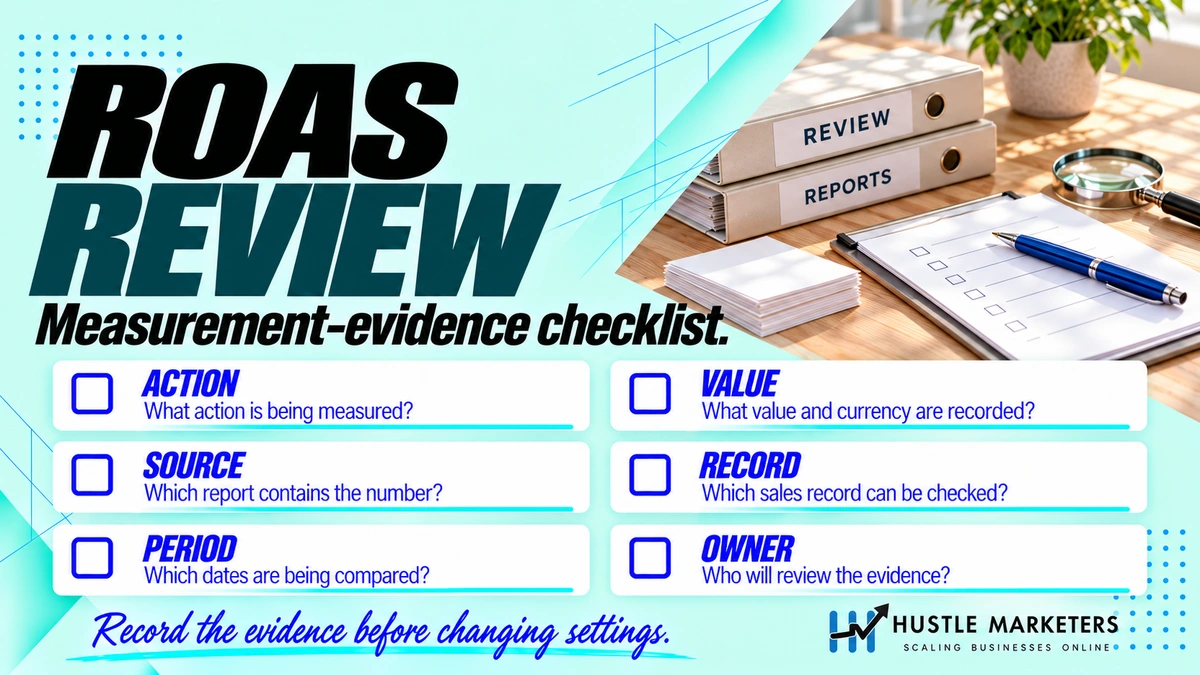
Run this before you touch a bid. It takes about thirty minutes and it decides whether any of the account’s historical data is usable.
- Open Goals, then Conversions. List every action, its status, primary or secondary, count setting, window and value.
- Flag every action with the same name or a near-duplicate. Two “Purchase” actions is a double-count waiting to be found.
- Check whether any action is both natively tagged and imported from GA4.
- Run Tag Diagnostics. Screenshot the issue list. Act on “Your conversions may be overcounted” first.
- Confirm the Google Ads and GA4 time zones match.
- Check auto-tagging is on.
- Confirm a Conversion Linker exists and fires on all pages.
- Check whether lead-type actions carry a real value or are all at zero.
- If the account imports offline conversions, confirm which API, and whether the integration sent requests inside the relevant 2026 window.
- Note the date of any Misconfigured status and discount the performance data from that period.
Findings from steps 2, 3 and 4 change what the account’s numbers mean, so document them before you report on anything. Our broader account checklist is at the Google Ads optimization checklist, and what we will and will not put in a client report is set out in the Reporting Integrity Standard.
Frequently asked questions
How long does Google Ads conversion tracking take to start working?
Google says the conversion action status should update “within 10 minutes” for conversions that happen frequently, and that if it has not after 24 hours “there’s an issue with your conversion tracking tag setup” (Google Ads Help 10029065). Imported offline conversions are different: “It takes about 3 hours for your imported conversion statistics to show up” (Google Ads Help 15081888).
Why does my conversion tag say unverified when I can see it firing?
Unverified means “the conversion tracking tag associated with this conversion action has not yet fired” (Google Ads Help 10029065). If you can see it firing, the usual causes are an unpublished Tag Manager container, a test that did not start from an ad click, or the tag firing on a different page from the one the action is configured for. Work the diagnostic tree above in order.
Can I use gtag and Google Tag Manager at the same time?
You can, and Google advises against leaving it that way: “If you’re using multiple tracking methods, for example, gtag.js and Google Tag Manager simultaneously, check for conflicts and consider consolidating to a single method, preferably Google Tag Manager to avoid tracking problems” (Google Ads Help 7548399). Running both is a common source of duplicate conversions.
Do I need enhanced conversions if I already have server-side tracking?
They solve different problems and they stack. Server-side tracking protects the event from browser restrictions and blockers. Enhanced conversions improve the match between that event and a Google ad click using hashed first-party data. Ecommerce accounts at scale usually want both.
Will offline conversion imports still work after the 2026 changes?
Yes, through the Data Manager API. Uploads via the Google Ads API for offline conversions and enhanced conversions for leads were blocked from 15 June 2026, with developers whose tokens sent no requests between January and June 2026 most at risk (Google Ads Help 16884284). Confirm which API your integration uses before month-end rather than after.
Why is my Google Ads conversion count higher than my Shopify orders?
Most often modelled conversions, which Google includes in the main column: “In the ‘Conversions’ column, Google reports both modeled and observed conversions” (Google Ads Help 10081327). Then check the count setting, then check for double tagging from a platform app, then check Tag Diagnostics for “Your conversions may be overcounted”.
Should new conversion actions be primary or secondary?
Secondary, for at least one full sales cycle. Confirm the count is sane and the value populates, then promote to primary and reset your CPA or ROAS target at the same time, because the number the algorithm optimises against has changed.
Does a transaction ID stop duplicate conversions completely?
No. Google’s own article is titled “Use a transaction ID to minimize duplicate conversions”, and it states the mechanism as “If there are 2 conversions for the same conversion action with the same transaction ID, Google Ads will know the second conversion is a duplicate” (Google Ads Help 6386790). No deduplication time window is published, so do not promise one.
How we put this guide together
Hustle Marketers is a US-focused paid media agency. Everything in this guide comes out of setting up and repairing conversion tracking on client accounts in ecommerce, local services and B2B lead generation, and out of inheriting accounts where the tracking was quietly wrong for months.
The research method, so you can judge it: we reviewed nineteen of the pages currently ranking on this topic and recorded what each covers, what it omits and what it states incorrectly. We then verified every load-bearing claim against Google’s own documentation and quoted it with the article number, including the places where Google’s docs do not support what the industry repeats. Where Google publishes nothing, this guide says nothing is published rather than filling the gap.
Specifically, and unusually for a page on this topic, we could not find Google documentation for any of the following, and have said so inline rather than guessing: a comparison of the Google tag against Google Tag Manager; a current GA4-framed statement on double counting; a parameter-level definition of ad_storage in the help centre; a Google Ads cross-domain conversion article; any current documentation of the “Include in Conversions” setting; default-currency or exchange-rate behaviour for conversion values; and any “what it replaced” language on the Data Manager API page.
Our standing rules on what goes into a client report are published at the Reporting Integrity Standard, and the benchmark data we publish, with sample size and methodology, is in the 2026 Performance Benchmark Report.
Google revises this documentation without notice and at least one of its pages contains an internal contradiction we have quoted rather than corrected. Re-check any figure before you put it in front of a client, and if you find something here that has gone stale, tell us and we will fix it and date the correction.
Want someone to just fix it?
Most accounts we take over have at least one of these: a duplicate conversion action, a lead form counting Every, a value that never populated, or an offline import that quietly stopped. None of them announce themselves. They just make the numbers wrong in a direction that flatters the account until someone does the division.
If you want the audit above run on your account, with the findings written down and the fixes specified, get in touch. If you would rather compare specialists first, we have also published the best Google Ads agencies for conversion tracking, our own listing included and marked as ours.
Related reading: why Google Ads, Meta and GA4 report different ROAS, enhanced conversions and Meta CAPI setup, Shopify server-side tracking, server-side GTM hosting, Google Consent Mode, Performance Max not performing, ROAS calculator.